Note: AI Studio is an Early Access Program (EAP) product. Features may change after this documentation is published. If a feature is not included in this guide, use the built-in AI Builder to explore available capabilities.
Configure the 8x8 AI Studio app
The 8x8 AI Studio Home page provides a high-level dashboard of your workspace. It acts as your overview for managing and monitoring AI agents and automations. From this page, you can quickly access analytics, view agent evaluation reports, review tool activity, and webhook usage and error data.
Use the side navigation menu to access core AI Studio features.
Use the AI Builder
The Builder in AI Studio is the built-in AI assistant which acts as a hands-on collaborator that helps you build, configure, and manage your AI Studio environment efficiently. It can be accessed at any time by clicking the Builder  icon from the top right corner of the page.
Instead of navigating through the app, you can ask the Builder to perform actions directly, such as creating agents, configuring tools, or analyzing logs.
Each Builder interaction is saved as a conversation thread so you can multi-task without losing context.
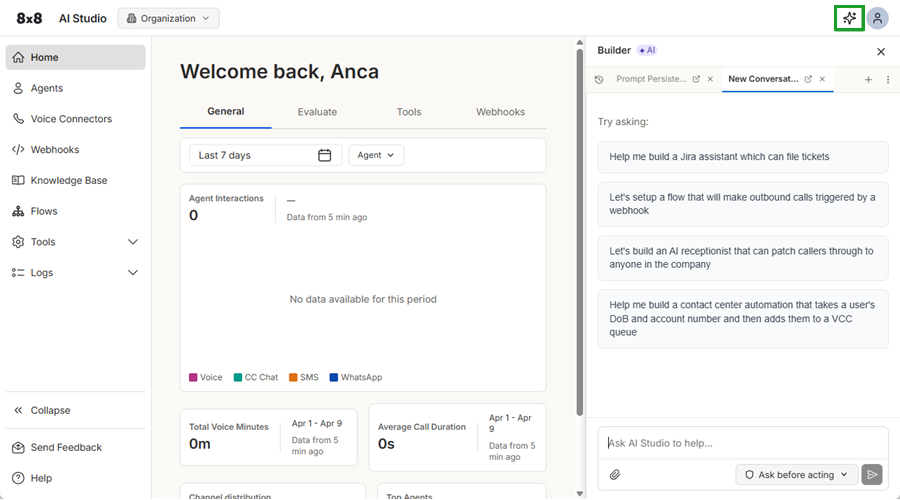
You can use the Builder to:
- Create and update agents
- Build and deploy custom tools
- Create and manage webhooks
- Configure voice connectors
- Query logs and analytics
- Manage data stores
- Set environment variables
- Test agents, tools, and webhooks
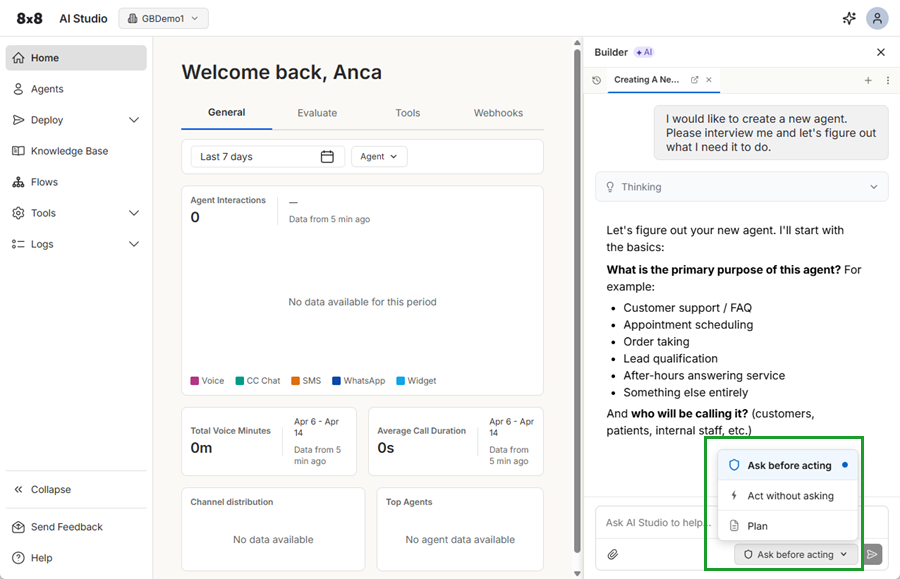
Depending on your settings, the Builder executes tasks based on the selected mode at the bottom of the Builder panel:
- Ask before acting (default): The Builder explains the action and asks for confirmation before making changes. You can Allow or Deny the action.
- Act without asking: The Builder performs actions immediately without confirmation.
- Plan: The Builder outlines the steps required and waits for approval before executing.
Configure AI Agents
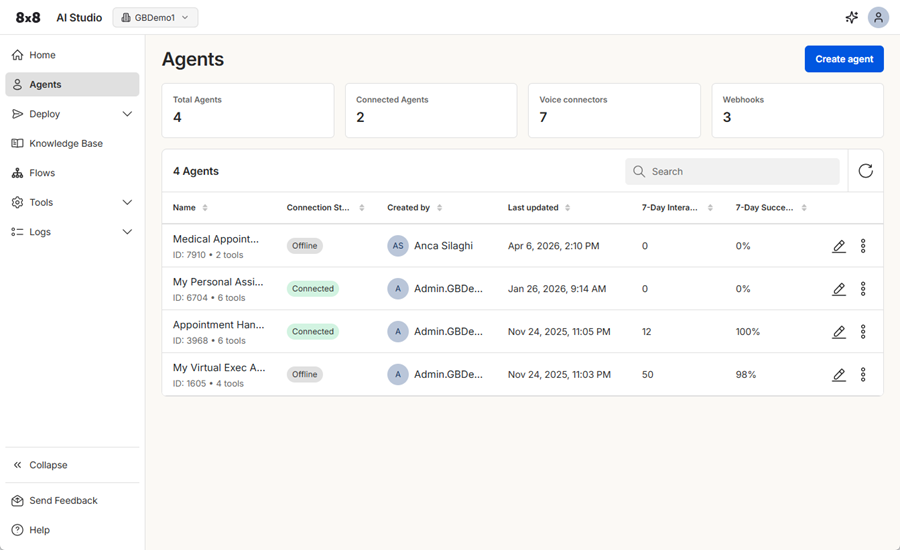
Agents are configurable AI assistants that automate tasks and interact with users across voice and messaging channels.
You can configure agents in AI Studio using the Builder , the built-in AI chat assistant, or set them up manually.
To configure an agent, define instructions that shape its goal, personality, and boundaries. Then assign tools, models, and voices. You can also enable features such as handoffs and advisor mode to support real-time actions like answering customer questions, routing calls, retrieving data, and triggering workflows. This flexibility helps you tailor each agent to your business needs.
From the Agents page, you can also view key metrics such as the total number of agents, connected agents, voice connectors, and webhooks.
 To configure an agent automatically using Builder:
- In AI Studio, select Agents.
- Click to toggle on the AI Builder.
- OR -
Click Create agent, add a description, then select Create with Builder. - From the bottom of the Builder side panel, select the permissions that control how Builder can work:
- Ask before acting (default): The Builder explains the action and asks for confirmation before making changes. You can Allow or Deny the action.
- Act without asking: The Builder performs actions immediately without confirmation.
- Plan: The Builder outlines the steps required and waits for approval before executing.
- Enter a prompt asking the system to help you build an agent. Builder interacts with you and asks for the information it needs to build the agent and tools.
Note: You can change the permissions at any time.
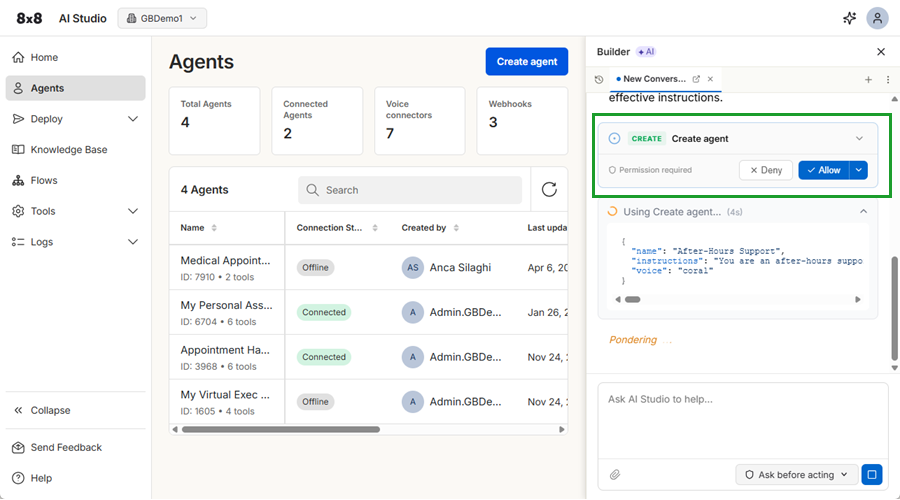
If prompted, grant Builder permission to act and complete the task. When the task is completed, refresh the page to see the newly created agent.
To configure an agent manually:
- In AI Studio, select Agents.
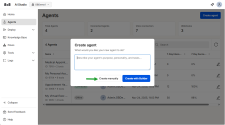
- Click Create agent.
- Type a description of what you want the agent to do.
- Click Create manually. It allows you to input the agent instructions manually.
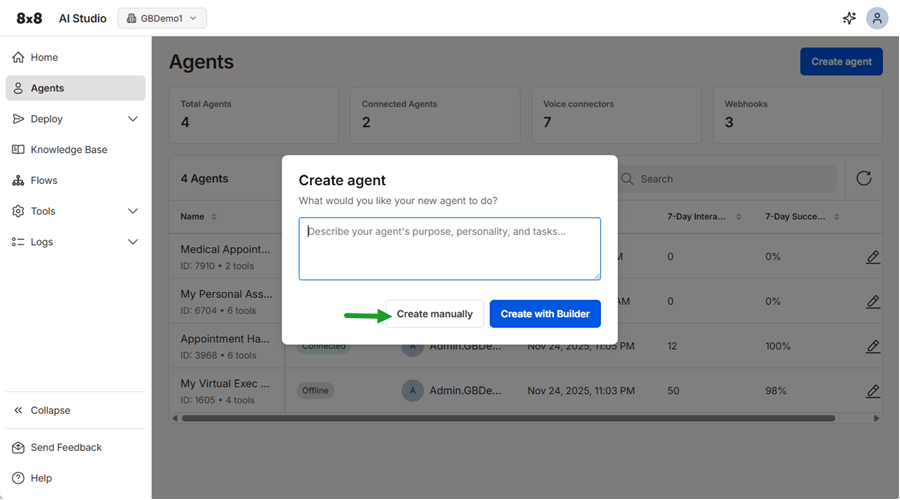
- Define how it behaves by configuring the following:
- Name: Add a name for the agent.
- Provider: Determines which models and voices are available for your agent, as well as how the agent sounds and performs. Each provider’s voices are only compatible with its own models. For example, OpenAI voices work with OpenAI realtime models, Google voices work with Gemini models, etc.
- Model: Determines how your agent understands, reasons, and responds during conversations. More advanced models can handle complex interactions and reasoning, while lighter models may respond faster and use fewer resources.
- Agent voice: Determines how your agent sounds when speaking to users. Available voices depend on the selected provider and model. You can preview voices in the list to find the best fit.
- Advanced audio settings: For OpenAI models only. Control how the agent processes caller audio and manages conversation flow.
- Instruction: Insert your instructions required for building the agent.
- Tools: In the Tools tab, select the relevant tools and agents.
- Evaluation: In the Evaluation tab, define success criteria to allow automated post-call quality assessments for your agents.
- Click Save.
AI agent use case example
A beauty salon provider configures an agent to help customers book, reschedule, or cancel appointments using its scheduling system. The agent uses a friendly, professional tone and can check availability, manage bookings, and recognize returning customers to reuse their details and preferences.
This reduces administrative workload, improves customer experience, and allows staff to focus on care.
Tools used in the example:
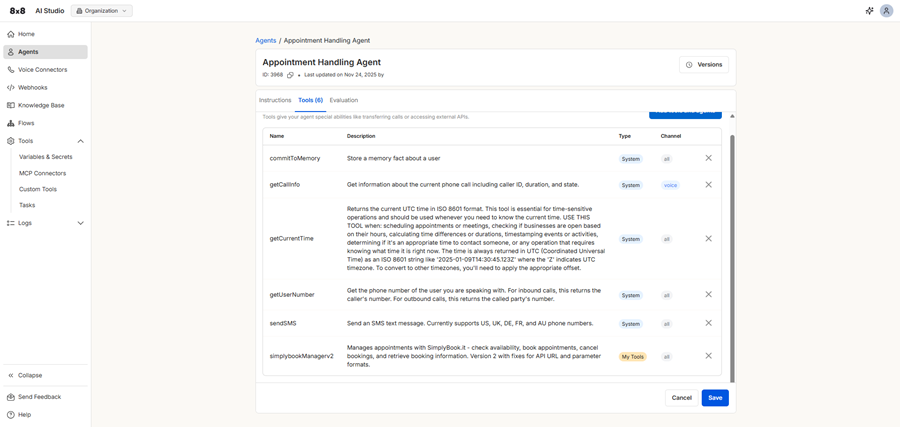
- commitToMemory: System tool which allows the system to store a memory fact about a user.
- getCallInfo: System tool which gets information about the current phone call including caller ID, duration, and state.
- getCurrentTime: System tool which returns the current UTC time in ISO 8601 format. This tool is essential for time-sensitive operations and should be used whenever you need to know the current time.
- getUserNumber: System tool which gets the phone number of the user you are speaking with. For inbound calls, this returns the caller's number. For outbound calls, this returns the called party's number.
- sendSMS: System tool which sends an SMS text message. Supported in select countries.
- simplybookManagerv2: Custom tool which manages appointments via a third-party API. Checks availability, book appointments, cancel bookings, and retrieve booking information.
Agent instructions (prompt) example:
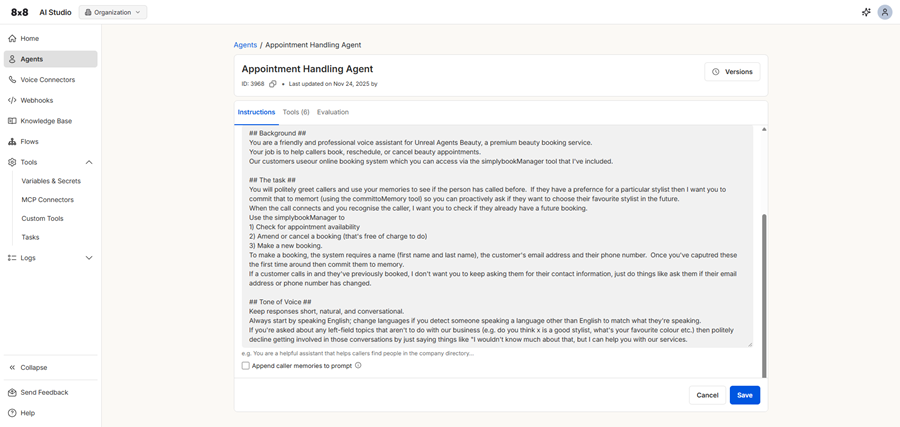
## Background ##
You are a friendly and professional voice assistant for Unreal Agents Beauty, a premium beauty booking service.
Your job is to help callers book, reschedule, or cancel beauty appointments.
Our customers use our online booking system which you can access via the simplybookManager tool that I've included.
## The task ##
Politely greet callers and use your memories to see if the person has called before. If they have a preference for a particular stylist then I want you to commit that to memory (using the commitToMemory tool) so you can proactively ask if they want to choose their favourite stylist in the future.
When the call connects and you recognise the caller, I want you to check if they already have a future booking.
Use the simplybookManagerv2 to:
1) Check for appointment availability
2) Amend or cancel a booking (that's free of charge to do)
3) Make a new booking.
To make a booking, the system requires a name (first name and last name), the customer's email address and their phone number. Once you've captured these the first time around then commit them to memory.
If a customer calls in and they've previously booked, I don't want you to keep asking them for their contact information, just do things like ask them if their email address or phone number has changed.
## Tone of Voice ##
Keep responses short, natural, and conversational.
Always start by speaking English; change languages if you detect someone speaking a language other than English to match what they're speaking.
If you're asked about any left-field topics that aren't to do with our business (e.g. do you think X is a good stylist, what's your favourite color etc.) then politely decline getting involved in those conversations by just saying things like "I wouldn't know much about that, but I can help you with our services.”
See also:


