Note: AI Studio is an Early Access Program (EAP) product. Features may change after this documentation is published. If a feature is not included in this guide, use the built-in AI Builder to explore available capabilities.
Set up tools
From the Tools menu in AI Studio, you can view, create, test, and manage all available tools. These tools enable agents to perform actions, retrieve data, and interact with external systems during conversations.
Tools extend the capabilities of your AI agent beyond natural language responses by allowing it to execute predefined operations such as sending messages, retrieving customer data, or updating records.
AI Studio provides both system tools (built-in, platform-provided) and custom tools (user-created), giving you flexibility to tailor agent behavior to your use case.
Tools are assigned to AI agents from the Tools tab in the Agents menu.
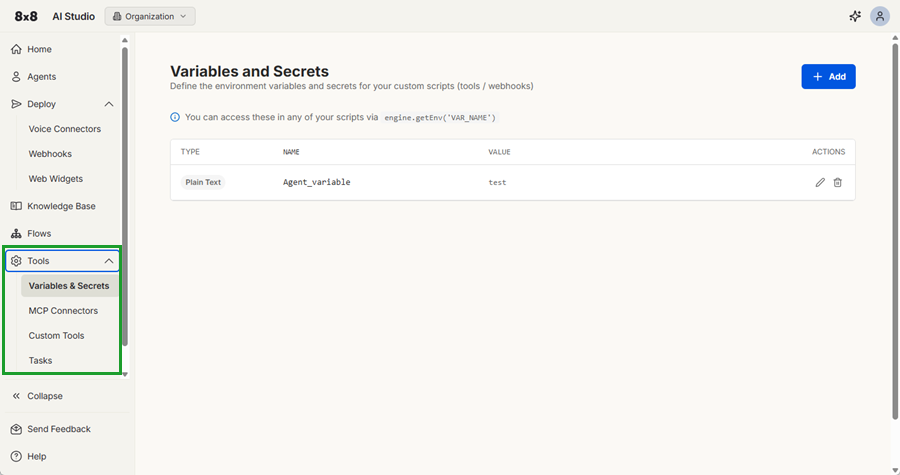
To access tools:
- In AI Studio, select Tools.
- Select an option from the expanded list:
- Variables & Secrets: Store and manage configuration values such as API keys, tokens, and environment variables for use in tools and webhooks.
- MCP Connectors: Connect AI Studio agents to external MCP servers to access third-party tools and extend agent capabilities.
- Custom Tools: Create and manage user-defined tools that allow agents to perform specific actions, call APIs, and interact with external systems.
- Tasks: Define and manage reusable task workflows that agents can execute to automate actions and streamline interactions.
Manage variables and secrets
Environment variables and secrets securely store and manage configuration values used by your custom tools and webhooks.
Variables and secrets allow you to:
- Store API keys, tokens, and passwords securely.
- Define configuration values such as URLs, timeouts, and feature flags.
- Reuse values across multiple tools and webhooks.
- Keep sensitive data encrypted and tenant-isolated.
- By using environment variables, you avoid hardcoding sensitive information directly in your code, improving both security and maintainability.
Notes:
- Do not hardcode secrets in your code.
- Ensure variables are configured with values, otherwise tools cannot read them.
To add a variable or secret:
- In AI Studio, select Tools > Variables & Secrets.
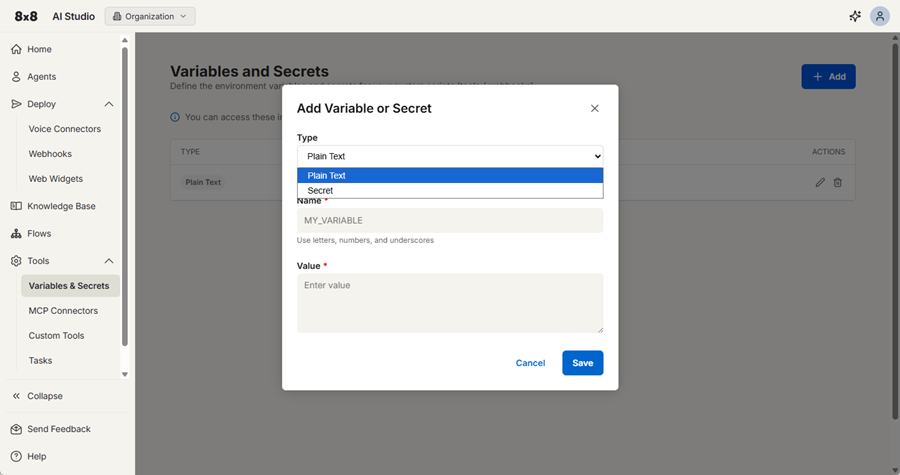
- Click the + Add button from the top right.
- Select the type of variable or secret you want to add:
- Plain Text: Use for non-sensitive configuration such as URLs or timeouts. These values can be accessed by your tools and webhooks during execution.
- Secret: Use for sensitive data such as API keys and tokens. These values are encrypted and cannot be read directly.
- Add a name using letters, numbers, and underscores.
- Enter a value for your variable or secret.
- Click Save.
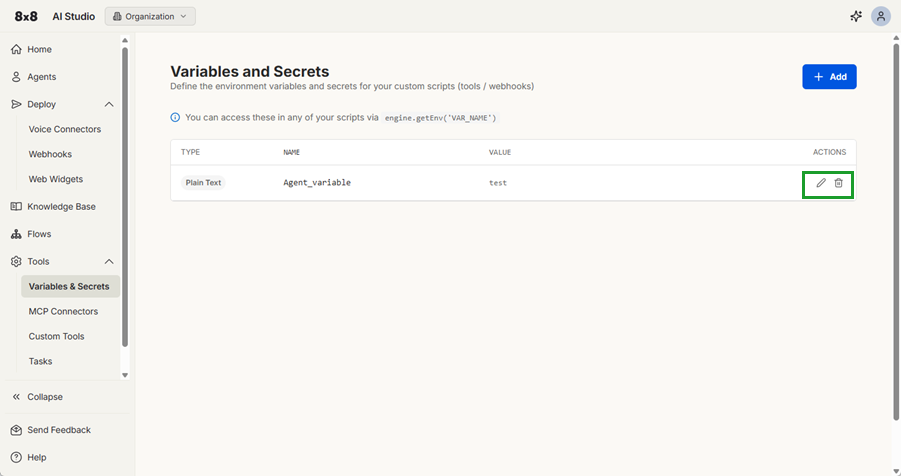
You can edit or delete variables using the icons next to each variable or secret created.
Manage MCP Connectors
MCP (Model Context Protocol) connectors allow you to connect your AI Studio agents to external MCP servers. This integration extends your agents’ capabilities by giving them access to tools hosted on third-party services.
MCP connectors are assigned to AI agents from the Tools tab in the Agents menu.
To add an MCP connector:
- In AI Studio, select Tools > MCP Connectors.
- Click + Add Connector.
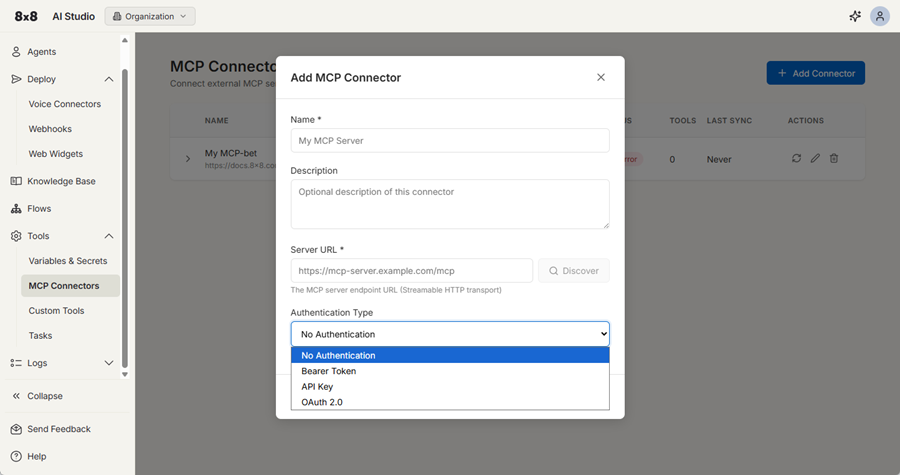
- Add the name for the connector.
- (Optional) Add a description.
- Enter the MCP server endpoint URL.
- Select an authentication type from the list:
- No Authentication: Use for public MCP servers.
- Bearer Token: Use for servers that require an API token.
- API key: Use for servers that require a custom header (for example, X-API-Key).
- OAuth 2.0: Use for services that require user authorization.
- Click Add Connector.
Note: OAuth 2.0 connectors must be created using the web UI because they require a browser-based authorization flow. If using OAuth 2.0, complete the authorization flow in your browser.
Additional MCP connectors options
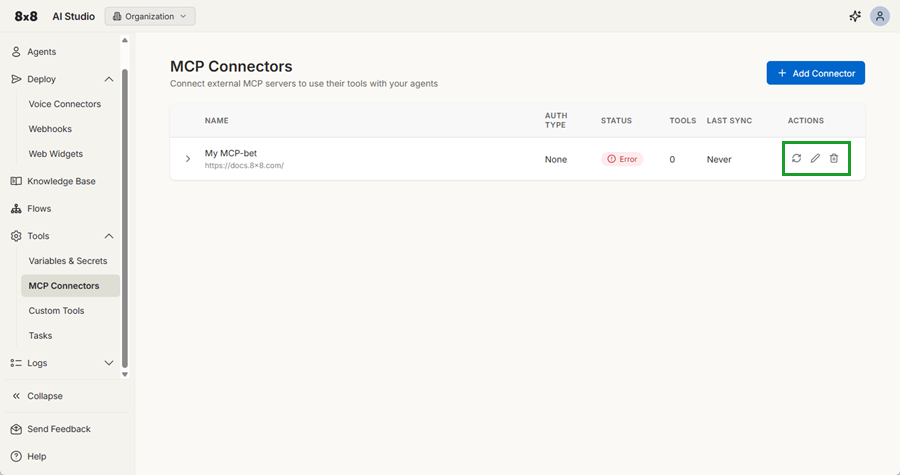
Each MCP connector includes options to:
- Sync : Connect to the MCP server to fetch and update the available tools for this connector.
- Edit : Update the connector’s name, server URL, or authentication settings.
- Delete : Delete the connector and its associated tools from AI Studio.
Add existing MCP connectors to agents from the Tools tab when editing an agent from the Agents menu.
Manage custom tools
Custom tools are JavaScript or TypeScript functions that you create to extend what your AI agents can do. You can use custom tools to call external APIs, transform data, access data stores, send messages, and perform other automated actions.
Tools are assigned to AI agents from the Tools tab in the Agents menu.
To add a new tool:
- In AI Studio, select Tools > Custom Tools.
- Click Add tool.
- Build the script for your tool and include a name for easy identification.
- (Optional) Click Test then run it to confirm it works as expected.
- Click Save & Deploy.
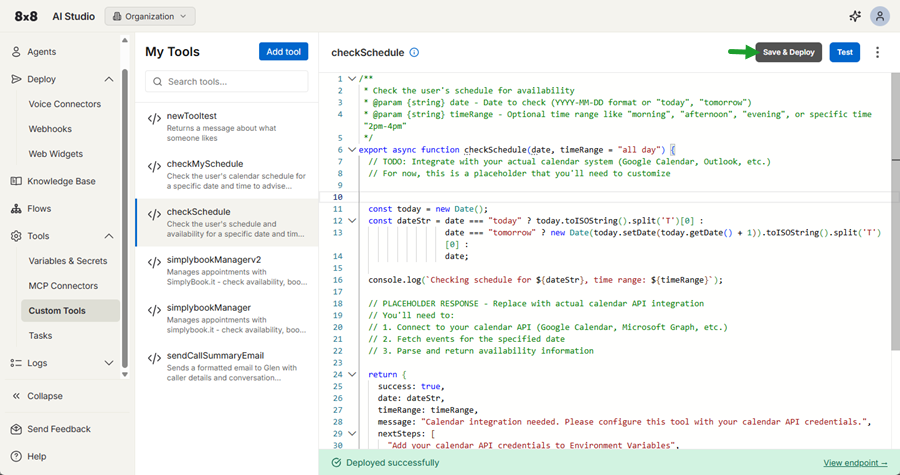
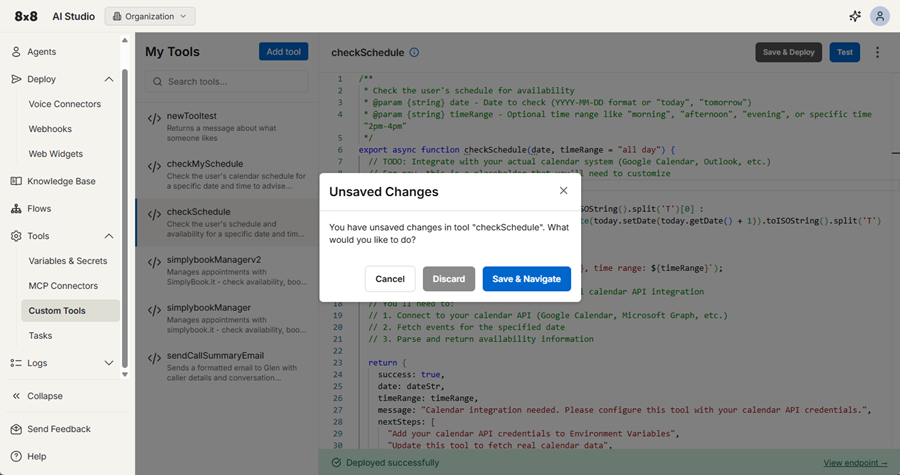
To discard your changes to a script select another feature and click Discard when prompted.
Additional custom tools options
Each custom tool includes additional options available when clicking the more options icon from the top right:
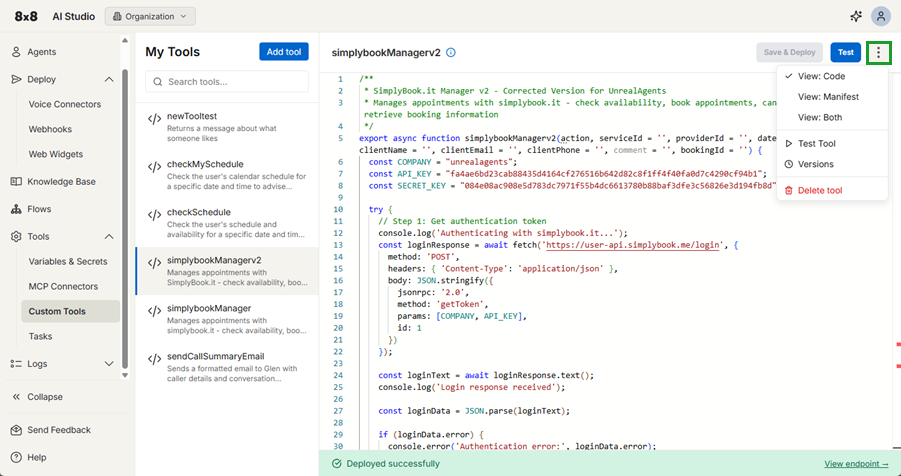
- View: Code: Display the tool’s source code.
- View: Manifest: View the tool’s parameter schema and configuration.
- View: Both: Display the code and manifest in separate panels next to each other.
- Test tool: Run the tool with sample parameters to verify its behavior and output.
- Versions: View and manage previous versions of the tool.
- Delete tool: Permanently remove the custom tool from AI Studio.
Manage tasks
Tasks allow you to schedule webhooks to run automatically at specific times or intervals. Tasks allow you to:
- Run webhooks automatically on a defined schedule
- Automate recurring workflows and processes
- Trigger time-based actions without user input
- Schedule one-time or repeated executions
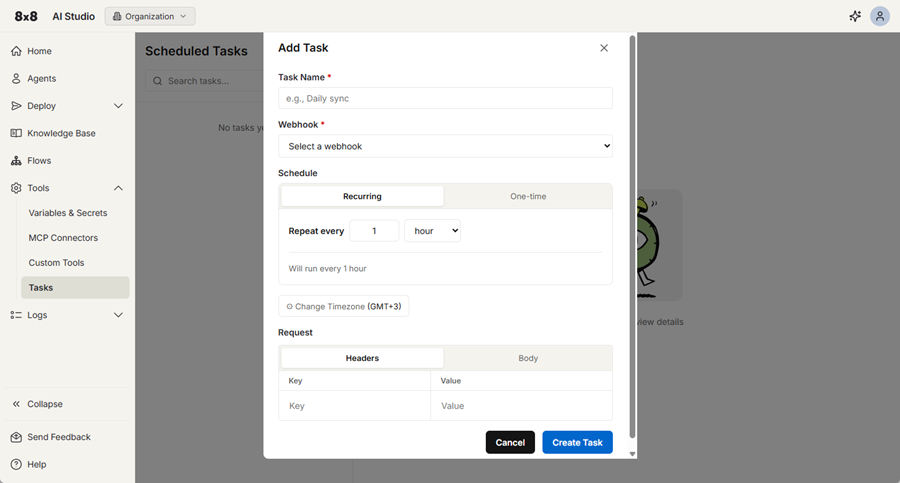
To create a scheduled task:
- In AI Studio, select Tools > Tasks.
- Click + Add Task.
- Enter a name for the task.
- Select a webhook.
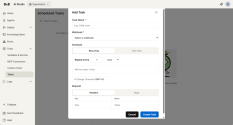
- Choose a schedule type:
- One-time: Run once at a specific date and time, then become inactive
- Recurring: Run repeatedly based on a defined interval or schedule. They can be:
- Duration-based: Run every set number of minutes or hours
- Time-based: Run on specific days, weeks, months, or years at a defined time
- Configure the schedule details.
- (Optional) Add request headers or a request body.
- Click Save.