Note: AI Studio is an Early Access Program (EAP) product. Features may change after this documentation is published. If a feature is not included in this guide, use the built-in AI Builder to explore available capabilities.
Access the Knowledge Base
The Knowledge Base (Data Stores) in AI Studio lets your agents search and use information from documents and web content during conversations. The data is collected in data stores, a searchable collection of uploaded files and crawled web pages. When you add content to a data store, AI Studio processes it automatically so agents can find relevant information when responding to questions.
The Knowledge Base enables you to:
- Store documents for agent reference.
- Index web content from URLs.
- Search content using semantic search.
- Ground agent responses in your source material.
- Sync files from cloud storage services.
- Keep knowledge sources current through re-crawling and sync workflows.
To create a data store:
- In AI Studio, select Knowledge Base.
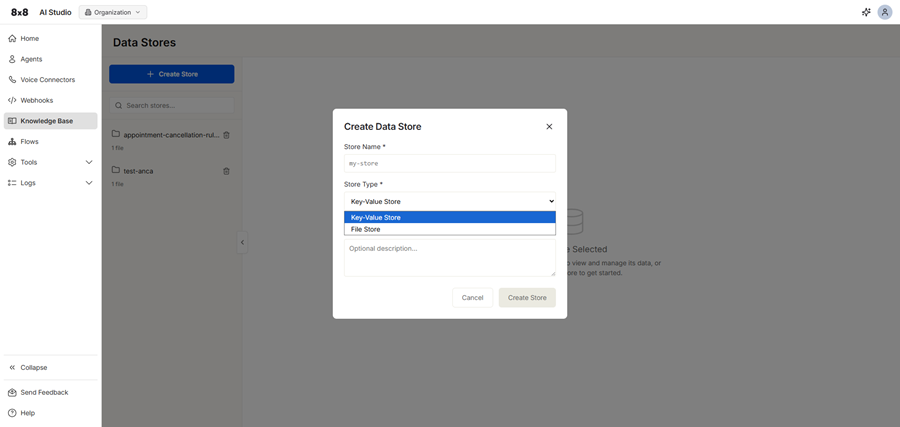
- Click + Create Store.
- Add a relevant store name.
- Select the store type:
- Key-Value Store: Use when you need to store and retrieve structured data during or across interactions.
- File Store: Use when your agent needs access to reference material or large amounts of unstructured content.
- (Optional) Provide a description of the store.
- Click Create Store.
Note: You cannot rename a data store after creation.
You can upload files and keys at any time by selecting the store and adding new data.
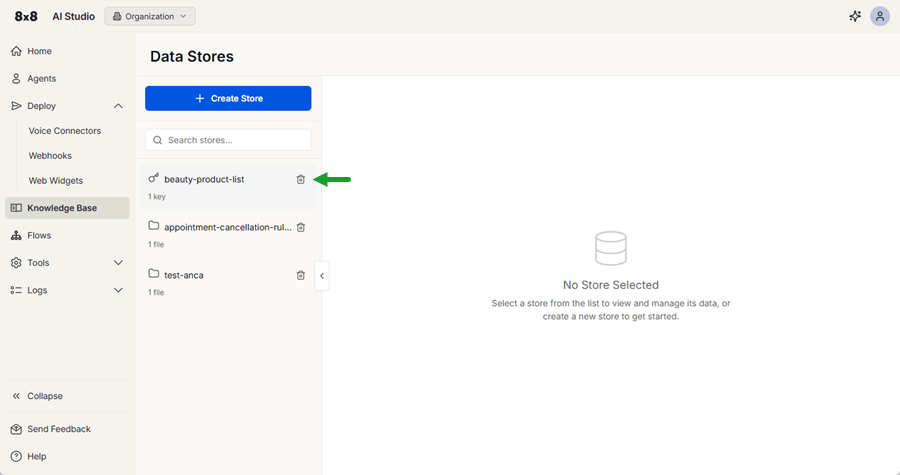
To delete a store, select it from the list, then click the Delete store  icon next to the store and confirm the deletion.
How the Knowledge Base works
The Knowledge Base (Data Stores) connects your content directly to your agent.
You add documents or web content to a data store, and AI Studio processes it for semantic search. Once assigned to an agent, this content becomes available during conversations.
When a user asks a question, the agent searches the data store in real time and uses the most relevant information to generate an accurate, context-aware response instead of relying only on its base model knowledge.
Supported data store types
You can create two types of data stores in the Knowledge Base:
- Key-Value Store: Use when you need to store and retrieve structured data during or across interactions.
- File Store: Use when your agent needs access to reference material or large amounts of unstructured content.
| Data store type | Data type | Purpose | Access method | Processing | Persistence | Search capability |
|---|---|---|---|---|---|---|
| Key-Value Store | JSON values (up to 25KB per value) | Store structured data for quick access. | Direct key lookup. | Instant read and write. | Ephemeral or persistent | Key-based retrieval only. |
| File Store | Files (PDF, DOCX, TXT, code, up to 512MB) | Store documents for knowledge and search. | Semantic and AI-powered search. | Processed asynchronously (10 to 60 seconds). | Persistent | Semantic search and AI-generated answers. |
Search the Knowledge Base
After you add content to your Knowledge Base, you can search the data store to find relevant information. AI Studio supports two types of search, depending on how you want to use the results.
| Search type | Best for | What it returns | Result |
|---|---|---|---|
| Vector Search | Reviewing source material or finding the most relevant content. | Raw text passages from documents. | Shows exact source material, with excerpts grouped by file. |
| AI Search | Getting a direct answer to a question and summarizing relevant content. | A generated answer based on document content. | Uses only data store content and does not generate unsupported answers. |
Manage data store files in Knowledge Base
You can manage the resources in your Data Stores to ensure agents assigned to the stores have access to the latest information.
Select a data store to view available management options. How you access these options depends on the store type.
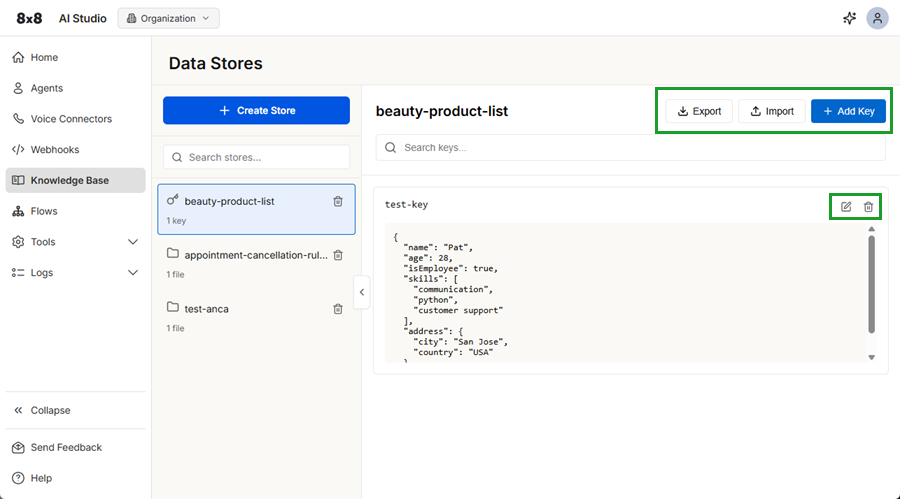
For Key-Value Stores, you can:
- Search keys
- Add keys
- Import keys
- Edit keys
- Export keys
- Delete keys
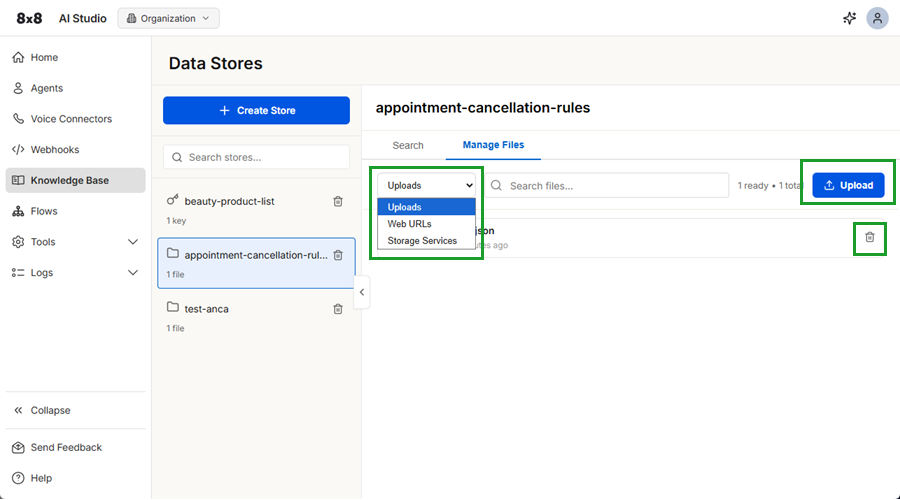
For File Store types, use the Manage files tab to:
- View and add data:
- Uploads: Manage files you have uploaded directly to the data store.
- Web URLs: Manage web pages that have been added and crawled.
- Storage Services: Manage files synced from connected external services, such as Dropbox.
- Delete files
- Search the selected store