Users access to a subset of data based on their roles and permissions (Beta)
Note: This feature is currently in Beta. To request activation, contact your 8x8 Account Manager.
Admins can manage user access to analytics and recording data based on roles (Analytics Supervisors and Essentials) and assignments (User Groups, Call Queues, and Ring Groups) through the Role-based Access Control (RBAC) in the 8x8 Admin Console. Users can only view specific analytics and recording data subsets. For example, supervisors can see recordings pertaining only to the groups they oversee and their associated members.
Moreover, new User Group-specific reporting is also available, organizing data according to user groups created by admins in the 8x8 Admin Console. Previously, users had access to all PBX Private Branch Exchange—a private telephone network used within a company., Call Queue, and Ring Group data, while specific reports (Essentials or Supervisors) were restricted exclusively to users with particular licences.
Role-Based Access Control management
Role-Based Access Control (RBAC) in 8x8 Work manages user permissions for analytics and reporting data according to their roles (Analytics Supervisors and Essentials) and assignments (associated with User Groups, Call Queues, and Ring Groups), ensuring they can only access necessary information.
For example, one role might allow full access to all the analytics and recording data from Analytics for 8x8 Work, while another is restricted to a specific subset of data. RBAC now offers system-defined roles and the ability to create custom roles with specific scopes to cater to different needs.
Examples of use cases:
- Business units operating independently within a global corporation - Supervisors from a unit that functions separately can access only data from their unit without access to information from other units.
- Car dealership - The owners desire visibility across all brands; however, dealership A must not have access to analytics or recordings from dealership B.
- Leadership privacy - To protect the confidentiality of sensitive data, allow access to call recordings without executive extensions for a specific user group.
User Groups feature in Analytics for 8x8 Work
Admins can create User Groups to further restrict data access. User Groups enable customer admins to restrict the scope of access within specific role assignments, offering tailored data access, such as recording data. For example, supervisors can view recordings only for their responsible groups and members.
Note: Customer admins can assign users to a single User Group through any user administration flow (8x8 Admin Console).
When configuring an RBAC assignment for a specific supervisor role (with access permissions granted to a restricted set of data), admins must set up two components:
- Role: Refers to permissions for functionalities, such as using Analytics reports (including Analysis Essentials and Analysis Supervisors).
- Scope: Defines how these permissions apply to data, such as company-wide or specific PBXs, or user groups (User Group, Ring Group, and Call Queue).
General Rules for Role-Based Access Control for Analytics for 8x8 Work
Access control based on User Groups allows customers to define the scope of permissions, such as company-wide or specific PBXs, or user groups.
-
Supervisors can be assigned permission to access data with a combination of multiple scope types (similar to Contact Center Analytics permissions):
- User Groups - allowing access to data relating to calls from or to any member associated with those groups:
- Call Queues
- Ring Groups
-
Upon gaining access to User Groups, Queues, or Ring Groups, the user obtains access to:
- ALL historical activity data of those groups and queues, regardless of who the members are.
- ALL ongoing activity data of those groups and queues, regardless of who the members are.
Note: Currently, customers who enable granular RBAC can only access the reports listed below. Due to ongoing modernization efforts, other reports are currently hidden.
- Company Summary
- Extension Summary
- Call Detail Records (CRDs)
- Ring Group Summary
- Call Quality trend
Access control to the Analytics for 8x8 Work based on roles and permissions
As an 8x8 Work administrator, you can manage user access to reporting data based on predefined permissions and access groups. You can grant full access or limit users to a specific access group, call queue, and/or ring group scope.
Control user access to reporting data
You can control user access to reporting data by granting full access or limiting users to a specific access group, call queue, and/or ring group scope.
To manage user access to Analytics for 8x8 Work reports
- Log in to 8x8 Admin Console.
-
Go to Home > Work Groups
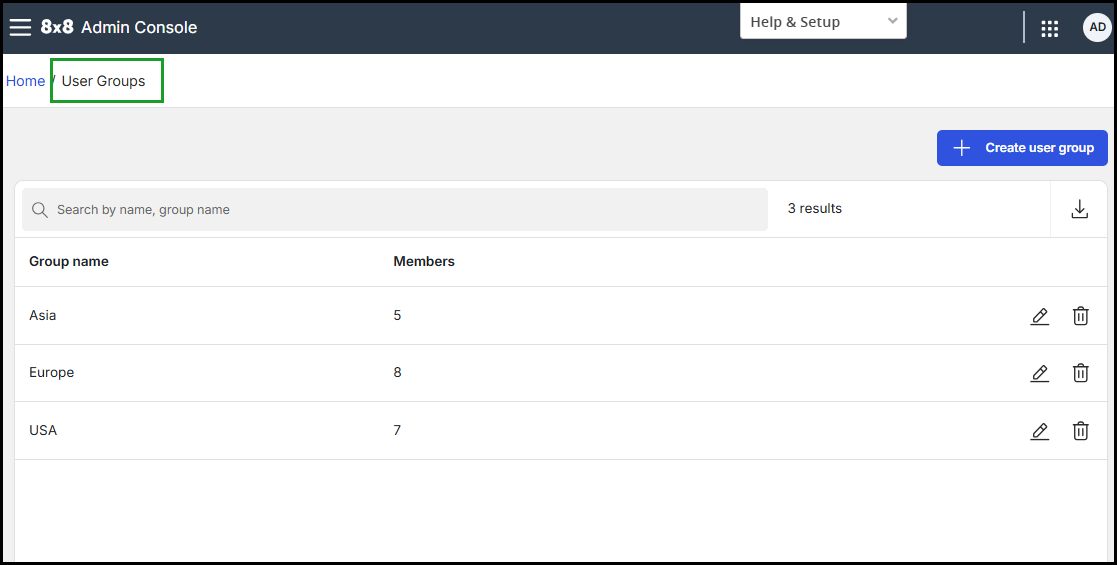
 > User Groups and check that the access group you want to use is displayed in the User Groups list. If not, create the user group(s). To learn how to create a user group, see 8x8 Admin Console - Create user groups.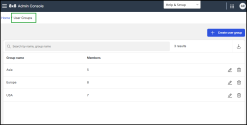
-
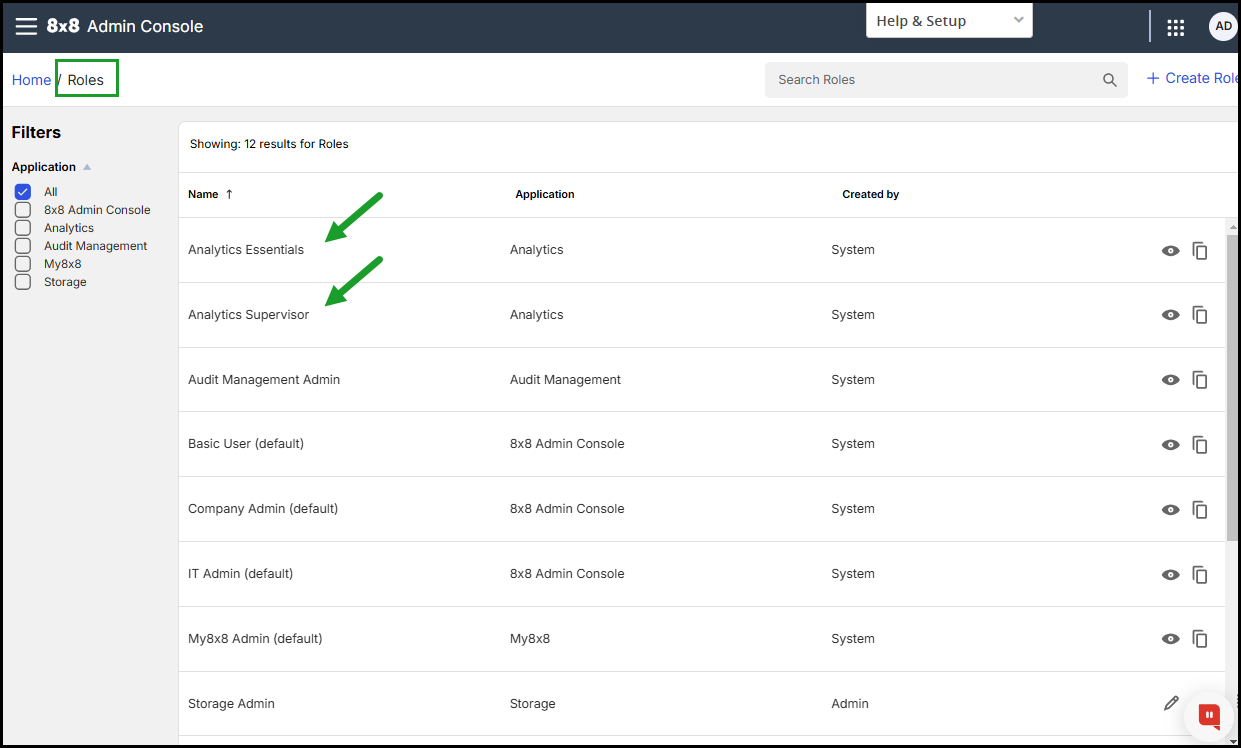
Go to Home > Permissions & Roles
 > Roles and check if both Analysis Essentials and Analytics Supervisors roles are created and are displayed in the 8x8 Admin ConsoleRoles list. To learn more about defining custom roles, see 8x8 Admin Console - Role-based access control.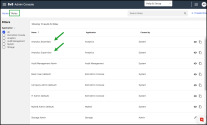
-
Go to Home > Permissions & Roles
> Assignments and assign the Analytics Supervisor role to the desired user. Select full-access scope or limit the user to a specific user group, call queue, and/or ring group scope. To learn more about assigning roles, see 8x8 Admin Console - Assign roles.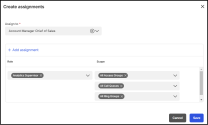
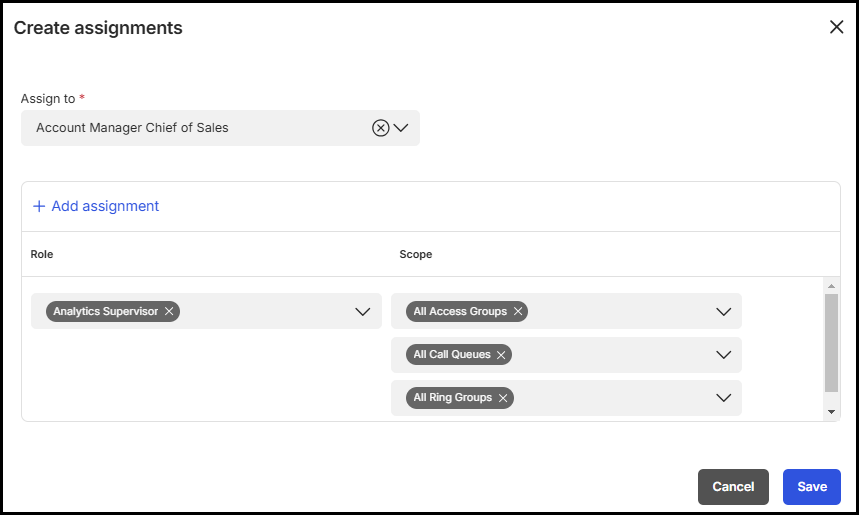
To grant full access to the 8x8 Analytics for Work reports:
- From the 8x8 Admin Console menu, go to Home > Permissions & Roles > Assignments.
- In the Role Assignments page, click +Create Assignment on the upper-right corner.
- In the Create assignments pop-up, select the user from the Assign to list.
- Under Role, select the Analytics Supervisor role from the list.
-
Under Scope, select All User Groups, All Call Queues, and All Ring Groups scopes from the respective scope list.
- Click Save. View the user you assigned with a new role in the assignments list.
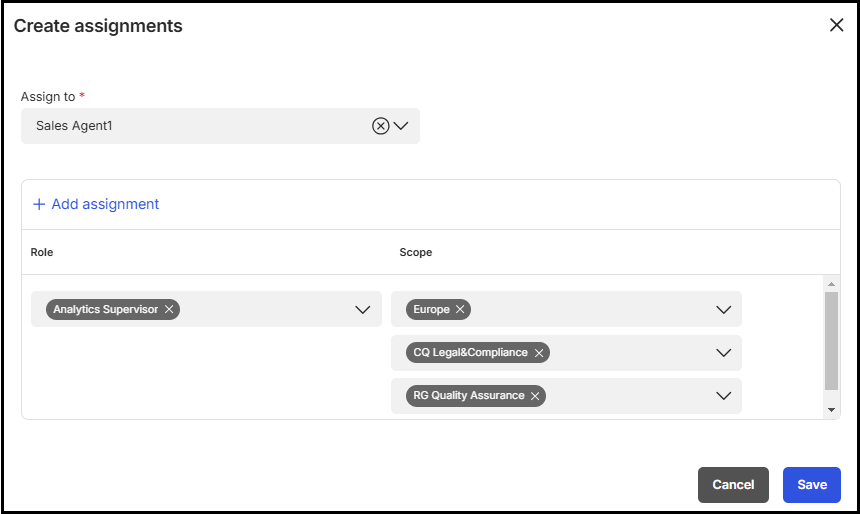
To grant restricted access to the 8x8 Analytics for Work reports:
- From the 8x8 Admin Console menu, Go to Home > Permissions & Roles > Assignments.
- In the Role Assignments page, click +Create Assignment on the upper-right corner.
- In the Create assignments pop-up, select the user from the Assign to list.
- Under Role, select the Analytics Supervisor role from the list.
-
Under Scope, choose the scopes to which you wish to grant access from the corresponding scope list.
- Click Save. View the user you assigned with a new role in the assignments list.
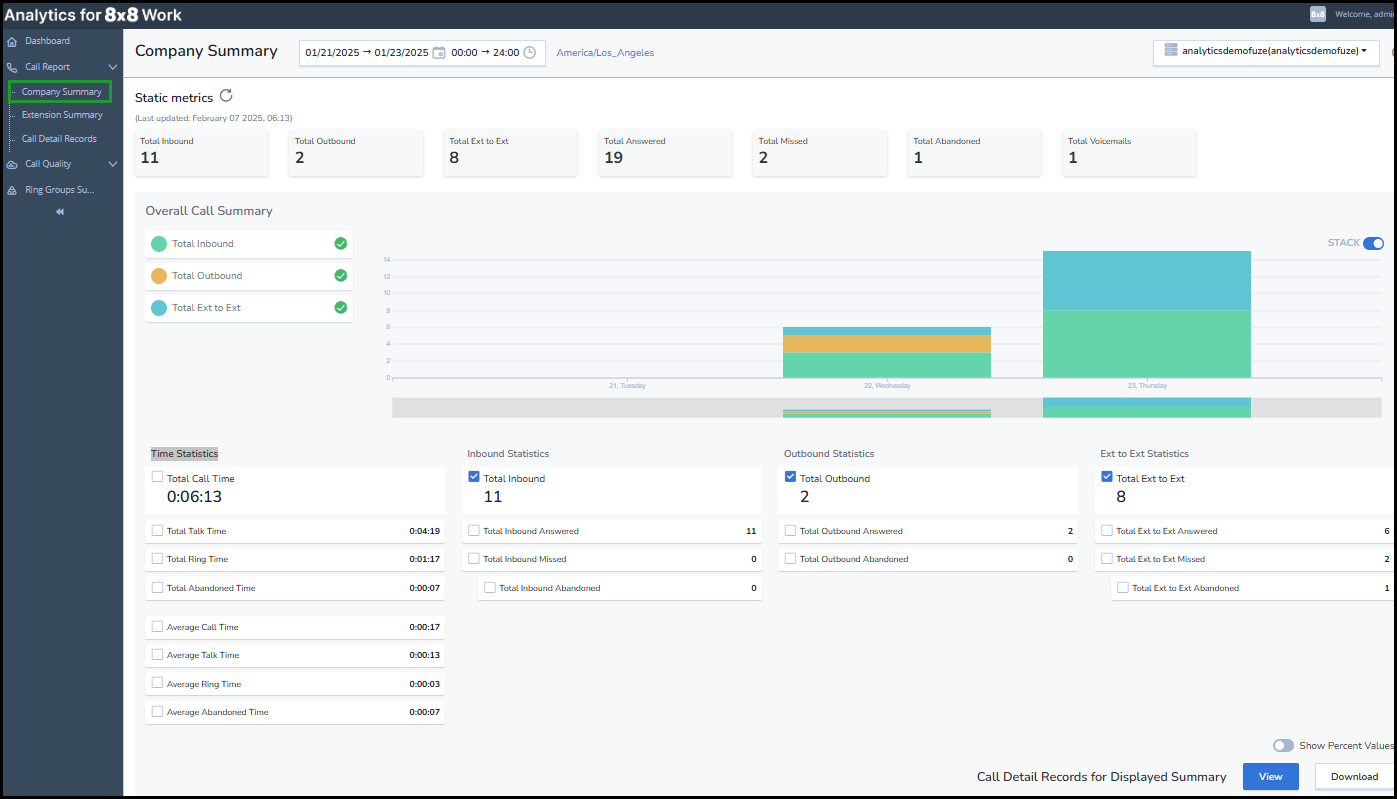
 Access to the Company Summary report
The Company Summary report does not filter the displayed data, presenting all metrics to users regardless of their access permissions, whether full or limited.
To access the Company Summary report:
- Login to Analytics for 8x8 Work.
- From the menu, go to Call Reports
 > Company Summary.
 - In the upper-right corner, select the preferred PBX from the available PBXs to which the user has access rights.
-
Customize report settings by selecting the desired period and time zone.
 Access to the Extension Summary report
The Extension Summary report offers a comprehensive overview of call activity for any extension user within the phone system. Users can see various results depending on their full or limited access permissions. Restricted users can access less data than those with full access.
To access the Extension Summary report:
- Login to Analytics for 8x8 Work.
- From the menu, go to Call Reports > Extension Summary
- In the upper-right corner, choose the desired PBX from the PBXs to which the user has data access rights.
- Customize report settings by selecting the desired time period and time zone.
-
Customize report settings:
- Select the desired time period and time zone.
-
Select the date you want to see in the report:
-
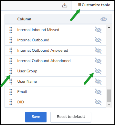
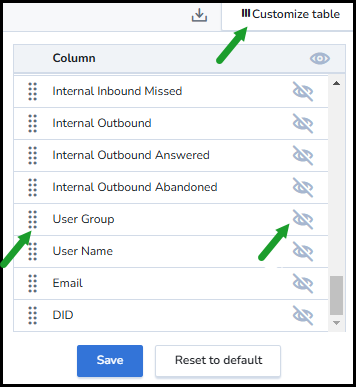
Click Customize Table
 in the upper-right corner. From the list that appears, select User Group and click
  to make this column visible in the report. You can click
  and move it up or down to your desired position.
Note: By default, the User Group column is hidden in the table, and you need to locate it at the bottom of the list and make it visible.
- Click Save.
-
-
In the Group by list, select how the data display:
- Extension to merge all summaries into one summary row.
-
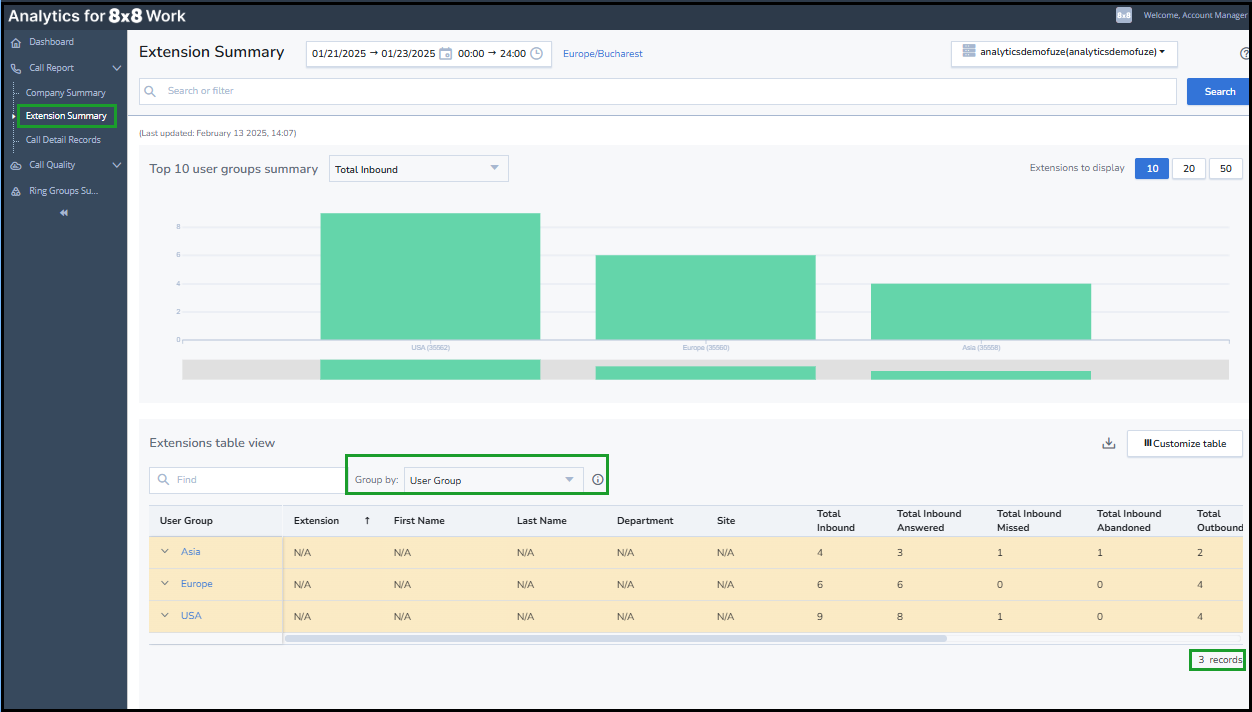
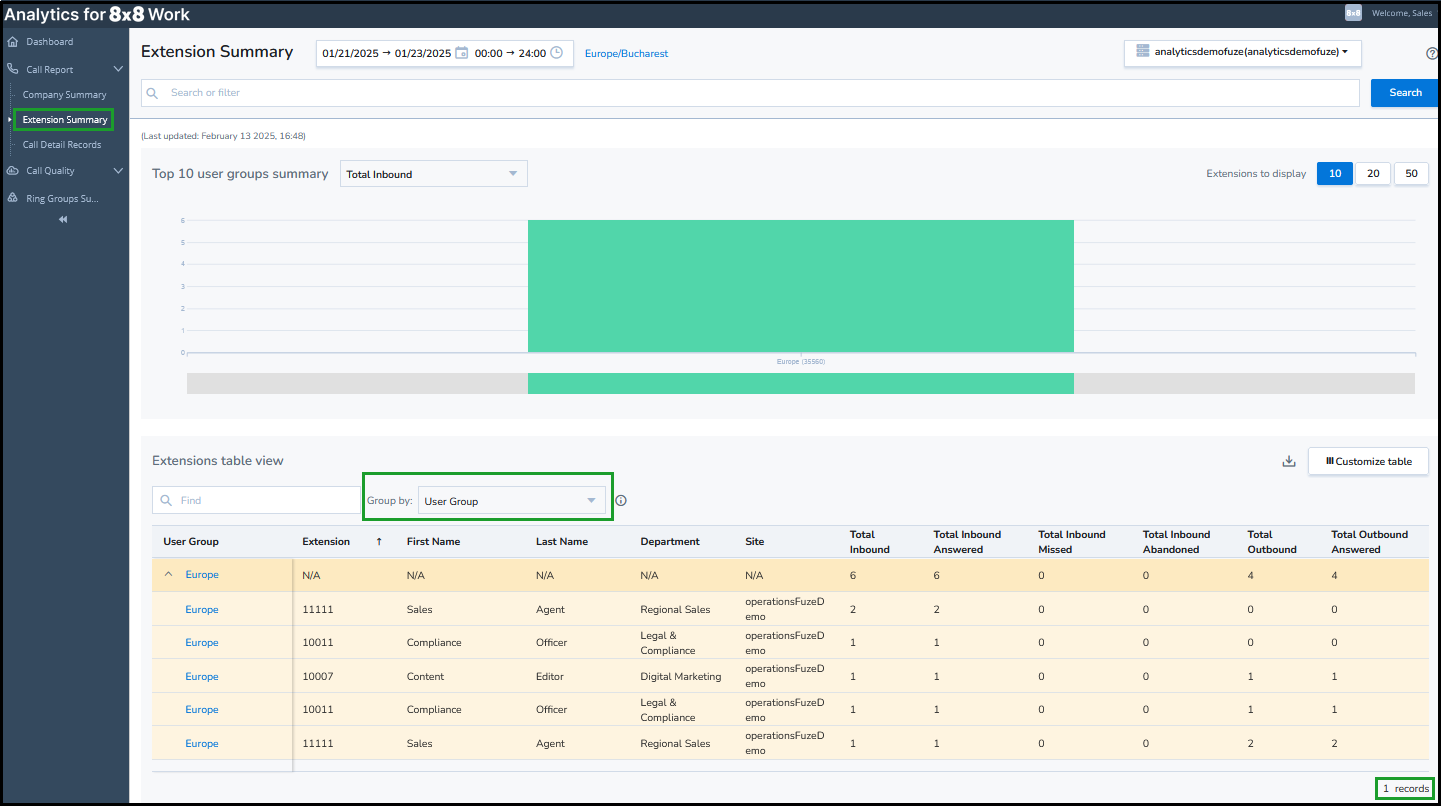
User group to aggregate the information for all users within that group, which will be displayed in the expanded view.
To learn more about the Summary Report, see 8x8 Analytics for 8x8 Work - Access the Extensions Summary report (Legacy).
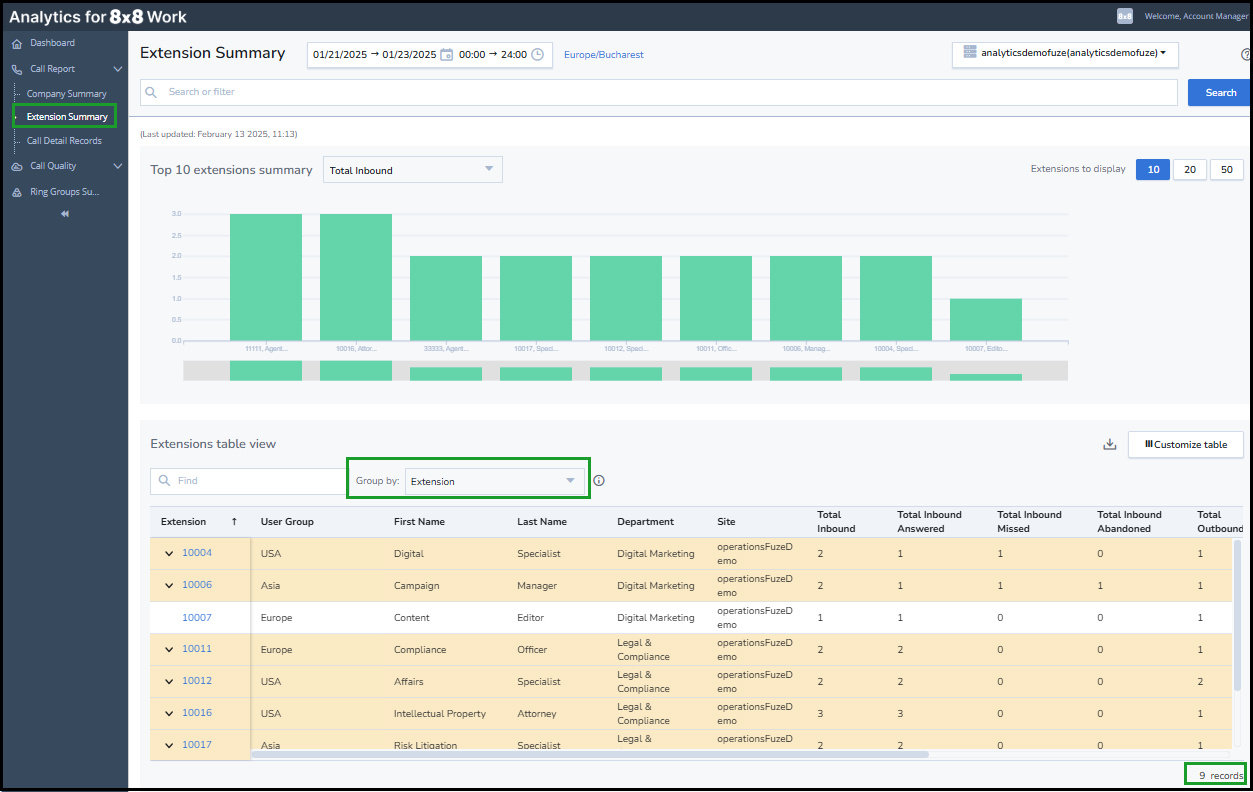
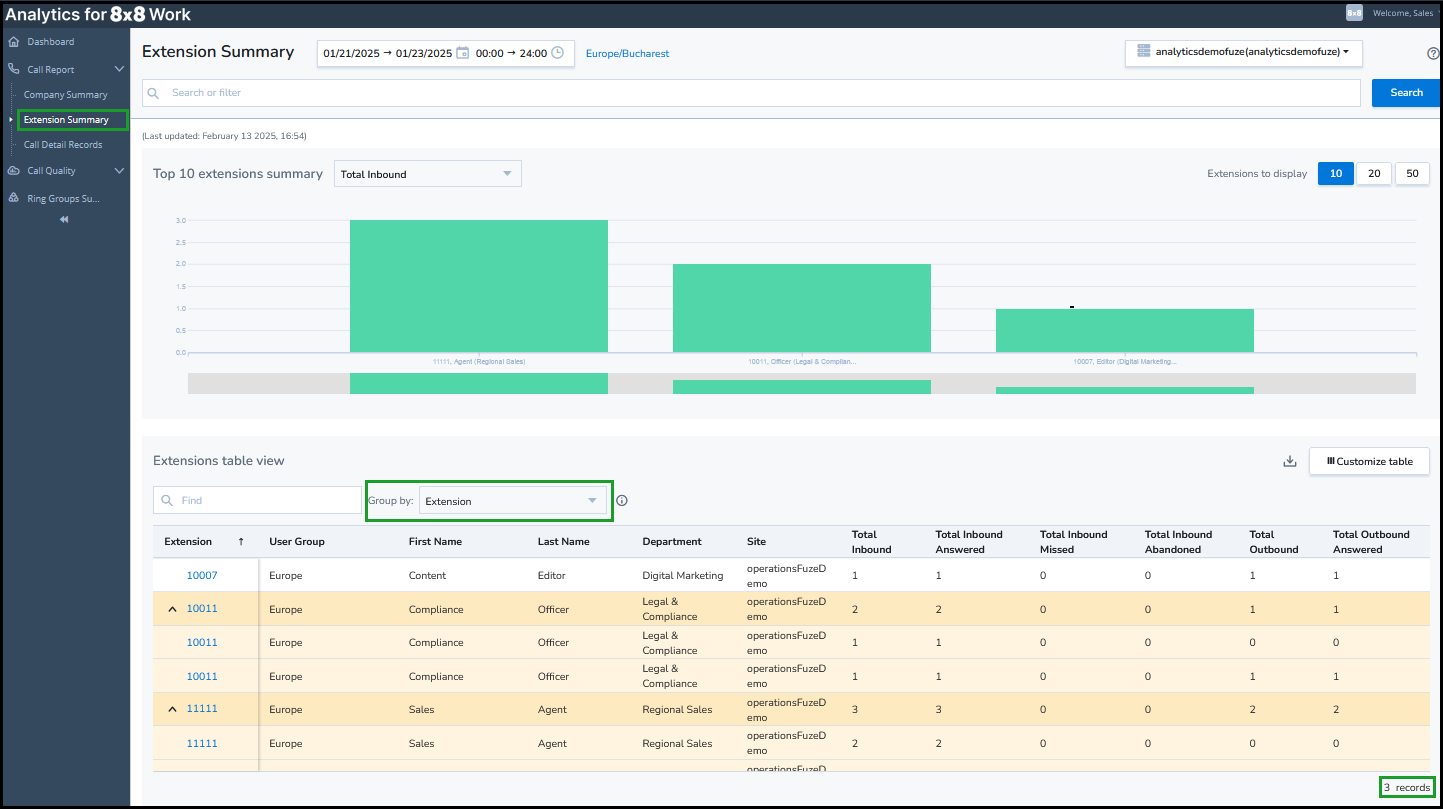
For the same PBX, period, and time zone selected, a user with full permissions can view all available records, whereas a restricted user can view fewer records depending on each user's access permissions.
The Extension Summary report's data view organized by Extension:
The Extension Summary report's data view organized by User Group:
 Access to the Call Detail Records report
The Call Detail Records (CDRs) report provides information about all inbound and outbound calls processed within the specified time frame selected by the user. Access to the call path enables you to identify any patterns that may require attention within the company.
Users may observe different results based on their access permissions. They can view only the records related to User Groups, Call Queues, and Ring Groups to which they have access.
Note: All the calls ending in auto-attendant (AAAuto Attendant is an automated receptionist service that directs callers to the desired destination.) that did NOT reach a user, a Call Queue or a Ring Group are displayed for all users regardless of the restriction applied to them.
To access the CDRCall Detail Record includes call details such as point of origin,end point, call direction, call duration, and more. report based on RBAC:
- Login to Analytics for 8x8 Work.
- From the menu, go to Call Reports > Call Detail records.
- In the upper-right corner, choose the desired PBX from the PBXs to which the user has data access rights.
- Customize report settings by selecting the desired time period and time zone.
-
Customize report settings:
- Select the desired time period and time zone.
-
Select the date you want to see in the report:
- Click Customize Table in the upper-right corner. From the list that appears, select User Group and click to make this column visible in the report. You can click and move it up or down to your desired position.
- Click Save.
- Click Customize Table
-
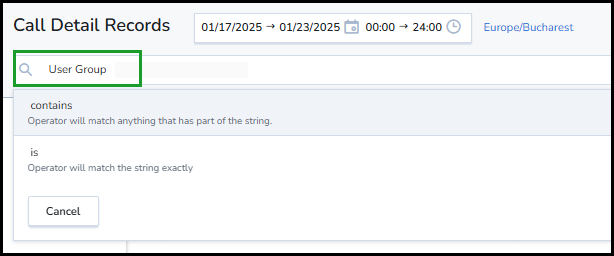
Filter data by User Group by clicking Search or filter
 > User Group
  .
.Notes:
- Data filtering is currently possible for only one user group at a time. Filtering by multiple groups is not permitted.
- Users who do not have a User Group assignment cannot view the User Group in the report. -
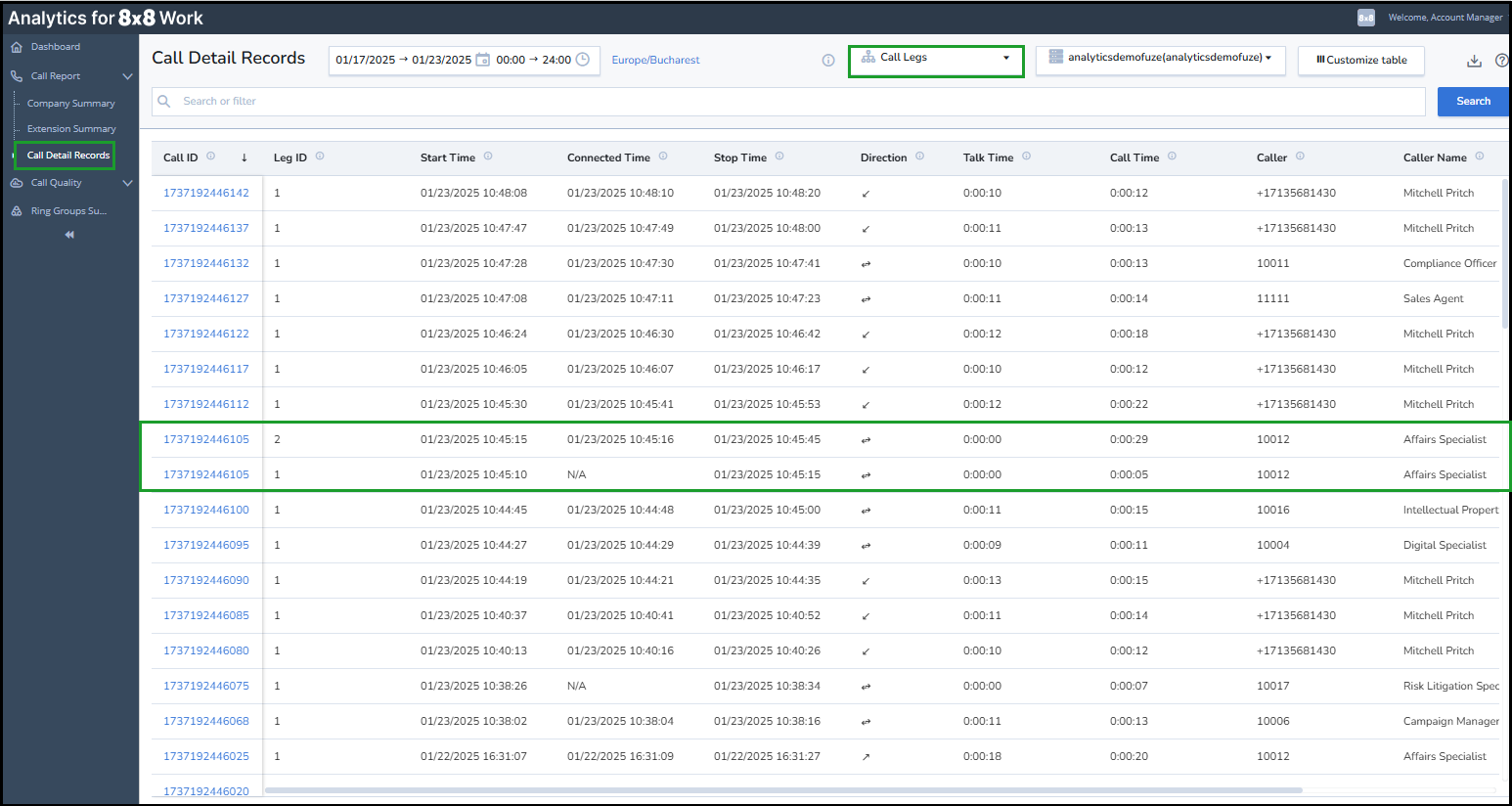
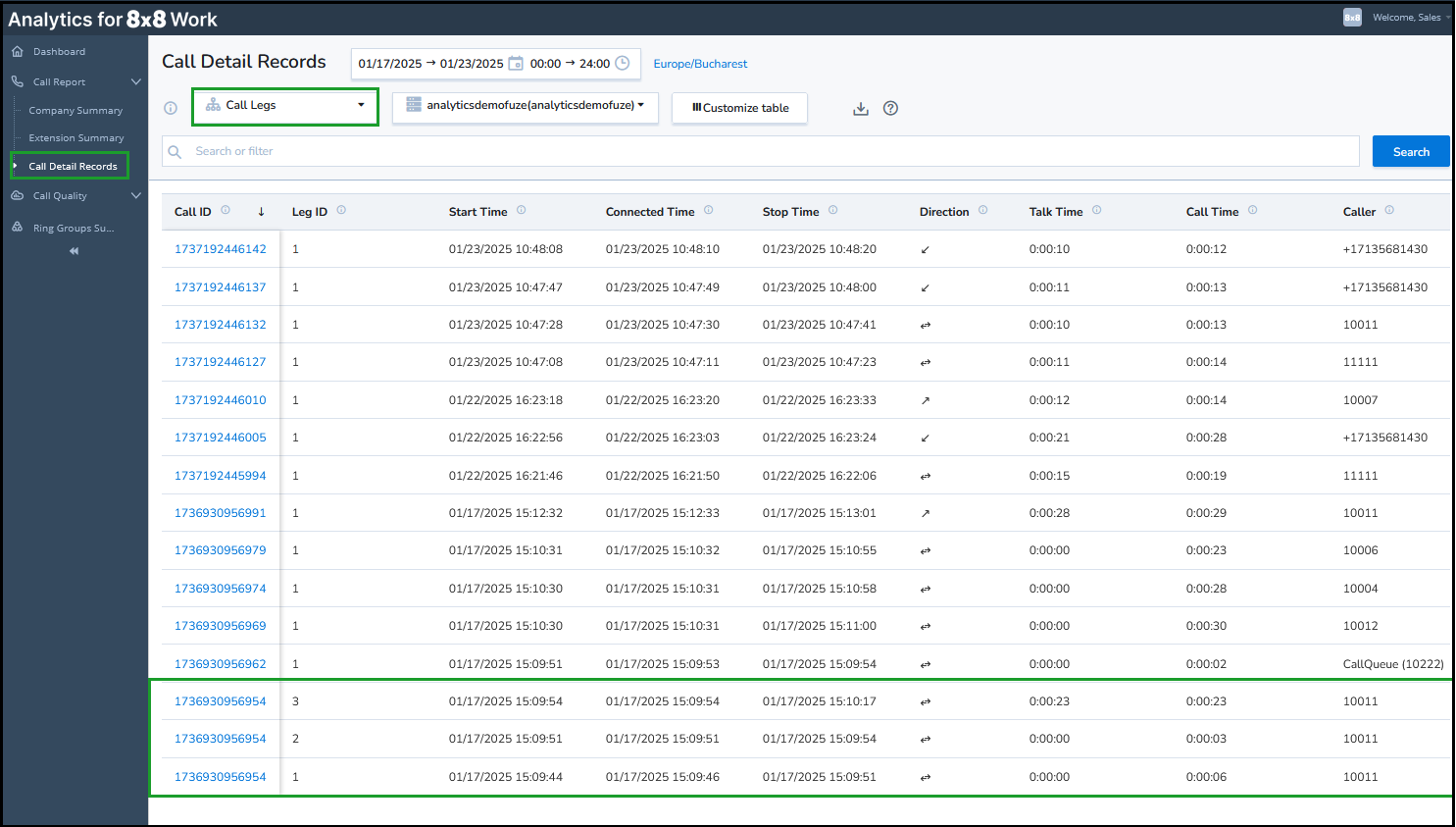
Select the Call Legs option if you want to see the full journey.
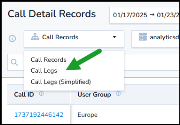
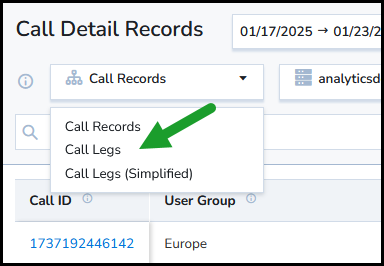
The Call Legs option has a few limitations:
- The report does not show the total number of calls.
- Users can only sort by the Call ID column.
Note: Both Call Records and Call Legs show the entire call journey and duration if the call went through at least one Queue, User Group, or Ring Group to which the user has access. For example, user John has access to Queue A only. Call comes into Queue A, it's transferred into Queue B, and then is transferred into Queue C. John will see:
- The entire record with full duration.
- All of the call legs of the call - with all queues, and all users who handled the call.
To learn more about the CDRs, see -8x8 Analytics for 8x8 Work - Run Call Detail Record reports.
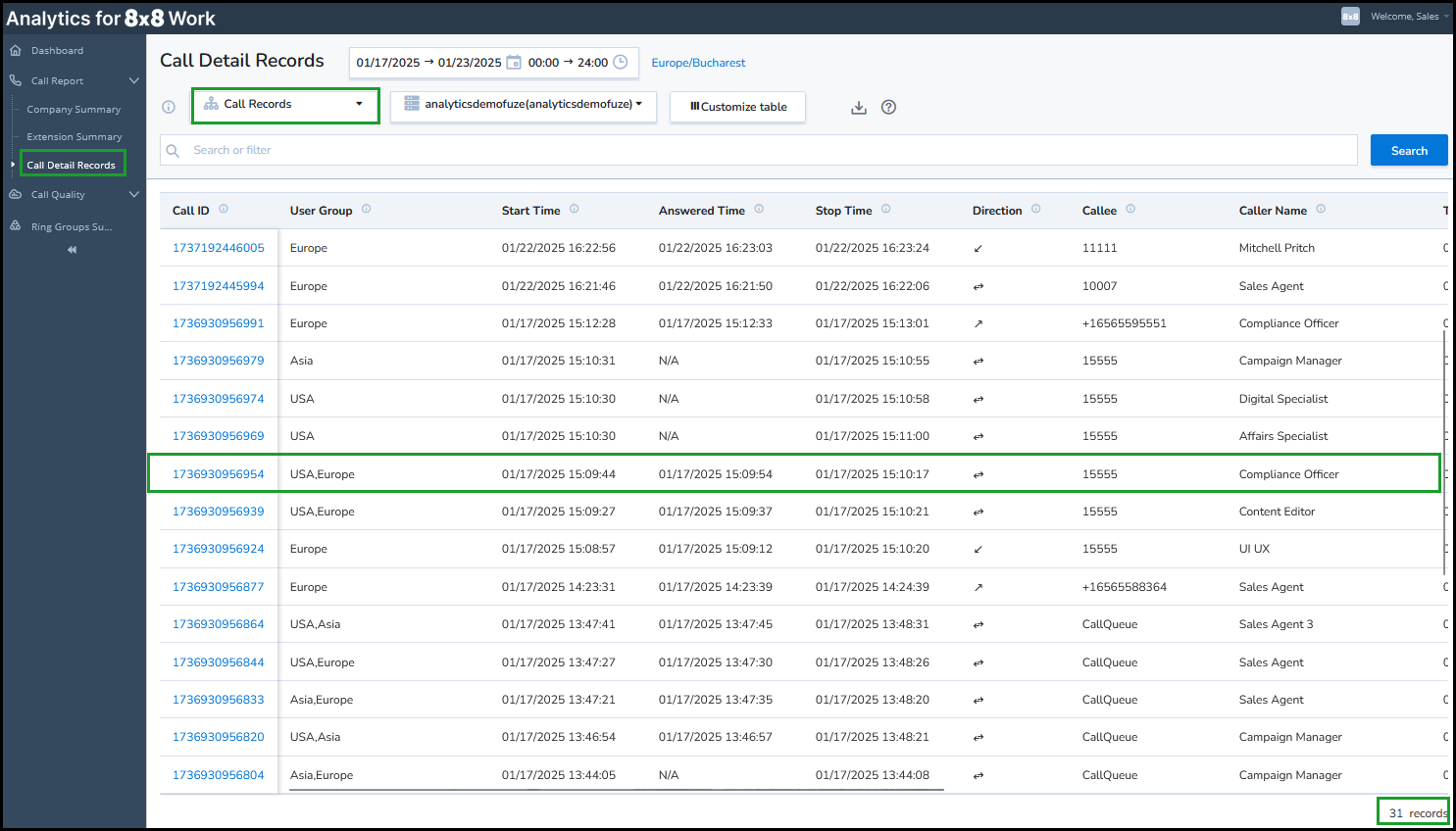
The Call Detail Records report's data view organized by Call Records:
The report displays the records associated with the user groups, call queues, and ring groups to which the user has access.
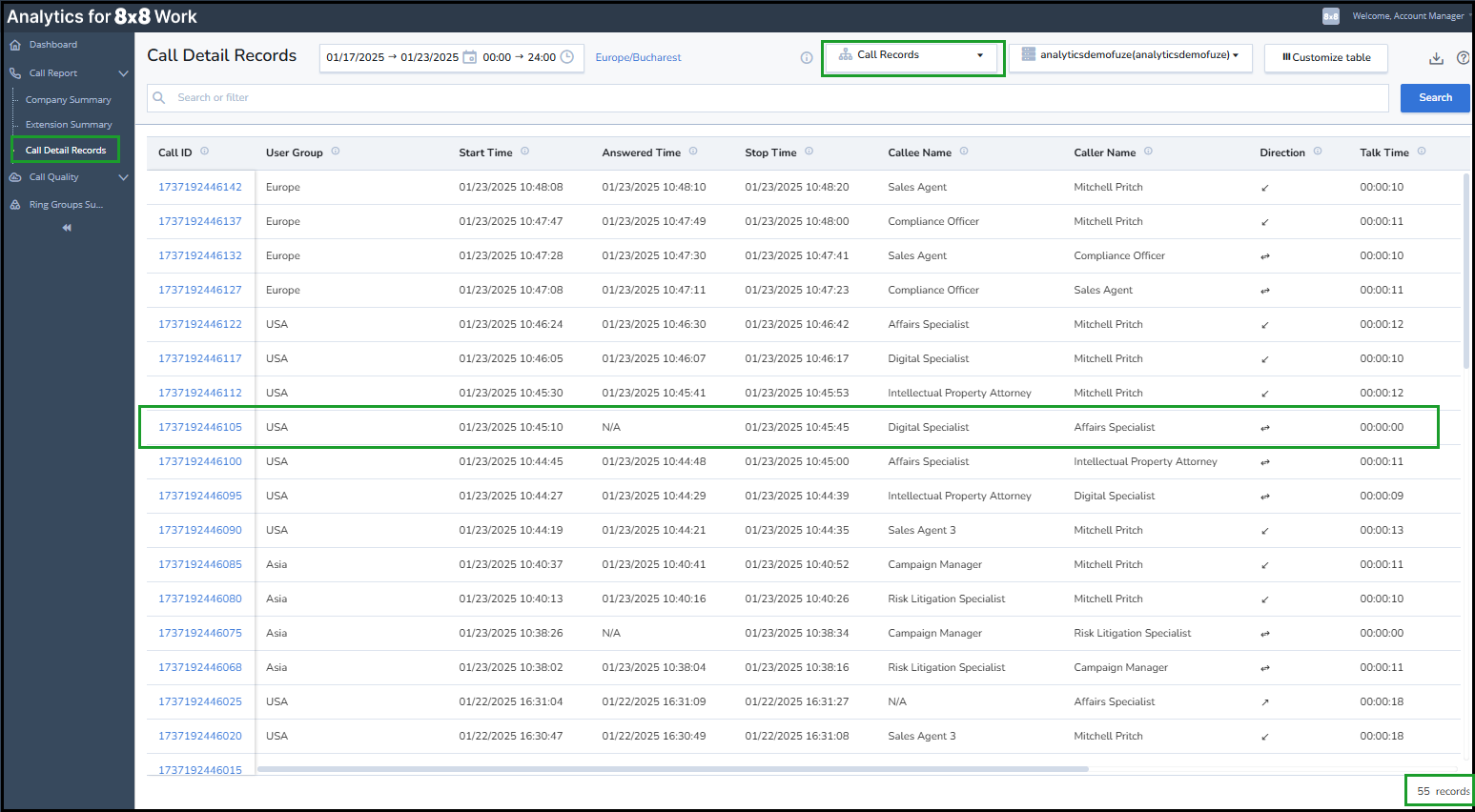
The Call Detail Records report's data view organized by Call Legs:
Access to the Ring Groups report
The Ring Group summary report provides information on tracking call traffic and average call handling times for each ring group.
Users may observe different results based on their full or limited access permissions. Restricted users can access fewer data than those with full access, while users with full access can view all records associated with the ring groups that they have access to.
To access the Ring Group Summary report:
- Login to Analytics for 8x8 Work.
- From the menu, go to Ring Group Summary
 .
. - In the upper-right corner, choose the desired PBX from the PBXs to which the user has data access rights.
- Customize report settings by selecting the desired time period and time zone.
To learn more about the Ring Group Summary report, see 8x8 Analytics for 8x8 Work - Ring Group Summary.
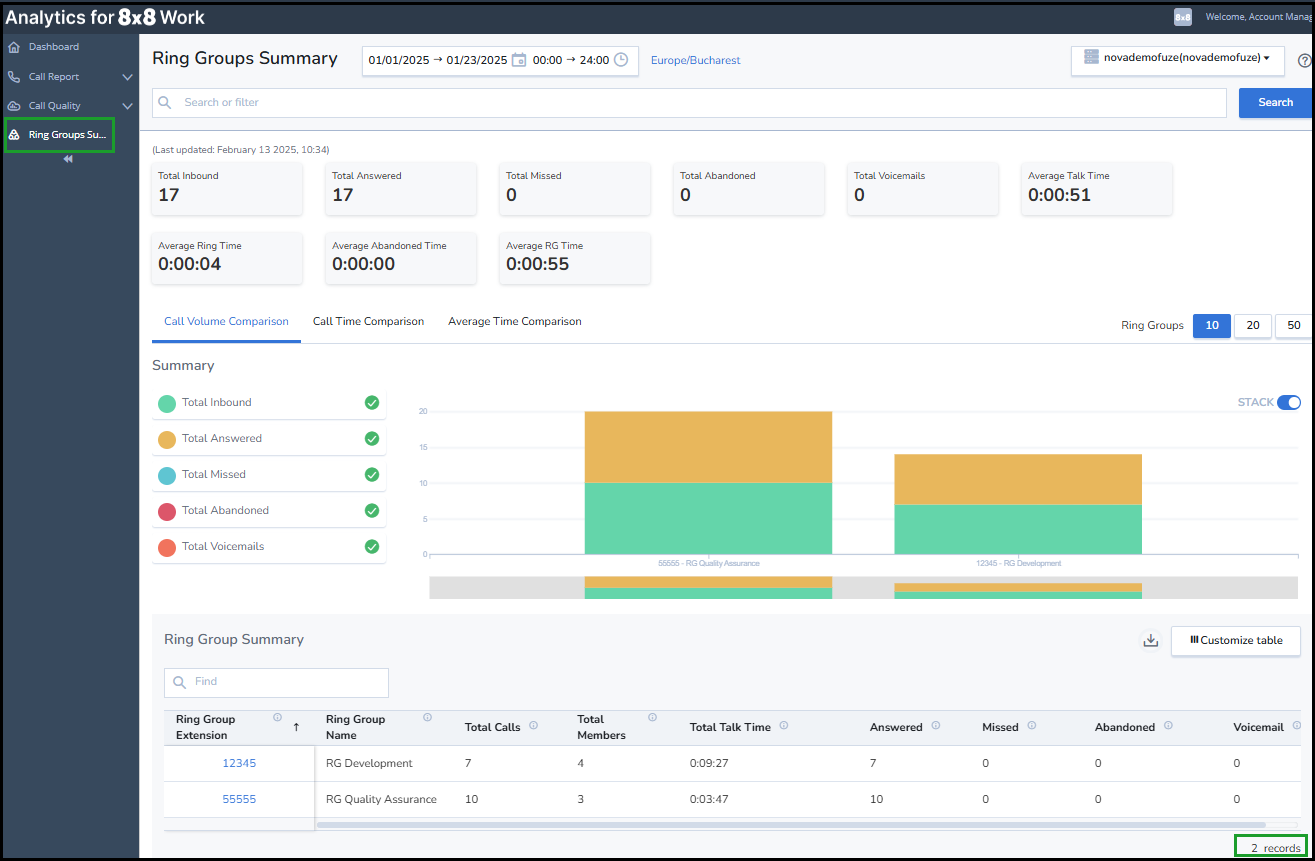
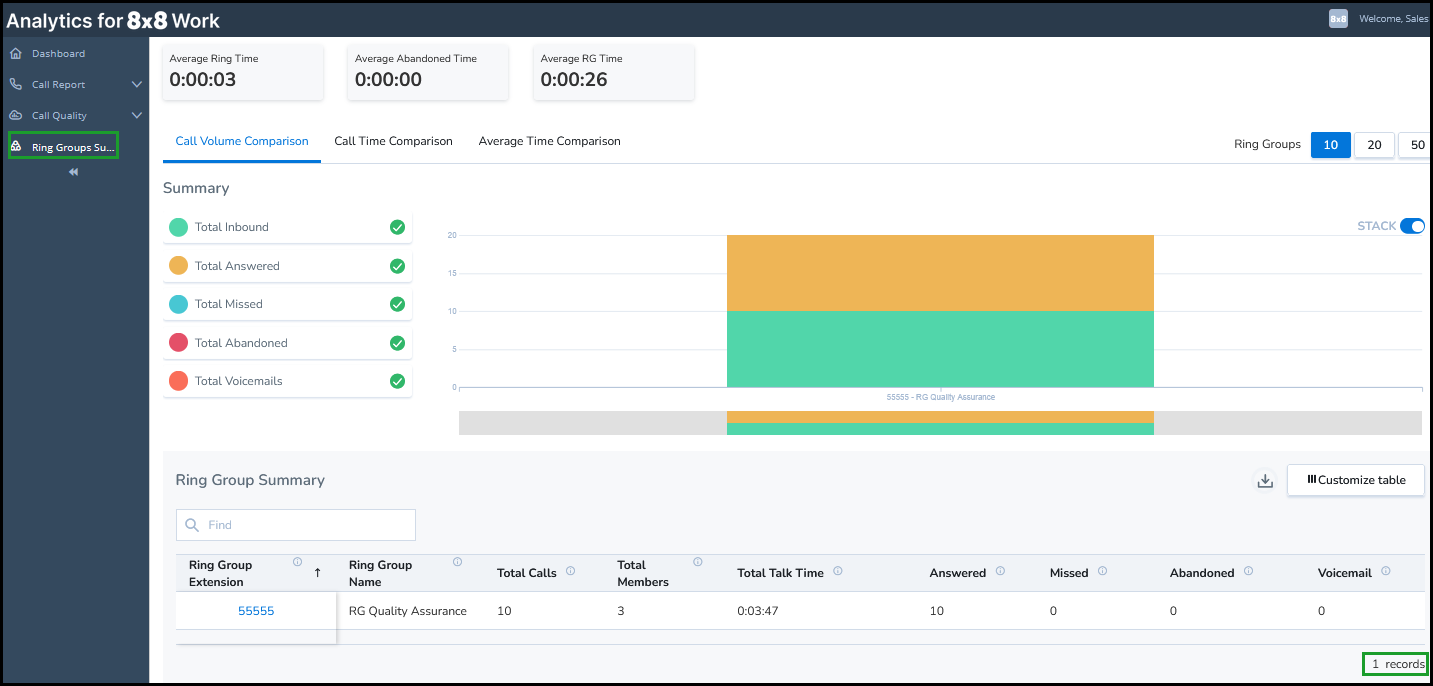
The data view of the Ring Group Summary report:
The report displays the records associated with the Ring Groups to which the user has access.
Note: The Ring Group Summary report is only available to users with the supervisor role, and it does not appear in the drop-down selection for users with the Essentials role.
Access scheduled report emails
Through the Schedule email report, you can gain a quick overview of your organization's call activity, providing you with regular updates on agent performance and effectiveness. You can effortlessly schedule the available reports and receive them via email daily, weekly, or monthly, such as:
- Company Summary report
- Extension Summary report
-
Call Details Record report
- Call Records
- Call Legs
-
Ring Groups Summary
- Ring Group Member
Note: The Ring Group Summary report is only available to users with the supervisor role, and it does not appear in the drop-down selection for users with the Essentials role.
The Scheduled reports display the records associated with the user groups, call queues, and ring groups to which the user has access.
Users may observe different results based on their full or limited access permissions. All scheduled reports consider restricted access; therefore, users can only generate and schedule reports related to user groups, call queues, and ring groups to which they have access.
The Scheduled reports display the records associated with the user groups, call queues, and ring groups to which the user has access.
To create scheduled report emails:
- Login to Analytics for 8x8 Work.
- In the upper-right corner, select the preferred PBX from the available PBXs to which the user has access rights.
- Click the header menu next to your name and select Schedule Report Emails from the drop-down list.
- In the Schedule emails page, click New in the upper-right corner, and configure it as appropriate in the Schedule report panel.
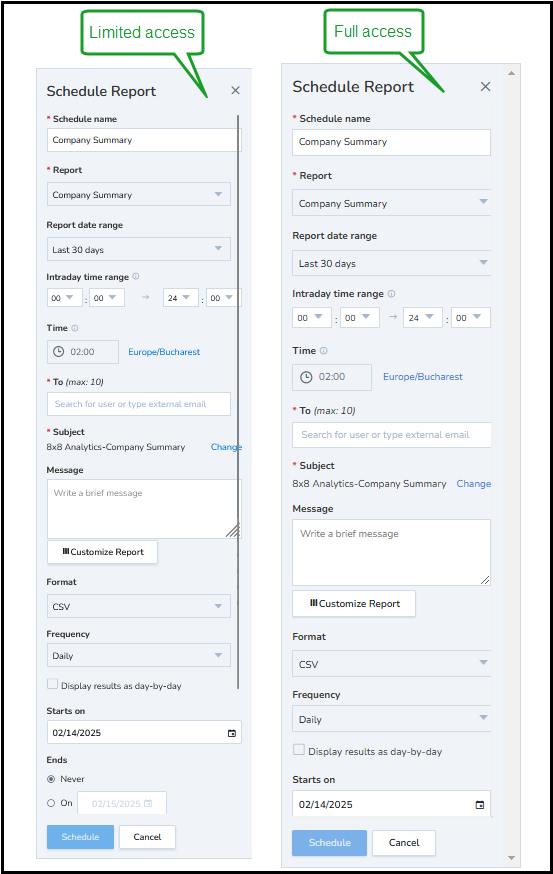
To schedule an email for the Company Summary report, customize the following fields:
- Schedule name: Enter a name for the report.
- Report: Select an Company Summary report type
- Report date range: Select the date range for the report from the available options, such as last week, last month, this week, this month, and more.
- Site: Filter data by selecting a specific site or all sites.
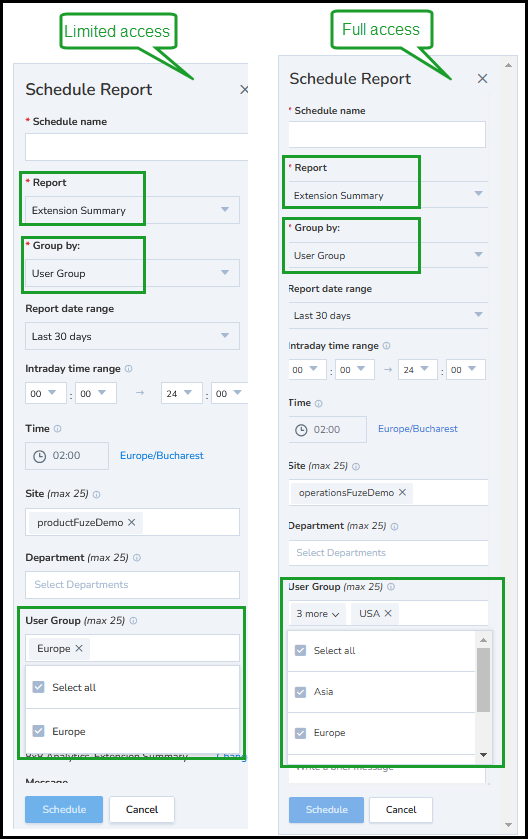
To schedule an email for the Extension Summary report, customize the following fields:
- Schedule name: Enter a name for the report.
- Report: Select an Extension Summary report type.
- Group by: You can select how the data will be organized, either by Extension or User Group.
- Report date range: Select the date range for the report from the available options, such as last week, last month, this week, this month, and more.
- Site: Filter data by selecting a specific site or all sites.
- User Groups: Select the desired user group(s) to refine the report data. Only the user groups the user can access and for which data is available will be displayed.
-
Customized Report: Click Customize Table
, and from the list that appears, select User Group. Click to make this column visible in the report. You can click and move it up or down to your desired position.Note: By default, the User Group column is hidden in the table, and you need to locate it at the bottom of the list and make it visible.
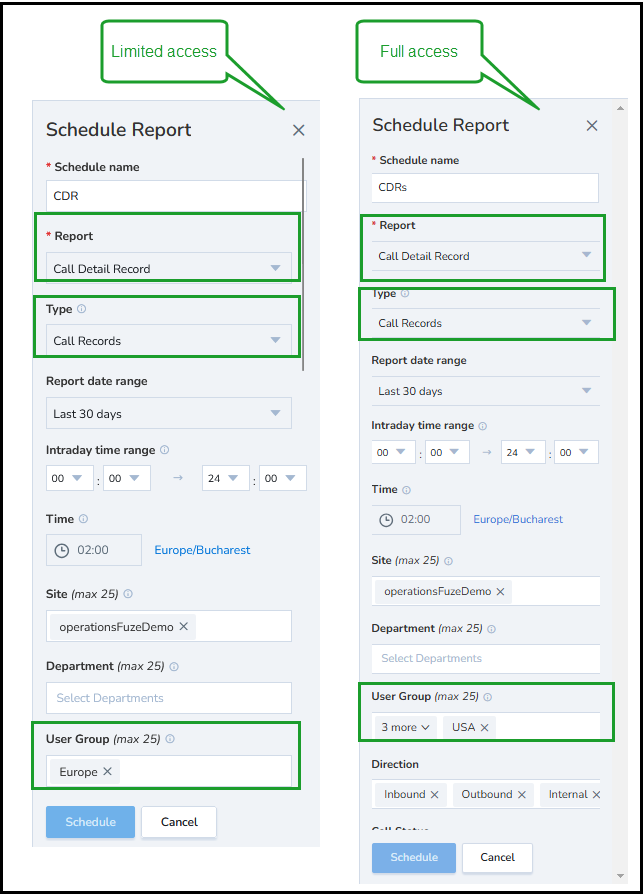
To schedule an email for the Call Details Records report email, customize the following fields:
- Schedule name: Enter a name for the report.
- Report: Select a Call Detail Records report type.
- Type: Choose which view you want to display in the schedule report, Call Records or Call Leg.
- Group by: You can select how the data will be organized, either by Extension or User Group.
- Report date range: Select the date range for the report from the available options, such as last week, last month, this week, this month, and more.
- Site: Filter data by selecting a specific site or all sites.
- User Groups: Select the desired user group(s) to refine the report data. Only the user groups the user can access and for which data is available will be displayed.
-
Customized Report: Click Customize Table
, and from the list that appears, select User Group. Click to make this column visible in the report. You can click and move it up or down to your desired position.Note: By default, the User Group column is hidden in the table, and you need to locate it at the bottom of the list and make it visible.
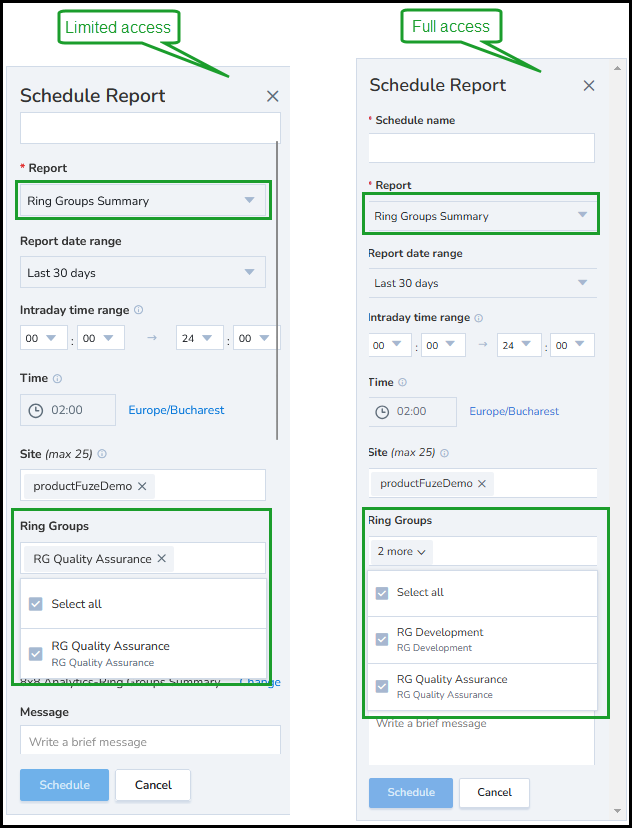
To schedule an email for the Ring Group report, customize the following fields:
Schedule name: Enter a name for the report.
Report: Select Ring Group for the list.
Report date range: Select the date range for the report from the available options, such as last week, last month, this week, this month, and more.
Site: Filter data by selecting a specific site or all sites.
Ring Group: Select the desired ring group(s) to refine the report data. Only the ring groups the user can access and for which data is available will be displayed.
Notes:
- This applies only to the Ring Groups Summary report.
- Each site may have associated specific ring groups. If the sites are selected first, The Ring Groups filter is automatically populated.
The report displays the records associated with the user groups, call queues, and ring groups to which the user has access.
To learn more about scheduling email reports, see 8x8 Analytics for 8x8 Work - Scheduled Email report.
Limitations of the Call Detail Records report
- The number of total records is not shown on the Call Legs view.
- The Call Legs table can only be sorted by Call ID.
- Sometimes, a customer with restricted access may not see the entire call journey. This can occur when specific services are involved, such as Call Parking, Call Using, Flipped Calls, or Conferences. In these instances, an additional call record is generated with the corresponding call legs, yet these call legs are missing the Parent Call ID and Transfer to Call ID information. The extra record and legs are service-to-service, so they will not have User Group/Call Queue/Ring Group information associated with them. Moreover, as they cannot be linked to the original call record due to the absence of Parent/Transfer to Call ID information, they will be excluded from the CDR if they fall outside the user's assigned access scopes.
Example
For example, John is a user of 8x8 Work for Desktop and 8x8 Work for Mobile apps.
- John signed in on both Desktop and 8x8 Work for Mobile.
- John receives a call and answers on 8x8 Work for Desktop (callee).
- John flips the call on 8x8 Work for Mobile (callee).
As a result
-
There are generate two Call records:
- Record 1 (for the call answered on Work for Desktop) - includes 4 legs.
- Record 2 (for the flip to Work for Mobile) - includes one leg.
-
Depending on the permissions for Analytics for 8x8 Work, the user can see:
-
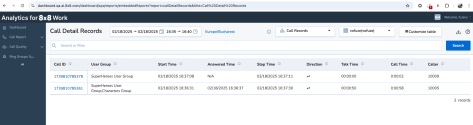
If the user has full access can see the entire journey (Record1 and Record2):
-
All records and legs - Users with full access to Call Records can view both legs for Record 1 and Record 2.
-
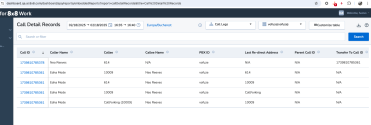
All records and legs - Users with full access to Call Legs view the complete journey: 4 legs from Record 1 and one leg from Record 2.
-
-
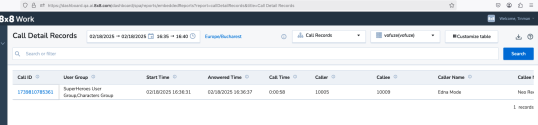
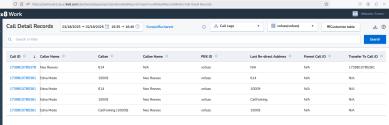
If the user has limited access, with no access to the User Group associated with Record 2 (flip to 8x8 Work for Mobile), they can view:
-
Call records view - Only record 1, as they cannot access that User Group.
-
Call records view - Only record 1, as they do not have access to that User Group.
-
-
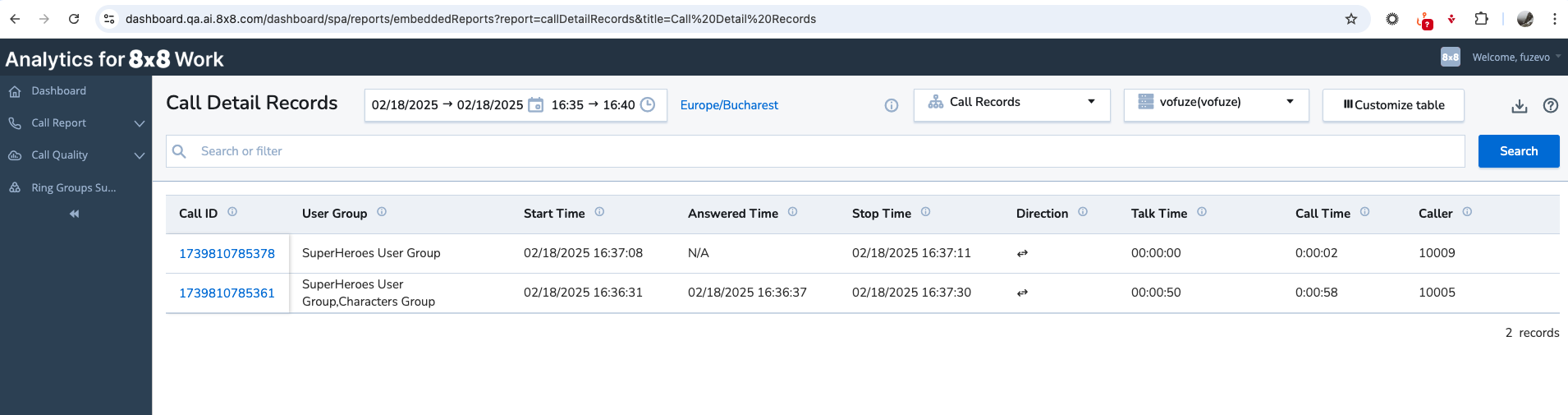
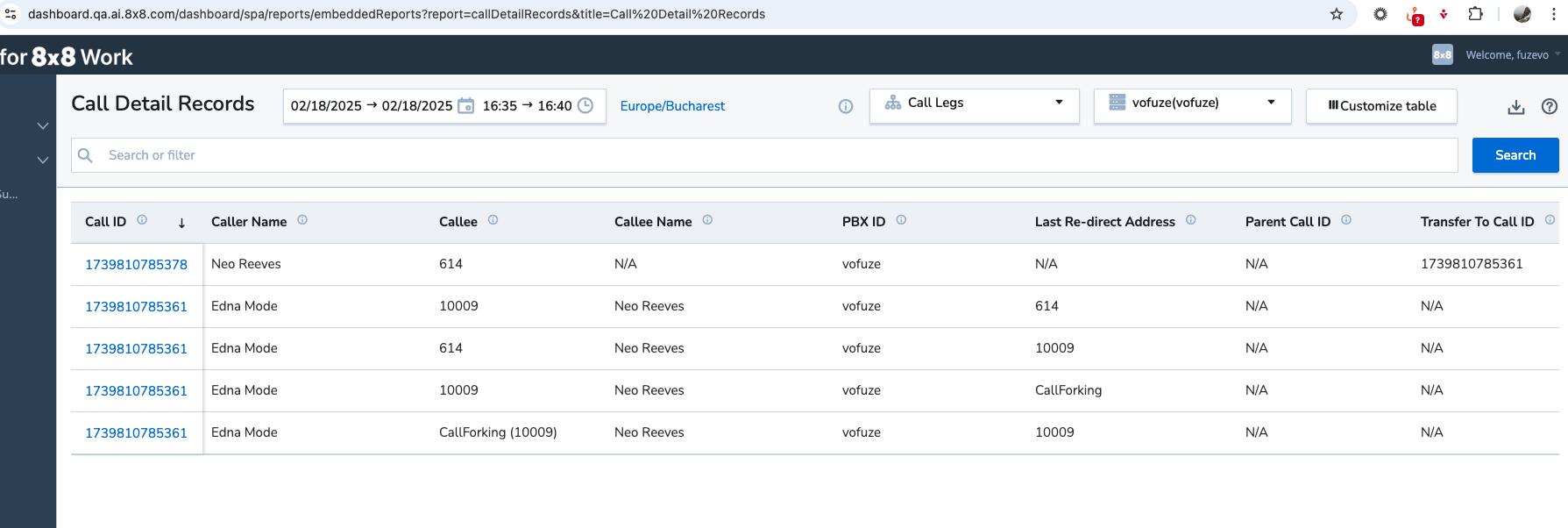
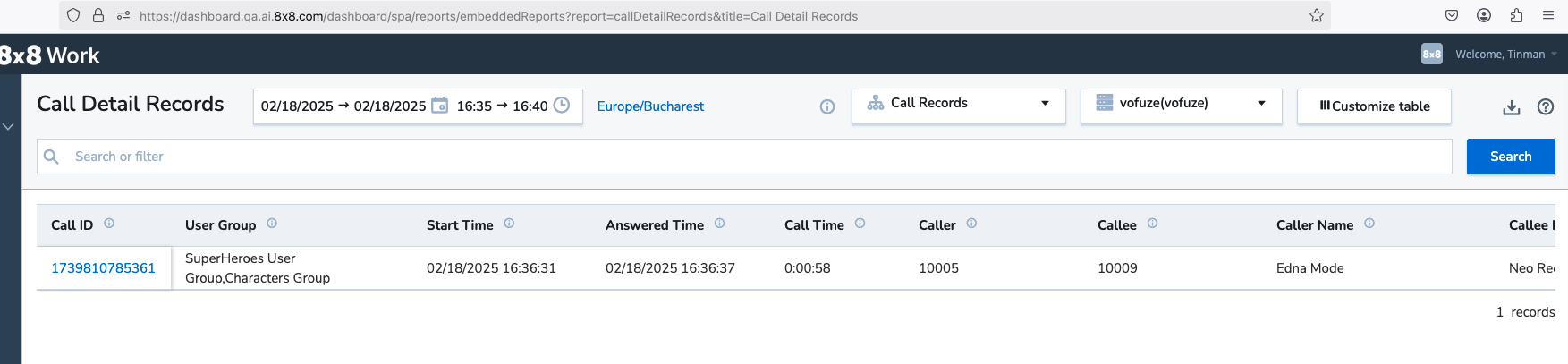
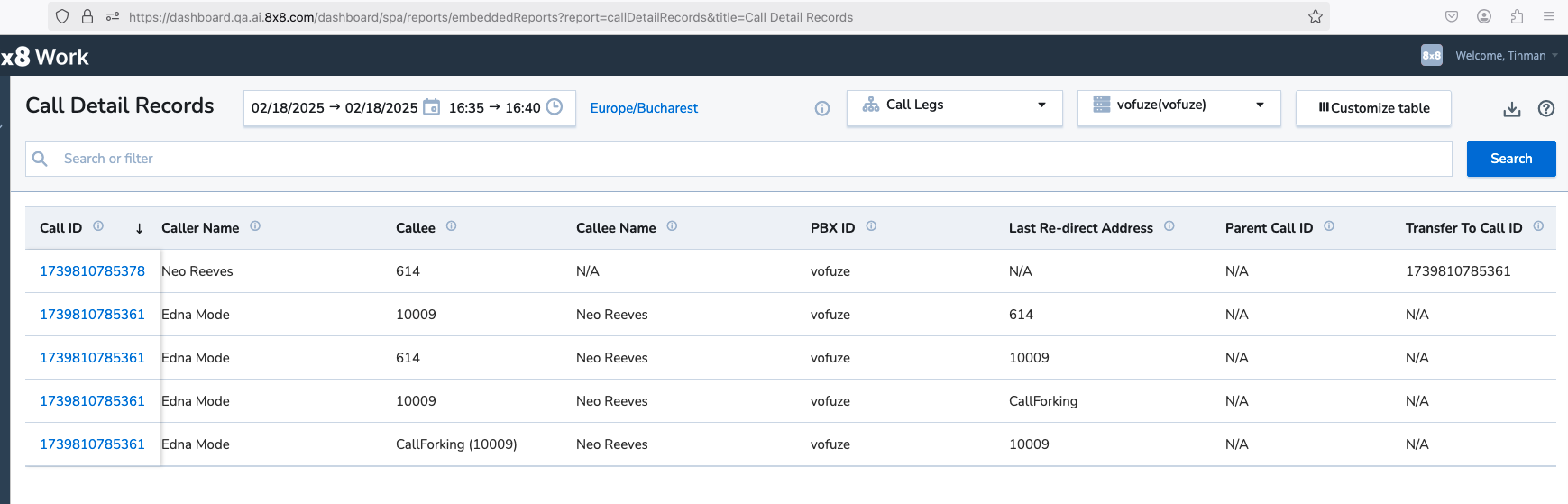
Notes:
- The call record view is filtered according to user access to User Groups.
- At the call leg level, users will see the entire call journey (such as all call legs), even if they do not have access to some of the User Groups involved, if those call legs have a Parent/Transfer to Call ID.


