About 8x8 Work Managed Devices for Android
Overview
8x8 Work for Managed Devices is a new version of the 8x8 Work for Mobile app explicitly built for organizations using Mobile Device Management (MDM) or Mobile Application Management (MAM) systems.
It supports secure, scalable deployments across shared Android devices, offering:
- Enterprise-grade login (including SSO)
- MDM-powered configuration and control
- Flexible setup for retail and enterprise environments
Note: This version is available exclusively for Android.
 How 8x8 Work Managed Devices works
8x8 Work for Managed Devices is designed for IT administrators who deploy and secure apps through mobile device management (MDM) or mobile application management (MAM).
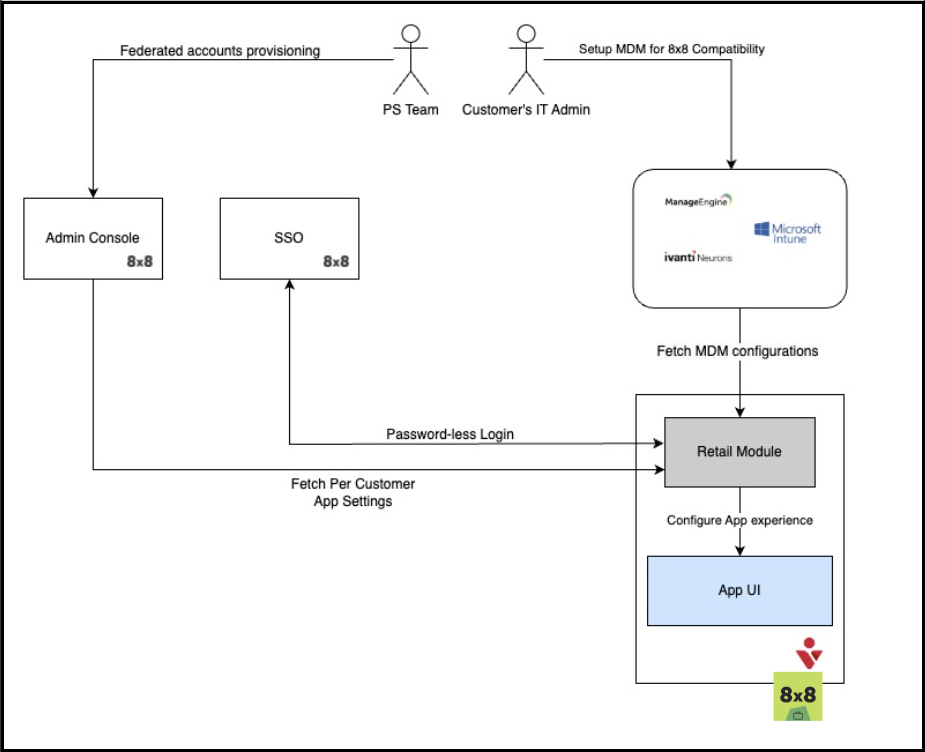
- MDM-based deployment: Configure and deploy the app using managed configurations directly in your MDM console.
- Compatible platforms: Works with Microsoft Intune, Manage Engine, Ivanti Neurons, Scoti Mobicontrol, and Hexnode.
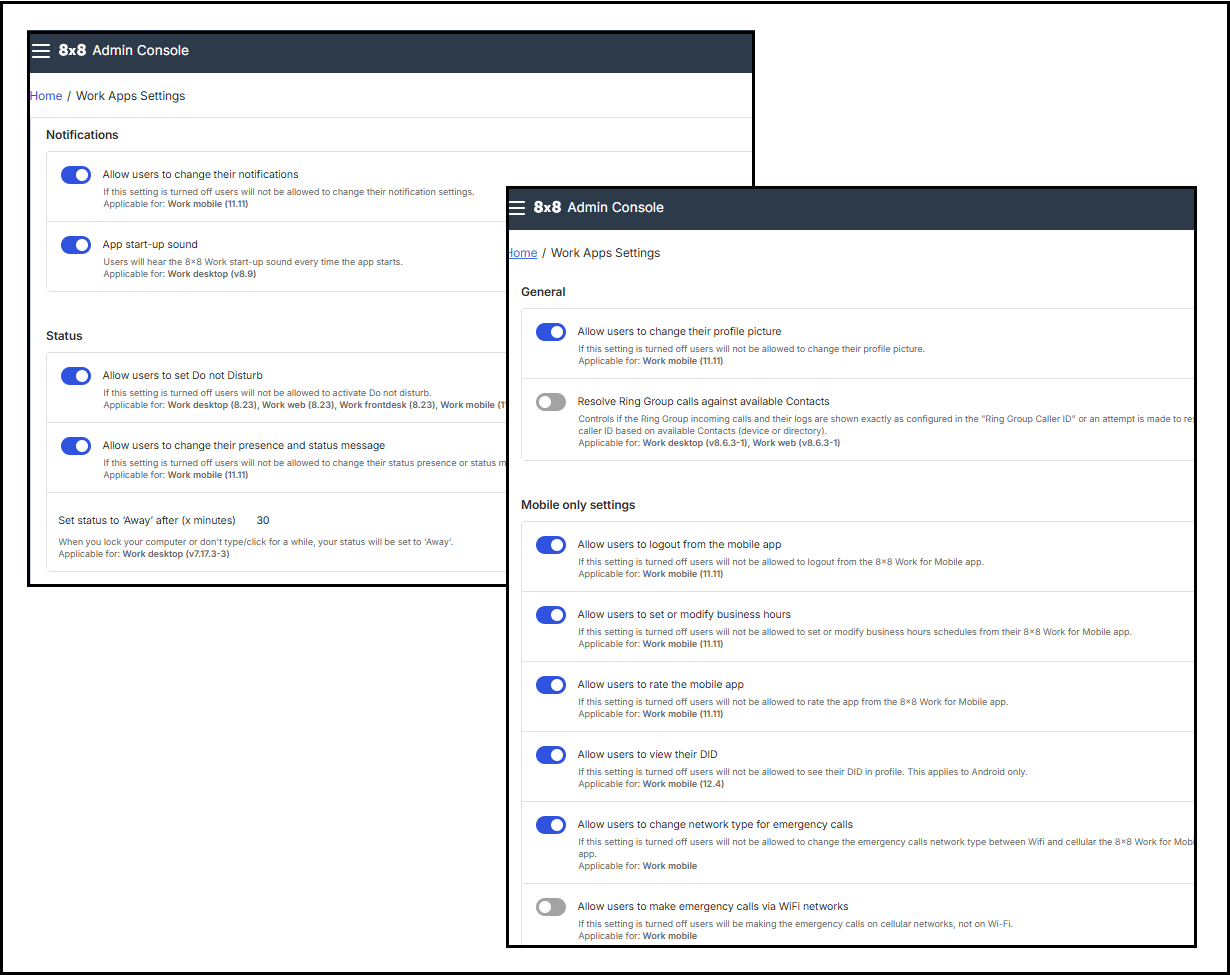
- Centralized control: Manage user permissions and customize or lock app features in the 8x8 Admin Console under Work App Settings. To find more, see 8x8 Admin Console - Configure Work Apps Settings: Customize default values for 8x8 Work apps.
- Secure authentication: SAML-based SSO for password-less sign-in.
- Flexible licensing: Assign one device per license or share across rotating devices.
- Scalable deployments: Extend from small rollouts to enterprise-wide use.
Features
- Optimized for shared devices: Ideal for retail, healthcare, and field operations.
- Enterprise login and security: Supports SSO and secure authentication flows.
- MDM/MAM integration: Simplifies deployment across BYOD and corporate-owned devices
- Admin controls: Enhanced flexibility for managing sessions, privacy, and deployment.
Benefits
- All-in-one communication: Combines voice, video, and messaging in a single secure platform.
- Device flexibility: Works seamlessly across BYOD and company-managed Android devices.
- Scalable for any organization: From startups to global enterprises.
- Productivity anywhere: Keeps users connected whether on-site, off-duty, or offline.
Where to find it
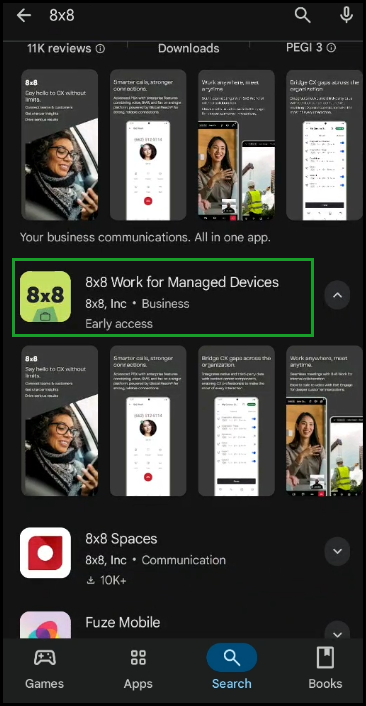
- Google Play Store: Listed with a “-managed” suffix and a unique app
 icon.
icon. - Deployment clarity: Clearly separates managed and standard versions.
Important! Do not install both the consumer and managed versions on the same device. Doing so may cause instability, degraded performance, or data loss.
Configuration options
IT administrators can use the MDM and 8x8 Admin Console settings to configure:
- Auto-login for users
- App-level configurations
- Role-based custom experiences
Session management
- Auto logout on charging: End user sessions when devices are docked
- Call queue logout sync: Log out of call queues when signing out of the app.
Privacy and security settings
- DID number visibility: Show/hide Direct Inward Dialing (DID) numbers by device role.
- Caller ID control: Manage Caller ID visibility on shared devices.
User Interface customization
- First tab selection: Choose default landing tab (Calls, Messages, Contacts) by role.
Simplified setup
- Authentication types: Supports both standard login and mixed-mode Single Sign-On (SSO).
- Landing screens: Role-based predefined screens.
Deployment
- Managed Play Store integration: Enterprise-ready distribution.
- Distinct package identity: Unique package name with “-managed” suffix and dedicated icon.
- Independent updates: Follows its own release cycle separate from the consumer app.
- Silent installation: Deploy without user prompts via MDM.
SSO and authentication
- Dedicated SSO Client ID: Enables multiple secure login options.
- Automatic app start: Launches automatically when the device powers on.
Deployment steps of 8x8 Work for managed devices
For existing deployments
- Uninstall the consumer version of the 8x8 Work for Mobile app.
- Deploy the 8x8 Work for Managed Devices version directly from the Google Play Store (connected to your MDM platform).
- Apply required MDM settings and configure Work App Settings in 8x8 Admin Console.
Important! Running both versions on the same device is not supported. Doing so may cause instability, degraded performance, or data loss.
For new deployments
- Deploy the 8x8 Work for Managed Devices version directly from the Google Play Store (connected to your MDM platform).
- Apply required MDM settings and configure Work App Settings in 8x8 Admin Console
Why it matters
8x8 Work for Managed Devices provides:
- Stronger privacy and session controls for shared devices
- Easier role-based configuration
- Enterprise-ready deployment flexibility with MDM/MAM integration
Mutual Transport Layer Security (mTLS) authentication for Android devices
8x8 provides Mutual Transport Layer Security (mTLS) authentication as a secure, certificate-based method for accessing services on managed Android devices. mTLS supports Multi-SSO environments and helps enforce strong access control. It is ideal for shared or managed devices.
What this means for you:
- Available for organizations using Multi-SSO integrations
- Ideal for frontline teams and high-turnover environments
- Requires setup in the 8x8 Admin Console (v1.57.2 or later)
Benefits
- Stronger authentication: Only verified Android devices can access 8x8 services
- Improved compliance: Helps meet security and regulatory standards
- Secure mobile access: Uses certificates instead of passwords to authenticate users on managed devices
Why we made this change
Traditional login methods on shared or managed Android devices create challenges:
- Security: Passwords can be reused or exposed on shared devices
- Productivity: Login prompts interrupt frontline workflows
- IT overhead: Managing credentials increases support demands
- Compliance: Shared logins complicate audit trails and access control
To solve these issues, 8x8 now supports passwordless, certificate-based authentication via mTLS for customers using Multi-SSO.
Is mTLS right for your organization?
mTLS authentication is recommended if your organization:
- Uses shared or managed Android devices (for example, Zebra, Samsung, Honeywell)
- Relies on MDM platforms like VMware Workspace ONE, Microsoft Intune, or SOTI
- Supports frontline or deskless workers in retail, logistics, healthcare, or warehouse environments
- Requires strict credential management and access control
- Operates in high-turnover environments where password exposure is a risk
Benefits by stakeholder
| Stakeholder | Benefit |
|---|---|
| End users | Frictionless access - devices are ready to use, no login required |
| It admins | Centralized control via MDM, fast revocation of compromised devices s |
| Security teams | Passwordless authentication, device binding, and compliance audit trail |
| Operations | Fewer support tickets and faster onboarding for new user |
Note: Compatible with all X Series licenses, including Retail Nationwide.
How mTLS authentication works
- IT provisions a device certificate using an MDM platform (for example, VMware Workspace ONE, Microsoft Intune, SOTI).
- The device uses its certificate to authenticate automatically - no manual login is required.
- The device receives secure tokens to access 8x8 services.
- If the device is lost or stolen, IT can revoke the certificate instantly.
Behind the scenes:
- mTLS maps each device certificate to a unique user ID
- The certificate is validated against your organization’s Certificate Authority (CA)
Prerequisites
To use mTLS authentication, ensure the following:
- 8x8 Work for Managed Devices version 12.6.1 or later
- 8x8 Admin Console version 1.57.2 or later
- A customer account with Multi-SSO enabled
- A Mobile Device Management (MDM) platform that supports certificate deployment (for example., VMware, Intune, SOTI)
- An internal or third-party Certificate Authority (CA)
- IT capability to create and manage certificate profiles
Configure mTLS in 8x8 Admin Console
- Log in to 8x8 Admin Console.
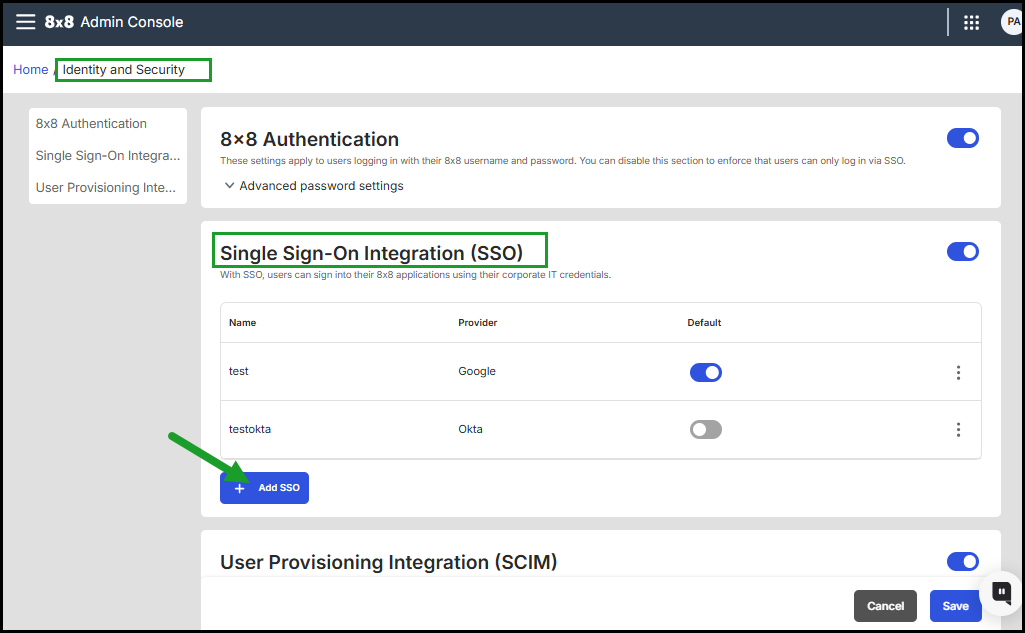
- Navigate to Home > Identity & Security.
-
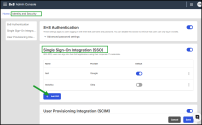
Under Single Sign-On (SSO), click + Add SSO.
-
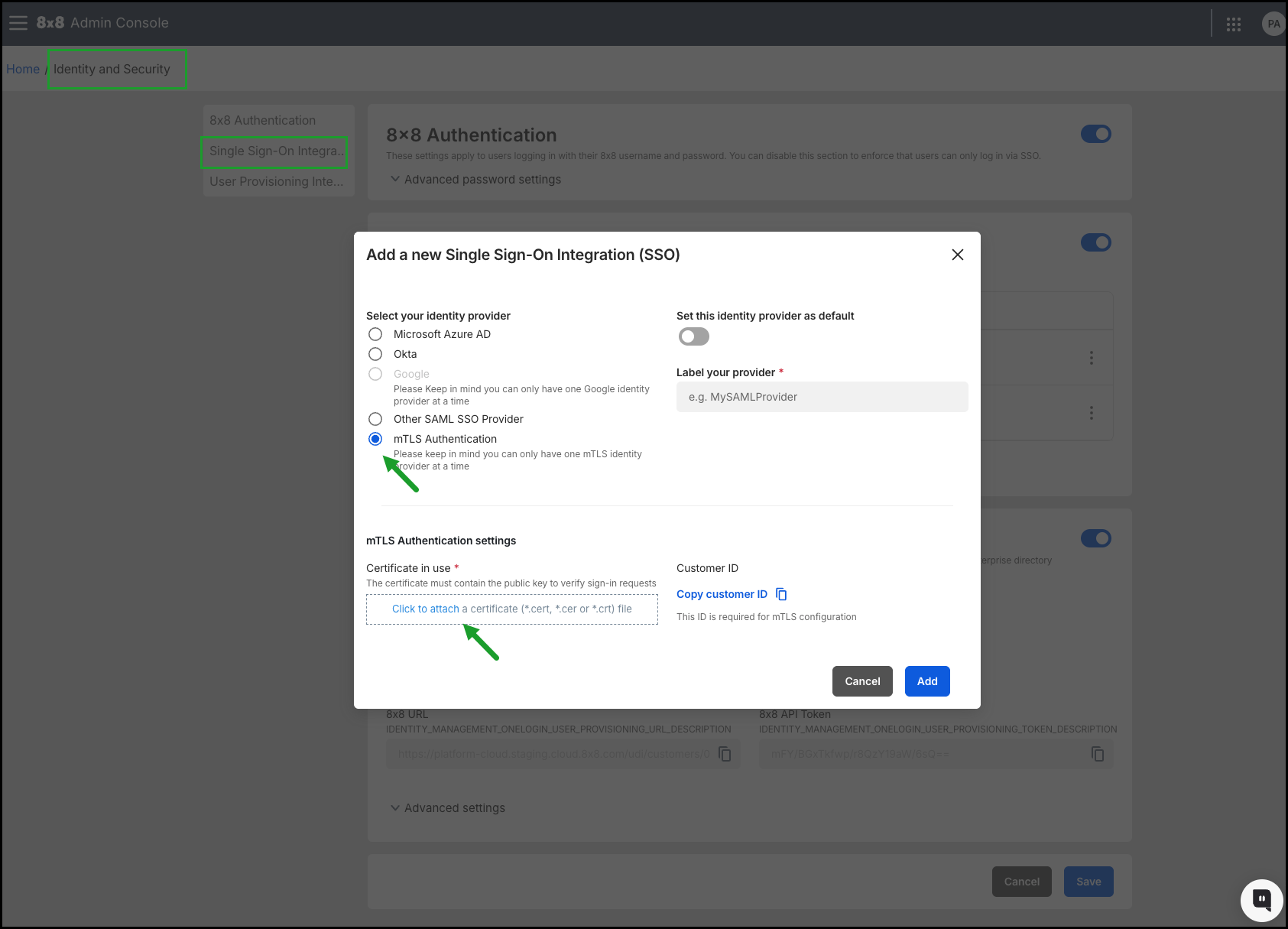
In the Add a new Single Sign-On (SSO) integration dialog:
- Select mTLS Authentication as the identity provider.
- Upload the root Certificate Authority (CA) file in .cert, .cer, or .crt format.
- Copy the Customer ID for MDM configuration (used to match device certificates).
- Click Add.
- Click Save in the Identity & Security page.
Note: Only one mTLS identity provider can be configured per 8x8 account.
For full setup instructions, see 8x8 Admin Console > Set up multiple Single Sign-On for 8x8 Admin Console.
Search the company directory by site
When your organization operates across multiple sites, searching the company directory can return a large number of results from locations that are not relevant. For example, a search for a ring group such as "Archery" may return up to 35 matches across numerous sites, increasing the risk of placing a call to the wrong destination.
Site-specific search filtering groups results from your assigned site at the top of the search list while maintaining full access to the company-wide directory.
Before you begin
Your administrator must enable the Prioritize Site-Specific Filtering on Search setting in Work App Settings within the 8x8 Admin Console. If you do not see site-based grouping in your search results, contact your administrator to confirm the setting is active.
How search results are grouped
When you search the company directory, results are split into clearly labeled sections.
| Section | What is shows |
|---|---|
| Your site | Contacts, ring groups, call queues, and auto attendants that belong to your assigned site. These always appear at the top. |
|
Company Directory |
Results from all other sites across the organization, or results with no site assignment. |
Each result displays the site name and extension number (where available) to identify a contact's location at a glance.
If no matches are found at your site, the Your site section is hidden and all results display in the standard view. You still have full access to the company-wide directory. No contacts are hidden or removed.
Note: Contact visibility must be set to company-wide for the full scope of this feature.
Call a ring group, call queue, or auto attendant at another site
When you tap to call a ring group, call queue, or auto attendant that belongs to a different site, the app displays a confirmation dialog before placing the call.
The dialog does the following:
- Identifies the target site by name.
-
Gives you the option to proceed or cancel:
- Select Yes to proceed with the call.
- Select No to cancel. You are returned to your search results with your previous search preserved
This confirmation only appears for ring groups, call queues, and auto attendants at other sites. Calling an individual user contact at another site does not trigger a confirmation prompt.
If you initiate a call from your search results, a confirmation dialog will be displayed. This prompt does not trigger when calling individual user contacts at different sites.
Behavior not affected by this feature
The following behavior is unchanged:
- Searching for individual user contacts returns site-based grouping without confirmation prompts.
- Calling a ring group or call queue within your own site does not trigger a confirmation dialog.
- The overall look and feel of search results remains consistent with the existing design.
To learn more, see 8x8 Admin Console: Configure Work Apps Settings
Prevent ring group logouts on mobile
When your administrator enables the Prevent users from logging out of their assigned ring groups setting for your profile policy in Work Apps Settings within the 8x8 Admin Console, the login and logout toggle next to each ring group in the mobile app is disabled. You remain logged in to all assigned ring groups at all times, and calls are routed to you according to your ring group configuration.
Before you begin
Your administrator must enable the Prevent users from logging out of their assigned ring groups setting in Work App Settings within the 8x8 Admin Console. The setting can be applied to all users or scoped to a specific profile policy. Contact your administrator if you are unsure whether this setting applies to your account.
How this setting affects your mobile app
When the setting is enabled for your profile policy, the Logged out/Logged in toggle next to each ring group in the mobile app is no longer actionable. You remain logged in to every ring group you are assigned to, and calls are routed to you according to your ring group configuration.
Behavior not affected by this setting
The following behavior is unchanged:
- You can still view the list of ring groups you are assigned to in the app.
- Incoming ring group calls ring your device as they normally would.
- Your administrator can still manage your ring group membership from the Admin Console.
- All other mobile app functionality remains unchanged.
For full setup instructions, see:


