Set up video Meetings
8x8 Meet combines high-definition video, flexible communication tools, and advanced meeting controls for a seamless collaboration experience.
Through the 8x8 Admin Console, administrators can configure meeting defaults, security options, and collaboration enhancements for their entire organization.
Set up default settings for 8x8 meetings
- Log in to 8x8 Admin Console.
- Navigate to Meetings > Settings.
- Set up the default settings for 8x8 meetings.
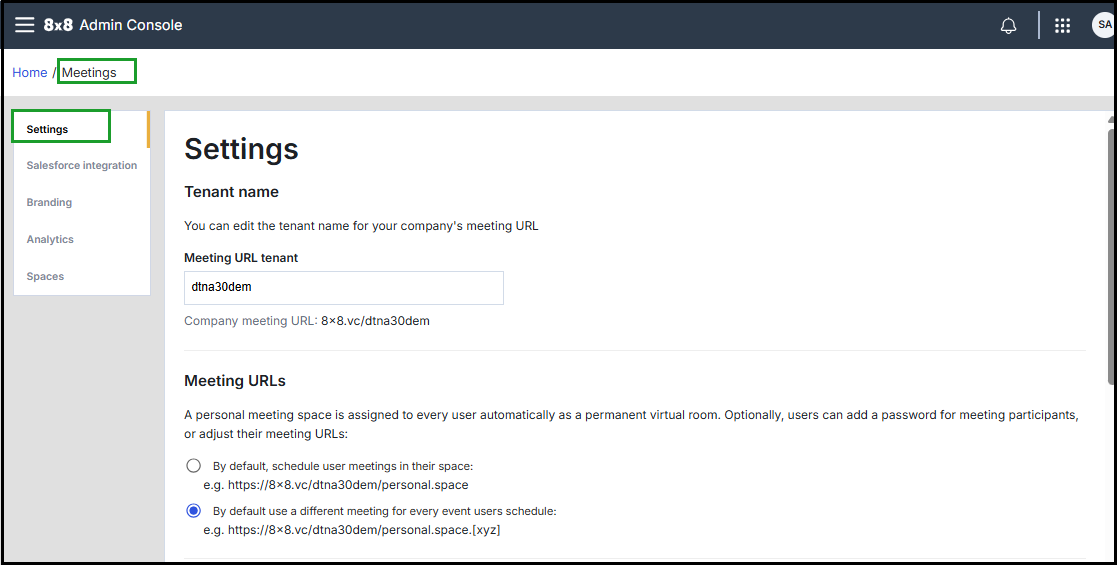
Meeting URLs
-
Under Tenant name, enter your organization’s Meeting URL tenant.
Example: A tenant of dtna30dem results in a base URL of 8x8.vc/dtna30dem/ for all users
-
Under Meeting URLs, choose the default format for scheduled meetings:
- Fixed personal space:
8x8.vc/domain/firstname.lastname
Each user’s meetings use their personal meeting URL (for example,8x8.vc/acmejets/mel.black).
- Fixed personal space:
- Randomized meeting links:
8x8.vc/domain/firstname.lastname/xyz
Each scheduled meeting includes a randomized suffix for added security (for example,8x8.vc/acmejets/mel.black/d20).
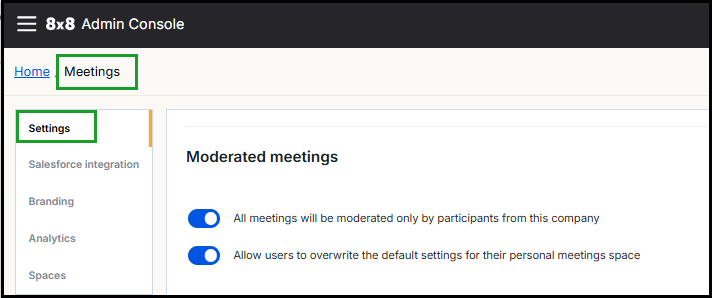
Moderated meetings
Control who can moderate and start meetings:
- All meetings will be moderated only by participants from this company - Restricts moderator privileges to authenticated internal users only.
- Allow users to override moderator settings for personal meetings - Lets individual users adjust moderator permissions in 8x8 Work for Desktop/Web, Settings > Meetings.
- For more details, see 8x8 Meet - Control and use 8x8 Meet moderator settings
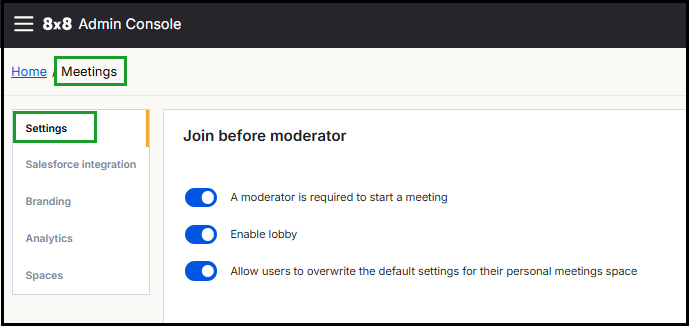
Join Before Meeting
-
A moderator is required to start a meeting: Control whether participants can join a meeting before a moderator starts the session.
- Enabled: At least one authenticated participant must join before the meeting starts. This option improves meeting security. (Recommended for security.)
- Disabled: Any participant can start the meeting without a moderator. This option may reduce security. (Not recommended.)
-
Enable lobby: Enable the lobby feature at the tenant or admin level.
- Enabled: It becomes the default setting for all meetings within that tenant.
- Allow users to override this setting: Allow users to manage this option individually in their Meeting settings in 8x8 Work.
Meeting Launch
- Enable or disable the option to launch meetings in the desktop app by default.
For more details, see 8x8 Work for Dekstop - Set up your meetings
Note: Users can override this preference in their personal meeting settings.
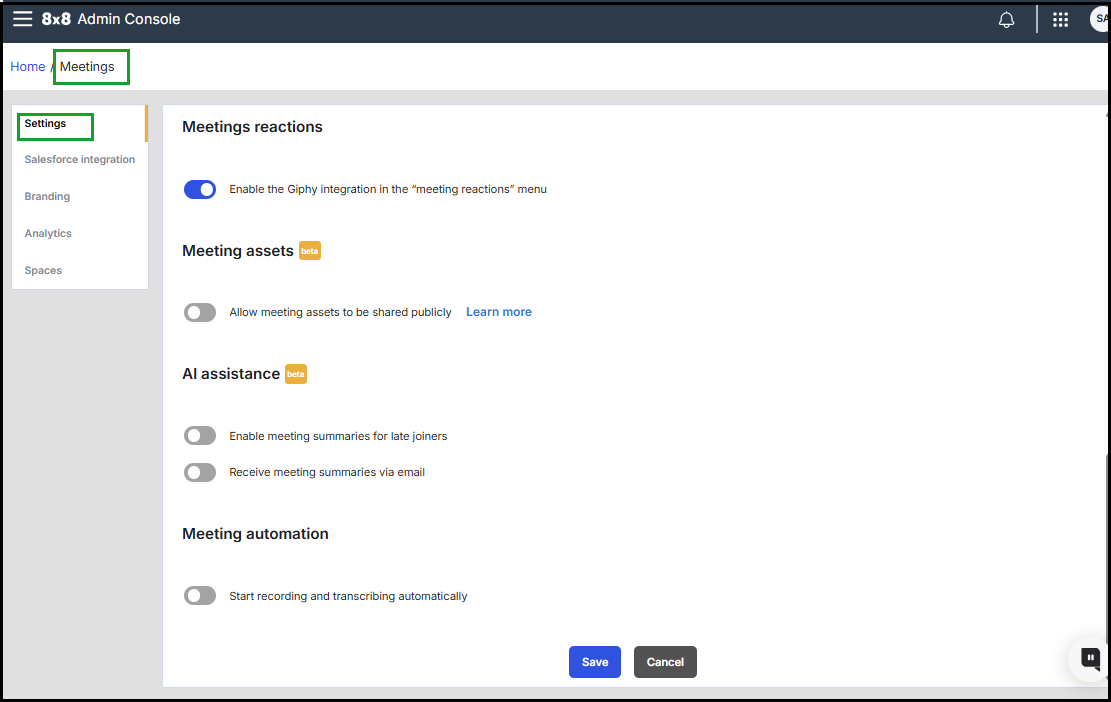
Meeting reactions, assets, and AI assistance
- Meeting reactions: Enable Giphy integration in the reactions menu, allowing participants to share expressive feedback in real time during meetings.
- Meeting assets: Allow meeting materials (for example, recordings and shared files) to be shared publicly.
- For more details, see 8x8 Meet - Share meeting assets in 8x8 Meet.
-
AI assistance:
- Meeting summaries for late joiners: Sends private summaries in chat to late participants.
- Meeting summaries via email: Distributes post-meeting summaries via email.
- For more details, see Set up an AI assistance for meeting summarization.
- Meeting automation: Automatically start recording and transcription at meeting start.
For more details, see 8x8 Work for Desktop - Set up your meetings
Save Changes
After completing your configurations, click Save to apply settings across your organization.
Next Step
For enhanced in-room conferencing experiences, set up 8x8 Spaces to bring remote participants into physical meeting rooms. For details, see Set up 8x8 Spaces.


