Customer 360 without a Local CRM
Customer 360 is also available for organizations without a Local CRM, giving agents access to interaction history and analytics-based insights from previous interactions.
During an active interaction, agents can view a timeline of past conversations linked to a contact identifier, such as a phone number or email address. This helps agents quickly understand customer history and respond more effectively.
Note: To configure Customer 360 as an administrator, see Configuration Manager.
Benefits
- Interaction history: View up to 50 past interactions from the last 12 months in a single timeline, based on a contact identifier such as a phone number or email address.
- Context-aware access: Customer 360 appears only during supported customer interactions and stays hidden for agent-to-agent calls, unrouted interactions, or directory calls.
- Analytics insights: When Speech Analytics is enabled, view insights such as sentiment and topic insights from previous interactions.
- Custom screen pop support: Display an external page as a tab in the Customer management workspace or new window when screen pop is enabled.
Limitations
Without a local CRM record, the system can only identify the customer by a contact identifier, such as a phone number or email address, and cannot display the customer’s full identity.
Overview of the Customer 360 view without Local CRM
For users without local CRM, Customer 360 appears as a side panel during active customer interactions. It displays data from analytics and past interactions linked to a contact identifier.
When handling an interaction with an existing customer, the Customer 360 panel provides quick access to:
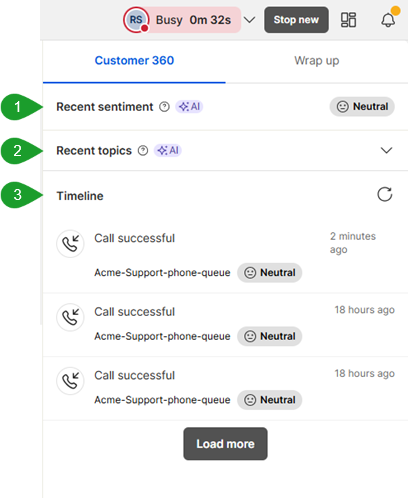
- Recent sentiment*: See how the customer felt during the most recent interactions.
- Recent topics*: View topics from previous customer interactions.
- Timeline: View the AI-generated title or email subject plus additional data for past interactions that occurred on the same communication channel.
Note: Items marked with an asterisk (*) require a Speech Analytics license and setup, and at least two prior recorded interactions since the feature release.
Handle interactions with Customer 360 without Local CRM
Customer 360 displays as a tab in a side panel during an active customer interaction. Without a Local CRM, the interaction data displayed is based on the contact identifier, such as a phone number or email address.
To keep the focus on customer-related conversations, the Customer 360 panel doesn’t appear for:
- Contact directory calls
- Agent
 Agents use the Agent Console to view and manage customer interactions. Virtual Contact Center supports Regular agents and Supervisor agents.-to-agent calls
 - Unrouted interactions
Customer 360 view for new customer records without Local CRM
When you accept an interaction from an existing customer, Customer 360 displays in a side panel.
If you are assigned a Speech Analytics license and setup, and the customer has at least two prior recorded interactions since the feature release, you can view:
- Recent sentiment: Based on the last two to ten interactions.
- Recent topics: Based on predefined phrases configured by your administrator in Quality Management and Speech Analytics (QM/SA).
The Timeline displays data from analytics based on the customer’s contact identifier, such as a phone number or email address. For context, it shows a short, AI-generated title for interactions with transcripts, helping you quickly recognize conversations in theTimeline. For email interactions, the email subject is used as a fallback to preserve context. The Timeline can list up to 50 past interactions that occurred on the same communication channel in the last 12 months. For example, during a call, the section displays previous call interactions associated with that phone number. It doesn’t display interactions from other channels, such as SMS or email.
Depending on the interaction type, the Timeline shows the following info:
- For voice interactions: AI-generated title for interactions with transcripts, call direction, outcome, queue details, sentiment, and date and time.
- For digital interactions: AI-generated title for interactions with transcripts, interaction direction, subject (for emails), queue details, sentiment, and date and time. Currently, you cannot open previous interactions from the Timeline.
Note: If the system cannot generate an AI title or retrieve the email subject, it may display the wrap-up code or the interaction type instead. Interactions that occurred outside a queue are labeled Non-queued interactions.
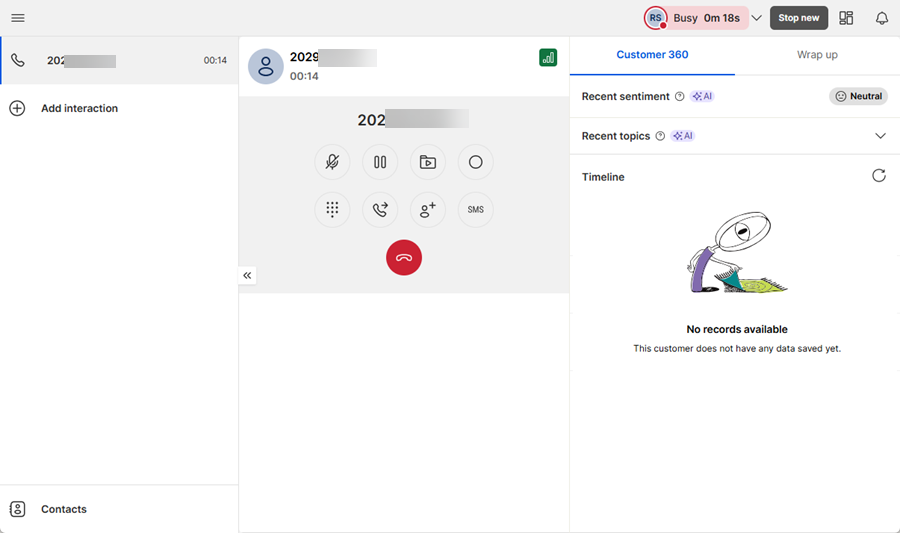
If the system can’t identify the customer during an interaction, the system indicates that in the panel.
Where are Notes saved?
You can add notes during an interaction or during wrap-up. The system saves these notes in an external CRM through API integration.


