Note: This feature is currently available as an Open Beta.
About 8x8 Customer 360
Customer 360 enables agents to access customer data, interaction history, and insights in a unified view during live interactions. To ensure the feature works for your organizational needs, you must configure Customer 360 based on your CRM setup and desired screen pop behavior. Proper configuration allows agents to access relevant customer context in real time and manage interactions more efficiently.
Customer 360 is now available for organizations:
The differences between Customer 360 with and without Local CRM enabled are summarized in the table below:
| Feature | With Local CRM | Without Local CRM |
|---|---|---|
| Data source | Uses records and data stored in the Local CRM module. | Uses only data available in Analytics. |
| Customer identity | Shows a complete customer identity using CRM records. | Shows data based on a contact identifier such as a phone number or email address. |
| Interaction history | Provides full customer history without switching views. | Shows past interactions linked to a contact identifier, such as an email address or phone number. |
| Record interaction | Allows agents to interact directly with CRM records and data. | Doesn’t allow interaction with CRM records or data. |
| Visibility of insights |
Includes sentiment analysis and topics in the standard profile snapshot. Note: Topics and sentiment require a Speech Analytics license and at least two prior recorded interactions. |
Shows sentiment and topics only when Speech Analytics is enabled. Note: Topics and sentiment require a Speech Analytics license and at least two prior recorded interactions. |
| CRM actions | Allows agents to log cases, update records, and perform CRM actions in a single view. | Doesn’t support interaction with CRM-specific records. |
Requirements
- Access to 8x8 Configuration Manager with administrator permissions.
- Customer 360 feature enabled for your organization.
- Supported interaction channels configured.
- (Optional) Speech Analytics license enabled and assigned to agents to view sentiment and topic insights.
- (Optional) When handling emails in Customer 360, admins must select the Enable full email integration in Agent Workspace option in 8x8 Configuration Manager. See Enable the improved email experience for Customer 360.
Enable the improved email experience for Customer 360 in 8x8 Agent Workspace
For a seamless email handling experience using Customer 360 you must enable the improved email experience in 8x8 Agent Workspace .
Before enabling the Customer 360 feature for your tenant, ensure the Enable full email integration in Agent Workspace checkbox is selected in your tenant’s profile settings. If your tenant is still using the previous email setup, agents will experience broken or incomplete functionality when handling emails in Customer 360.
To enable the full email integration in Agent Workspace:
- Log in to your 8x8 Configuration Manager account.
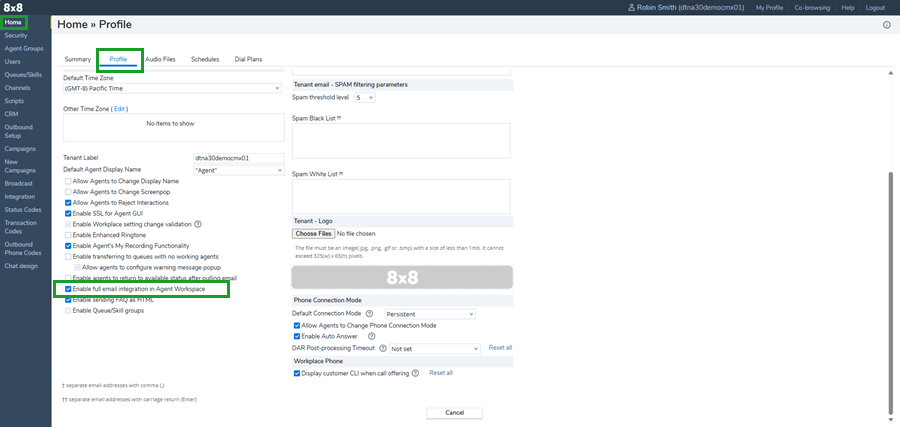
- Go to Home > Profile.
- Select the checkbox for Enable full email integration in Agent Workspace.
- Click Save.
Note: After saving your changes, the app may take up to 10 minutes to display them.
To learn more about the options available, see the summary of profile settings.
Configure Customer 360 with Local CRM
For customers using Customer 360 with Local CRM, administrators must ensure the correct screen pop settings are enabled in 8x8 Configuration Manager. This procedure ensures agents can access Customer 360 records, automatically log interactions, and view interaction history in 8x8 Agent Workspace.
When set up correctly:
- The Customer 360 panel appears in 8x8 Agent Workspace.
- Related cases and tasks are automatically created based on your configuration settings.
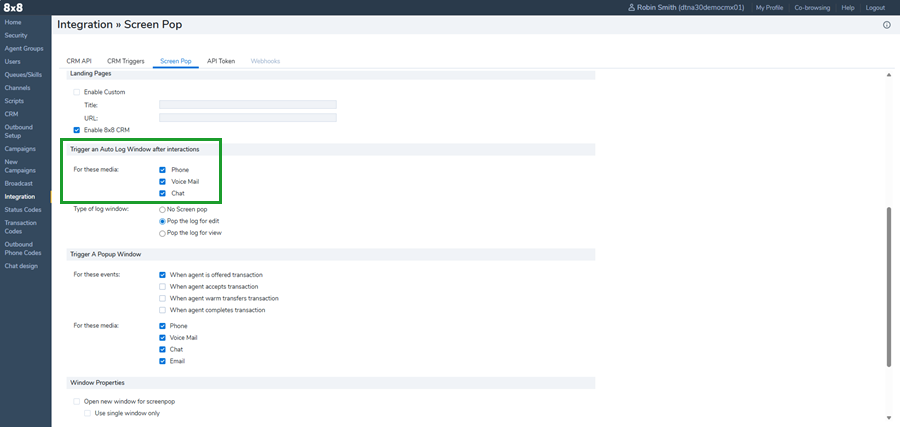
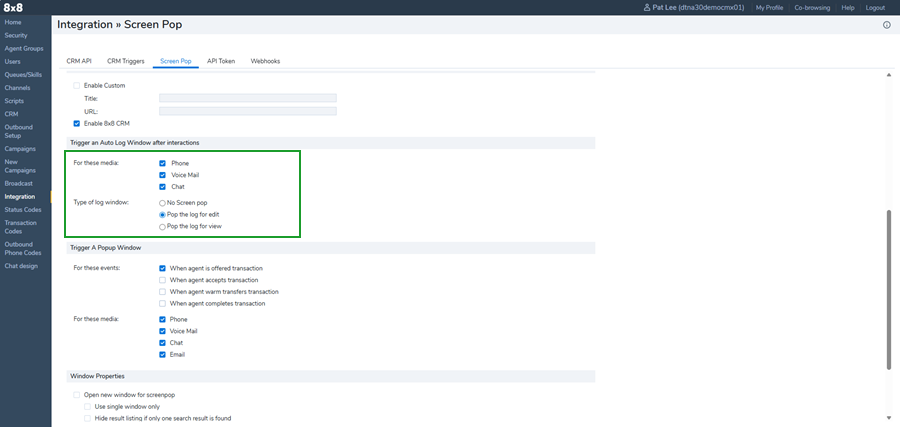
- Interactions from the selected media types (under Trigger an Auto Log Window after interactions > For these media) are stored in Interaction History in 8x8 Agent Workspace and displayed in the Timeline section of the Customer 360 panel. If no media types are selected, interactions are not saved to Interaction History.
To access these media settings, go to Integration > Screen Pop > Trigger an Auto Log Window after interactions > For these media.
Note: The Type of log window setting doesn't affect which interactions are saved in Interaction History. It only determines whether a screen pop is displayed and whether the log opens in edit or view mode.
Agents can access Interaction History from the menu in 8x8 Agent Workspace.
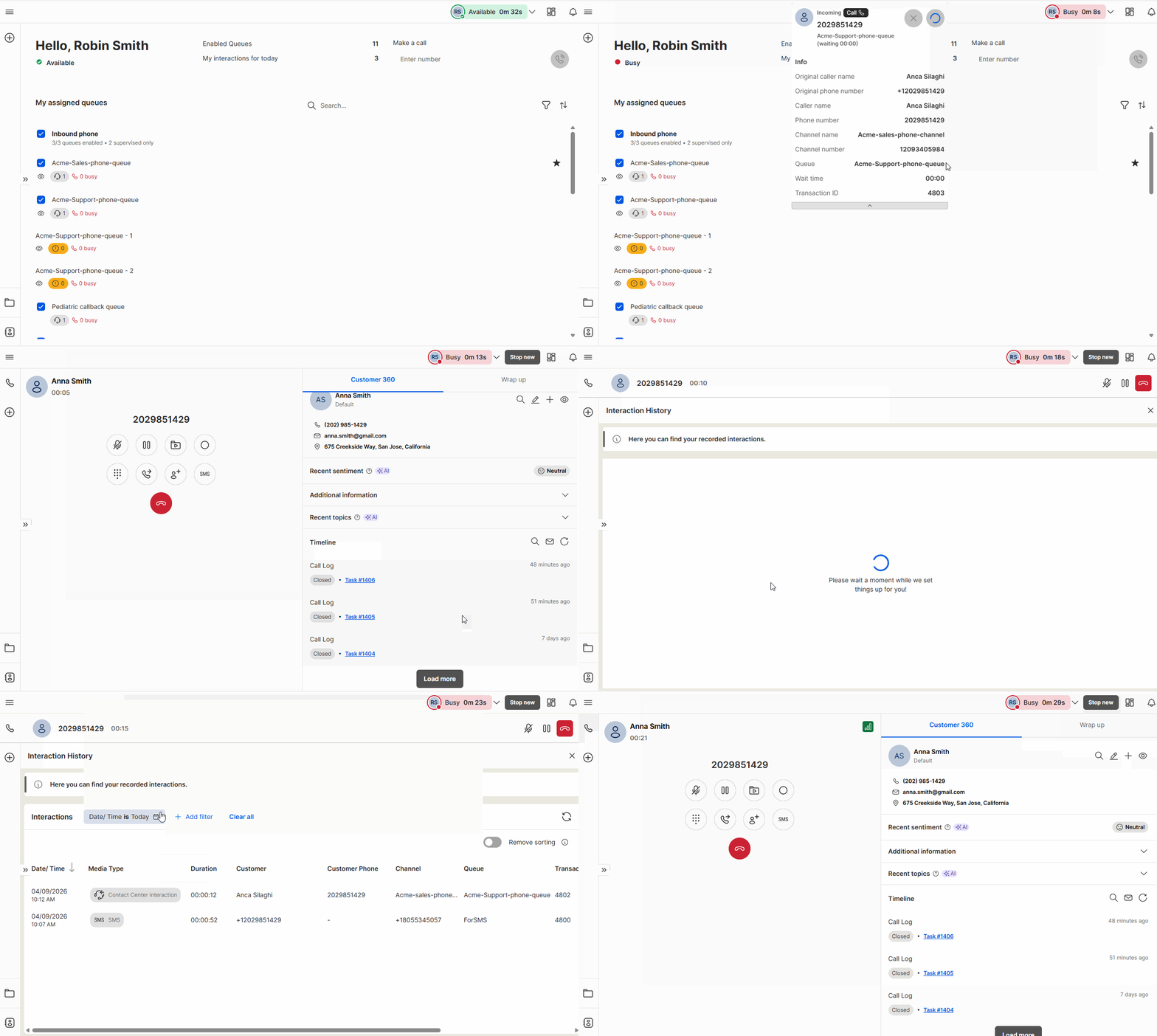
 To configure Customer 360 with Local CRM:
- Log in to 8x8 Configuration Manager.
- From the menu, select Integration.
- Go to the Screen Pop tab.
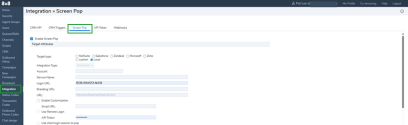
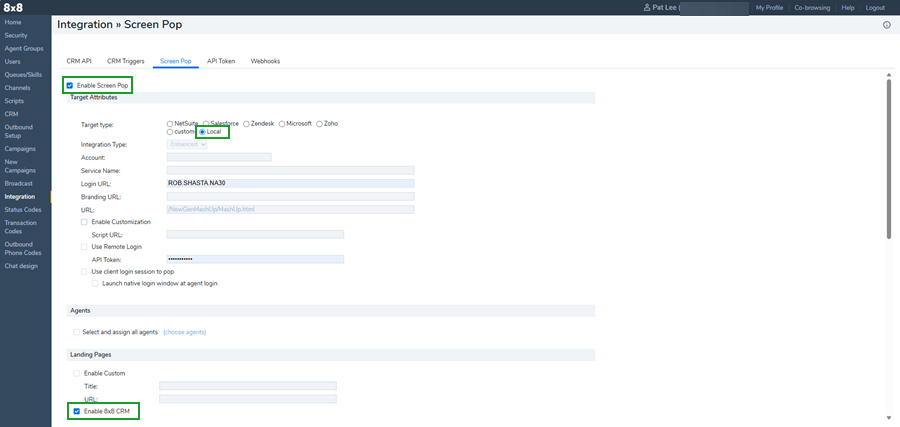
- Ensure the Enable Screen Pop check box is selected.
- Ensure Local CRM is selected as the Target Type.
- In the Landing Pages section, ensure the Enable 8x8 CRM check box is selected.
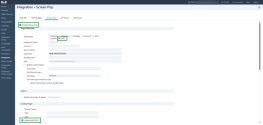
- In the Trigger an Auto Log Window after interactions section, select the media types for which a customer log should be created automatically, such as Phone, Voice Mail, and Chat.
- (Optional) In the Type of log window section, select how the screen pop behaves after an interaction ends:
- No Screen pop: No screen pop is triggered when an interaction ends in Customer 360 or the local CRM. If a media type is selected, the interaction is still saved in Interaction History.
- Pop the log for edit: Opens a dialog that allows the agent to view and edit the customer record.
- Pop the log for view: Opens a dialog that allows the agent to view the customer record.
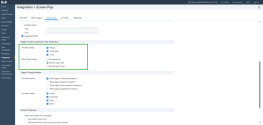
- (Optional) In the Trigger A Popup Window section, select when the popup should appear, and for which interaction types.
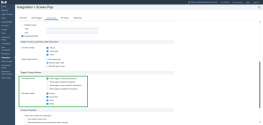
- Click Save.
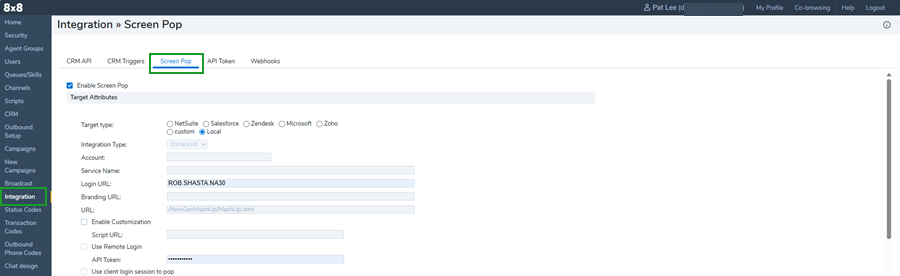
IMPORTANT: Only the interactions from the selected media types are stored in the Interaction History and are displayed in the Customer 360 panel.
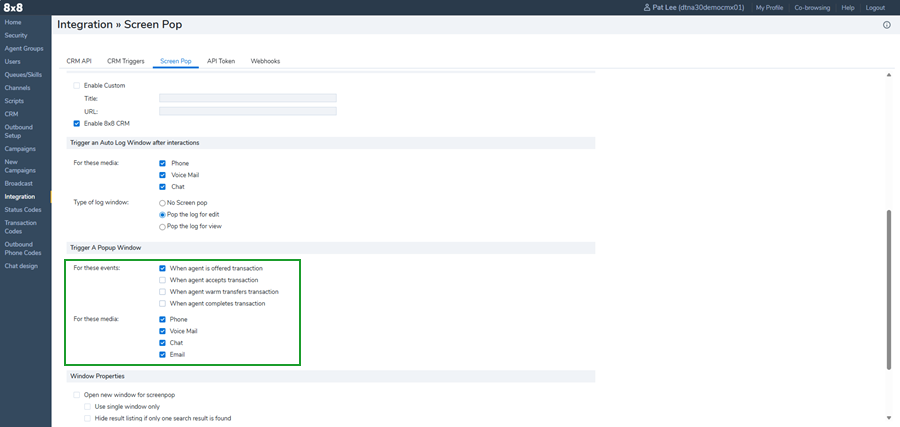
After setup, verify that the Customer 360 panel appears for agents during active customer interactions and that interaction logs display in Interaction History for the selected media types.
Configure Customer 360 without Local CRM
Customers who use Customer 360 without Local CRM and with or without custom screen pop must configure the appropriate settings in 8x8 Configuration Manager. The available configuration depends on whether a CRM integration is used and screen pop is enabled.
You can configure one of the following options:
Note: If you clear the Enable Screen Pop check box in 8x8 Configuration Manager, all custom screen pop integrations are disabled at the tenant level.
Configure Customer 360 without Local CRM and custom screen pop disabled
This setup allows agents to view the Customer 360 panel during customer interactions. Since there is no Local CRM available to extract relevant customer information from, the screen pop setting must be disabled.
To configure Customer 360 without Local CRM and without custom screen pop:
- Log in to 8x8 Configuration Manager.
- From the menu, select Integration.
- Go to the Screen Pop tab.
- In the Landing Pages section, disable the Enable 8x8 CRM check box.
- Disable the Enable Screen Pop check box from the top of the page. When this option is deselected, all options on this page are grayed out and cannot be selected.
- Click Save.
Note: If you clear the Enable Screen Pop check box in 8x8 Configuration Manager, all custom screen pop integrations are disabled at the tenant level.
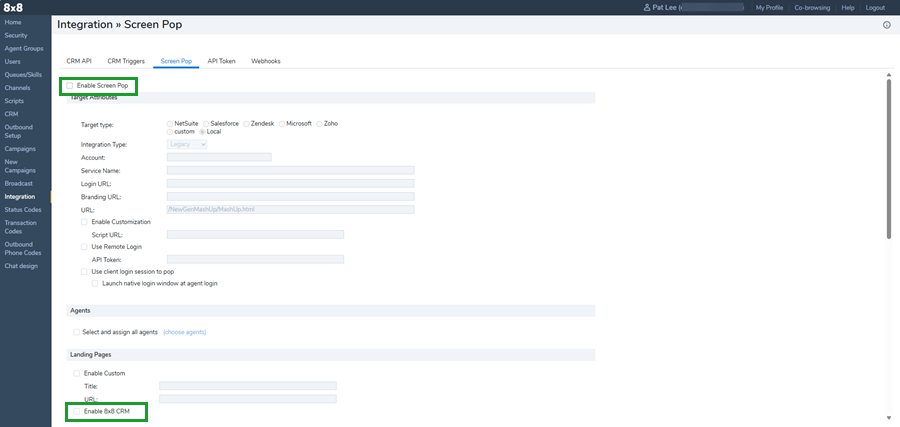
Configure Customer 360 without Local CRM and custom screen pop enabled
This setup allows agents to view the Customer 360 panel during customer interactions. A custom screen pop displays in the Customer management workspace or in a separate window depending on the settings.
To configure Customer 360 without Local CRM and with custom screen pop:
- Log in to 8x8 Configuration Manager.
- From the menu, select Integration.
- Go to the Screen Pop tab.
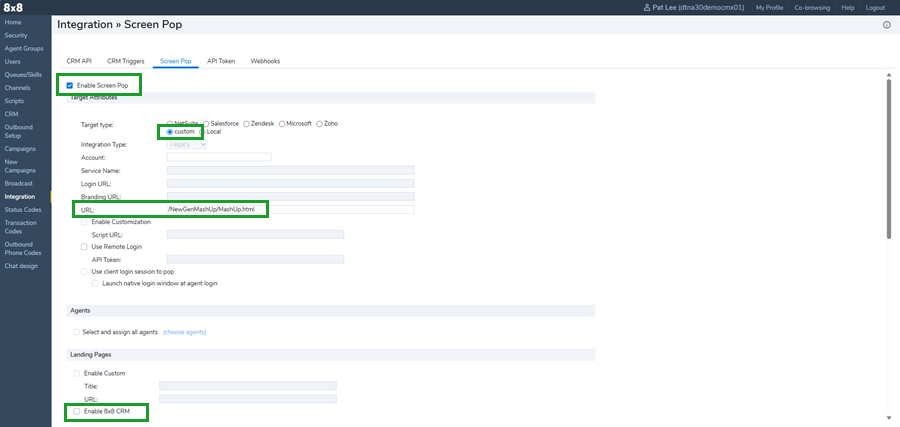
- Select the Enable Screen Pop check box from the top of the page.
- Ensure custom is selected as the Target Type.
- In the URL field, add a custom URL where 8x8 Contact Center sends information about the interaction reported by the screen pop.
- In the Landing Pages section, disable the Enable 8x8 CRM check box.
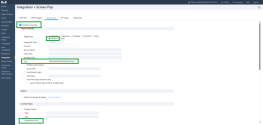
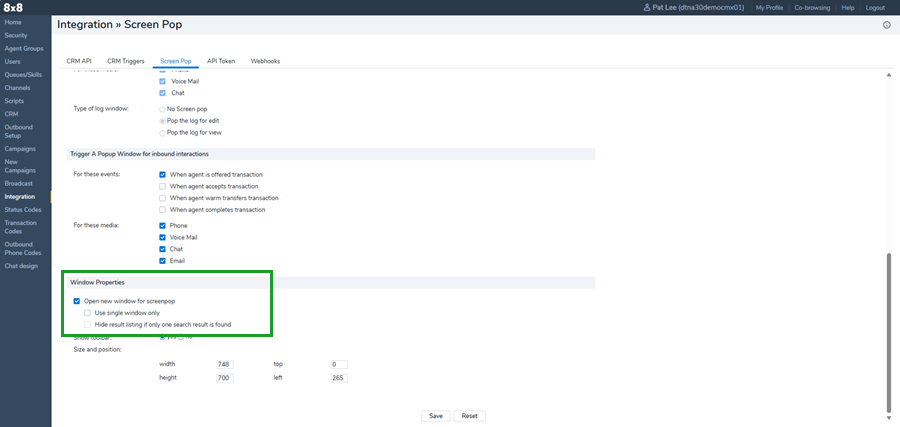
- (Optional) From the Window Properties section, select the screen pop behavior:
- Open new window for screen pop: When enabled, the screen pop opens in a new browser window for each interaction. When disabled, the screen pop opens as a new tab within the Customer management workspace and also appears next to the Customer 360 panel.
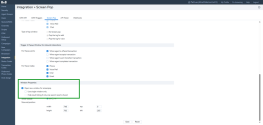
- Click Save.
Test Customer 360 during open Beta
When Customer 360 is enabled for open beta, a banner appears in 8x8 Agent Workspace for administrators and supervisors. To test the feature locally, enable the Preview Customer 360 toggle from the banner.
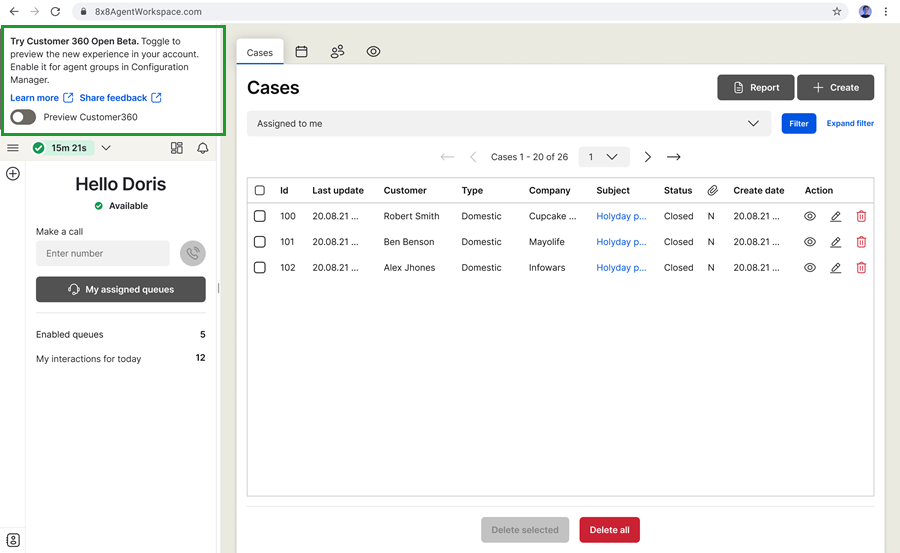
This preview lets you explore the new experience before general availability. From the banner, you can also select Learn more to access documentation and submit feedback.
The preview applies only to your view and doesn’t affect other users unless you choose to enable Customer 360 at Agent Group level. Test by initiating inbound or outbound interactions on any channel to experience the new workflow in your organization. Testing early helps you confirm workflows, spot gaps, and prepare for a smoother rollout.
How to enable Customer 360 at Agent Group level
Enabling Customer 360 at the Agent Group level allows you to tailor Customer 360's capabilities to the specific needs of each team. This is especially useful when different departments follow distinct workflows, require different levels of customer data access, or operate under unique compliance requirements.
To enable Customer 360 at Agent Group level:
- Log in to 8x8 Configuration Manager.
- From the menu, select Agent Groups.
- Locate an existing group and click Edit
 . To learn how to create a new group, see Add an agent group and assign to outbound phone codes.
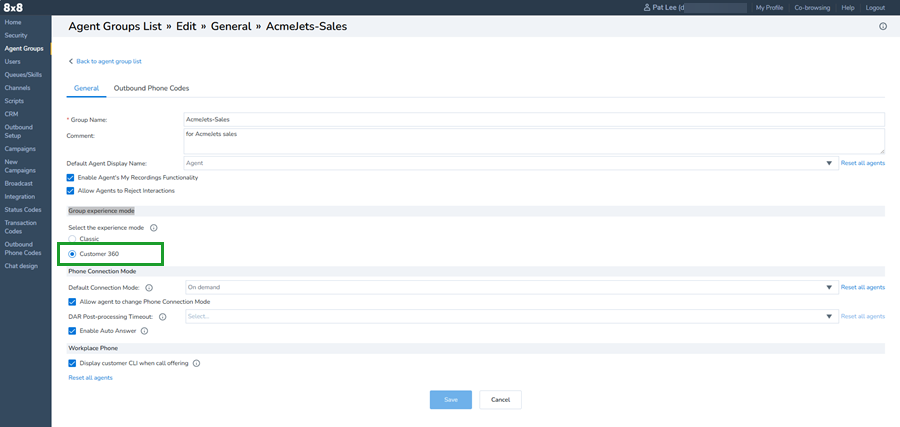
 - From the Group experience mode, select Customer 360.
Customer 360 data deletion
When data is deleted according to storage policies, it is permanently removed from the platform. This includes historical records and any related data in Customer 360.


