Set up emergency schedule in 8x8 Contact Center
An emergency schedule for disaster recovery allows 8x8 Contact Center admins to quickly reroute inbound calls in case of an emergency, such as during power outages, network failures, or building evacuations. Calls can be redirected to external destinations, including mobile phones or backup office numbers, using pre-configured routing rules.
Emergency schedules must be configured and tested in advance.
Requirements
- Admin access to 8x8 Configuration Manager.
How to set up an emergency schedule for disaster recovery
To ensure call continuity during emergencies, configure an Emergency Schedule using the steps below.
- Log in to 8x8 Configuration Manager.
-
Select Home.
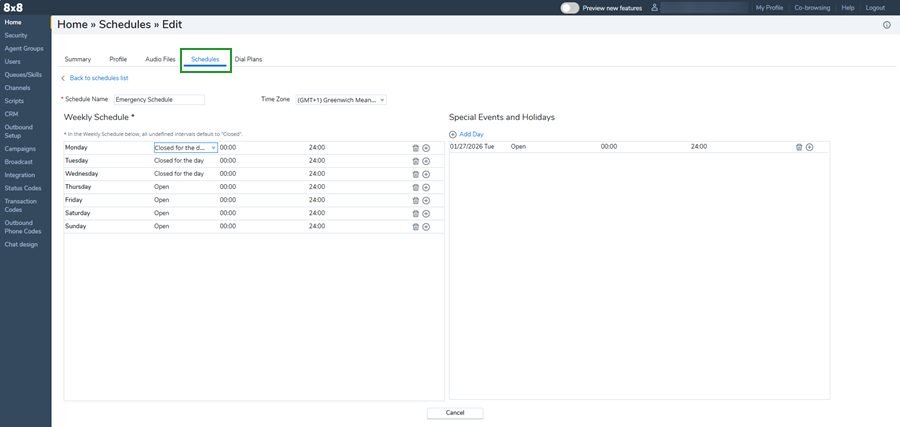
- Click the Schedules tab.
- Click
 Schedule to add a new schedule.
 - Give the schedule a clear, descriptive name (e.g., Emergency DR Routing).
- Select a Time Zone from the list.
- Define the values for the Weekly Schedule and/or Special Events and Holidays with desired call treatment in the IVR:
- Choice 1 to Choice 6: Define up to six alternate options for more refined choices other than Open or Closed for the day.
- Closed for the day: Call treatment when the business is closed for the entire day.
- Click Save.
- Go to Scripts.
- Click Add new phone script, create a duplicate script or edit an existing script.
- Give the script a clear, descriptive name and add the newly created schedule as an object. For information on creating scripts and objects, see Create inbound phone script, and Copy and paste IVR script objects. You can also reach out to the 8x8 Professional Services team to assist you with the script creation.
- Test the schedule outside of business hours or in a test flow.
- Notify the agents that a service disruption occurred and the failover plan is active.