Subscription audit event
Note: The subscription audit results are accessible exclusively to 8x8 partners and their customers.
Whenever a subscription is assigned to a user or removed from a user, an audit event is automatically generated. These events appear on the Audit Events page, typically within a few minutes.
An audit event is automatically generated whenever a user's subscription status changes, like when a subscription is added to or removed from a user. These events are visible on the Audit Events page, usually appearing within minutes of the change.
This feature helps administrators monitor subscription changes, investigate configuration updates, and maintain visibility into user-level licensing activity.
 Audited subscriptions
The following user-centric subscriptions generate audit events when they are assigned to or removed from users:
- UC Base Platform
- Toll Free Number
- Local Number
- Unlimited Mins
- Lobby Plan
- Metered
- UC Call Recordings Hot Storage
- UC Meeting Recordings Hot Storage
- UC Meeting Recordings Cold Storage
- UC Call Recordings Cold Storage
- Advanced Integration
- Basic Integration
- Audio & Video Conferencing
- Internet Fax
- 8x8 Frontdesk
- Universal Team Messaging
- Voice for Microsoft Teams
- Auto Attendant
- Call Queue membership
- Analytics for 8x8 Work - Supervisor
- Barge Monitor Whisper
- Commercial Integration Services for 8x8 Voice for Microsoft Teams
- 8x8 Implementation Plus - Bronze
- 8x8 Implementation Plus - Silver
- 8x8 Implementation Plus - Gold
These subscriptions are audited automatically whenever they are assigned, removed, or modified for a user.
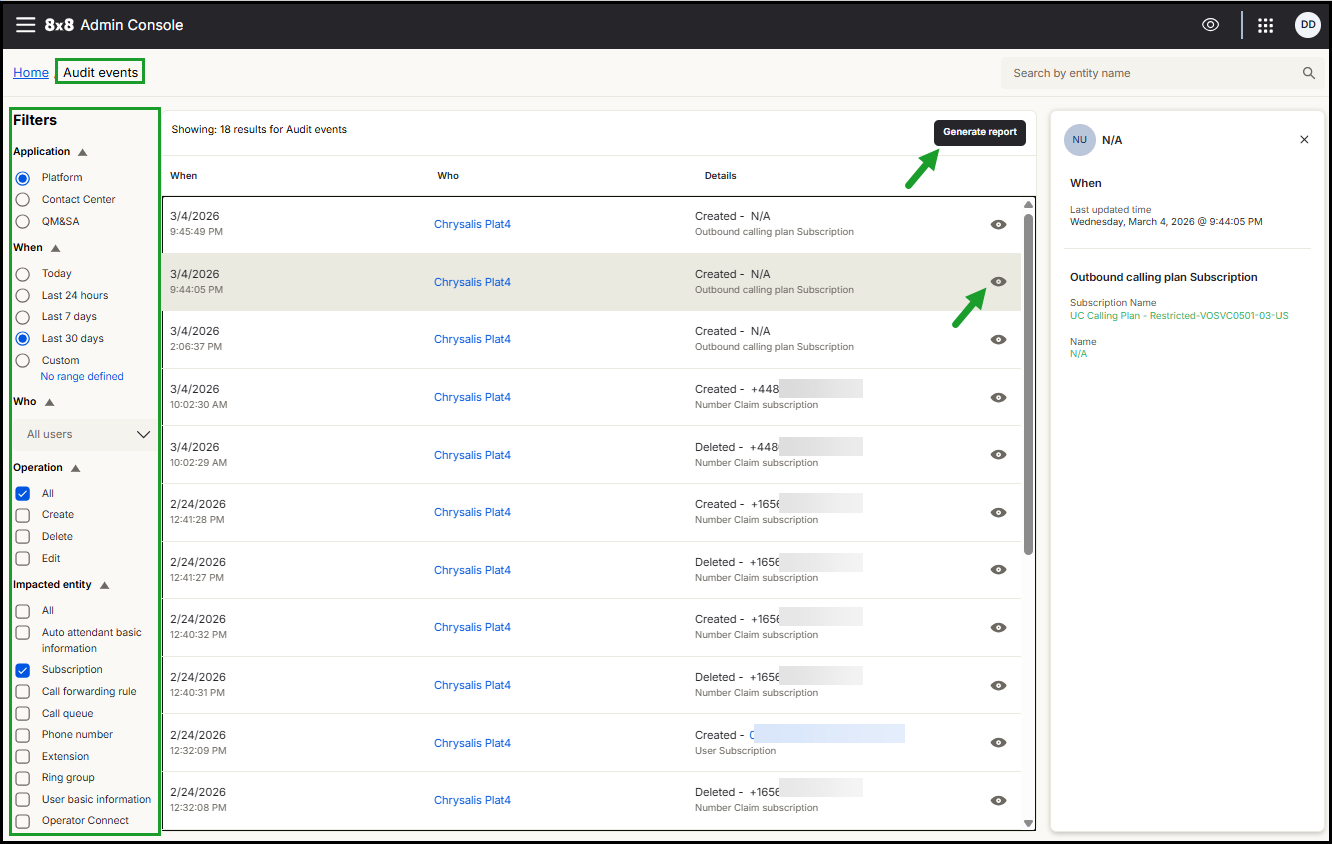
Subscription event results
The results list displays the following columns for subscription audit events.
When
- The exact date and time when the subscription was created or deleted.
Who
- Identifies the administrator who performed the action.
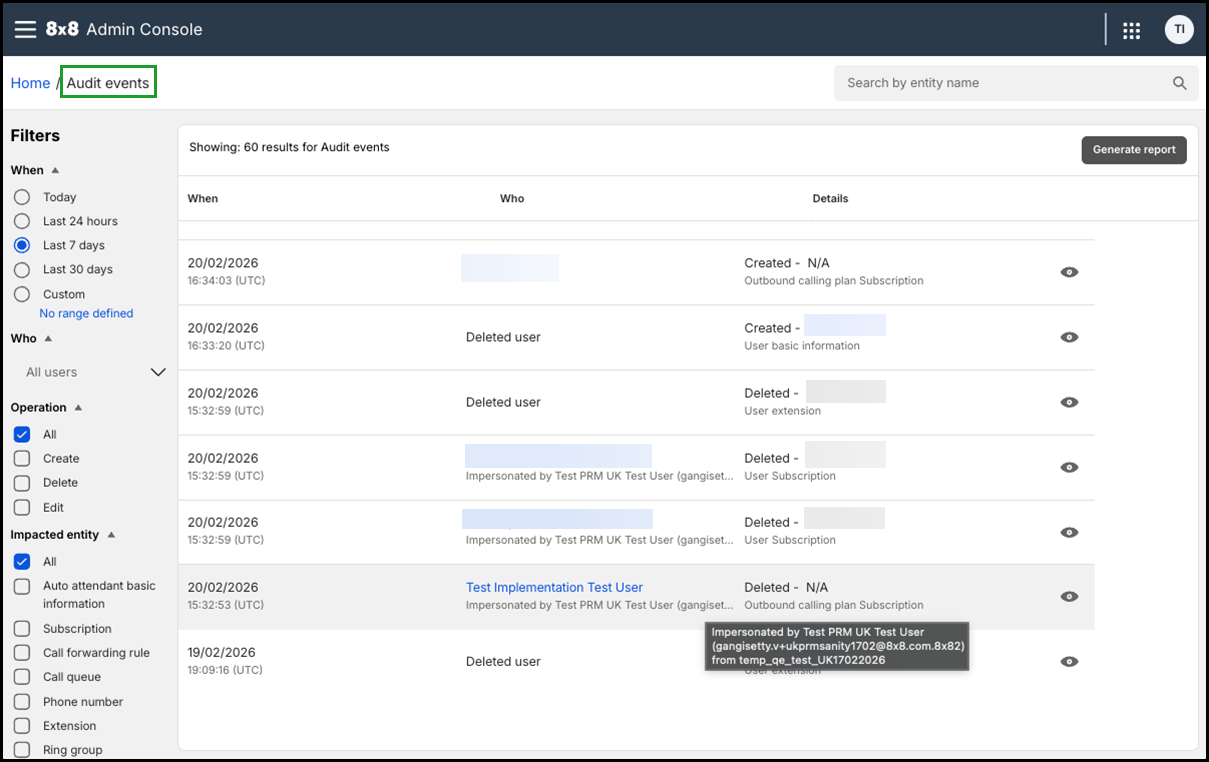
- The value displayed depends on how the change was made.
-
Customer administrator made the change directly
{customerAdminFirstName} {customerAdminLastName}{customerAdminUserName}) -
Partner administrator impersonated a customer administrator
-
If the viewer is also a partner administrator, the full impersonation details appear:
{customerAdminFirstName} {customerAdminLastName}({customerAdminUserName})({impersonatorUserName}) from {impersonatorCompanyName} -
If the viewer is a customer administrator, the partner administrator identity is hidden"
{customerAdminFirstName} {customerAdminLastName}({customerAdminUserName})Impersonated by a Partner user
Impersonated by
{impersonatorFirstName} {impersonatorLastName}
-
Details
A summary of the action performed, including:
- The operation performed (Created or Deleted)
- The affected entity (user first and last name)
- The subscription involved in the event
View full details of a subscription event
After applying filters or searching for a specific entity, the matching audit events appear in the results list.
Each event displays a summary including when the change occurred, who made the change, and the action performed.
To view detailed information about a subscription event
- Log in to your 8x8 Admin Console account.
- From the menu
 go to Audit events.
 -
Use the filters or search field to locate the subscription event.
Note: To quickly locate subscription events, use the Impacted entity filter and select Subscription. You can also search for the affected user by name.
-
Click the event row or the View
 icon in the event’s row.
A side panel opens displaying detailed information about the event, including:
- The affected user’s User ID
- The affected user’s first and last name
- The subscription name involved in the event
- Click
 to close the side panel.
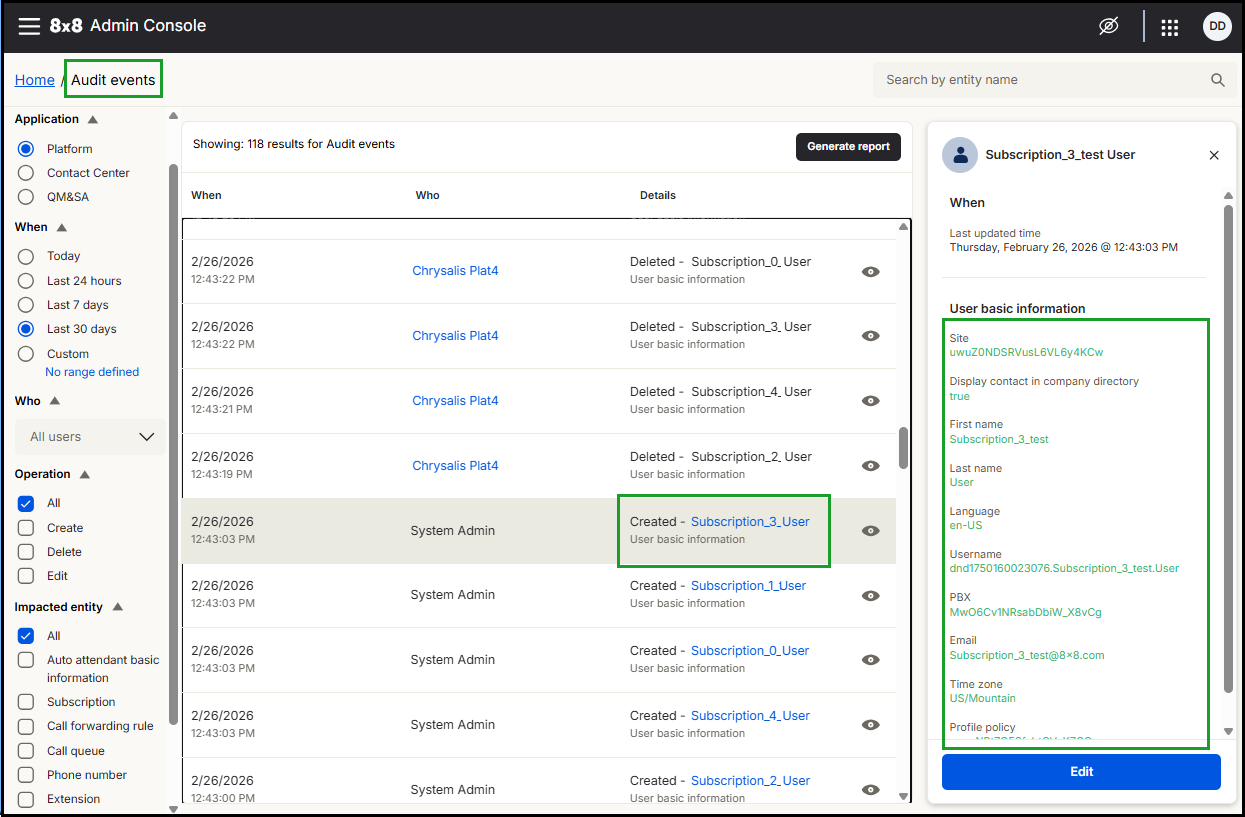
Audit event change indicators
In the event details panel:
- Newly added attributes display the new value only.
- Modified attributes display the original value in red and the new value in green
For more details about auditing events, see Audit events.


