Control IVR speech in the Say node with SSML support
The Speech Editor enhances the Say node by adding built-in support for Speech Synthesis Markup Language (SSML). It allows you to control pauses, pacing, pronunciation, pitch, and emphasis to create clearer and more natural IVR messages.
You can use guided UI controls without writing SSML manually. Advanced users can enter SSML directly when needed.
Important distinction
- Speech Editor: The authoring tool inside the Say node
- SSML: The markup language used to control how speech is delivered
 When to use the Speech Editor
Use Speech Editor when you want to:
- Improve IVR voice quality and naturalness
- Control pauses, speed, pronunciation, and emphasis
- Preview audio before saving or deploying
- Avoid dialing into the IVR to test changes
If you only need a simple static message without speech shaping, basic text playback may be sufficient. To learn more, see Enable static text-to-speech.
Example: From plain text to natural speech
Plain text
Thank you for calling our support line.
Please have your account number ready.
Using the Speech Editor
xml
<speak>
Thank you for calling our support line. <break time="500ms"/>
Please have your<prosody rate="slow">account number</prosody> ready.
</speak>
Configure a Say node using the Speech Editor
Use the Speech Editor to control how speech is delivered. It is available within the Say node.
To configure a Say node using the Speech Editor:
- From the Configuration menu, open Scripts.
- Select the Phone tab.
- Click Edit
 to open the desired script
 - In the Script tab, add or select a Say node.
-
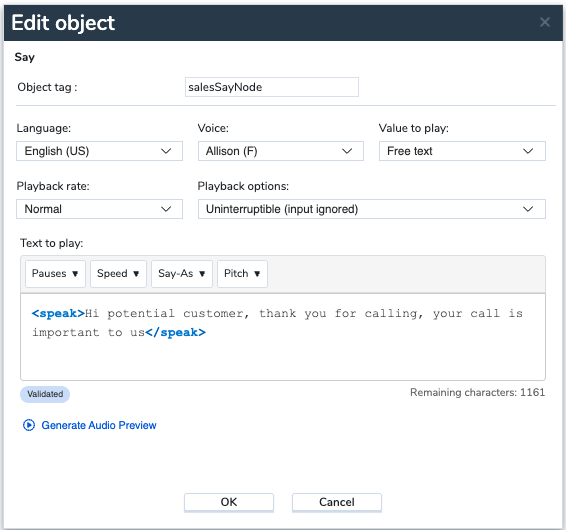
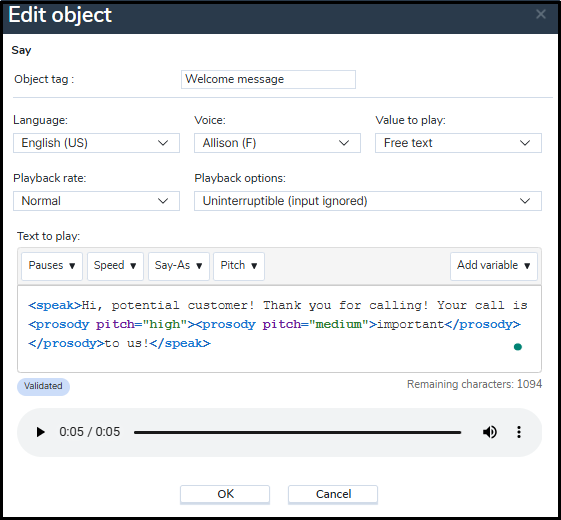
In the Say node configuration dialog, configure the following:
- Language: Select the preferred language. This determines available voices.
- Voice: Select the predefined voice for the message. Available voices depend on the language selected.
- Value to play: Select Free text.
- Playback rate: Choose Slow, Normal, or Fast.
- Playback options: Select Uninterruptible (ignores input from the caller) or Interruptible (captures input during playback).
-
Text to play: Enter your message and use the SSML tags to adjust how your message sounds.
Note: If you apply any speech formatting, either through editor controls or by typing SSML, your content must be wrapped between tags:
xml
<speak>...</speak>- The Speech Editor validates SSML automatically and displays guidance if formatting is incorrect.
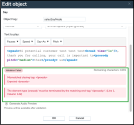
- Fix any formatting errors if necessary. When Speech Editor validates SSML, the Validated status appears .
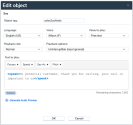
-
Click Generate Audio Preview
 to listen to the message before saving or deploying.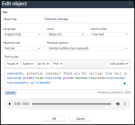
- Optionally, make the necessary changes.
- Click OK to save.
 Control language, voice and playback settings
Configure the general settings that control the overall behavior of speech playback before making adjustments to control how your message sounds. These settings are consistent with those in the original Say node and remain applicable within the Speech Editor. Set the settings that affect overall speech output before adjusting how your message sounds
Language and Voice
- Available languages: Arabic, Bahasa (Indonesia), Basque, Cantonese, Catalan, Czech, Danish, Dutch, Dutch (Belgium), English (Australia), English (GB), English (India), English (US), Finnish, French, French (Canada), Galician, German, Greek, Hebrew, Hindi, Hungarian, Icelandic, Italian, Japanese, Korean, Mandarin (China), Mandarin (Taiwan), Norwegian, Polish, Portuguese (Brazil), Portuguese (Portugal), Romanian, Russian, Slovak, Spanish (Castilian), Spanish (US), Swedish, Thai, Turkish.
- Voice: Available voices depend on the language selected
- Always regenerate the preview after changing Language or Voice.
Playback controls
- Playback rate controls overall speech speed: Normal, Slow or Fast
-
Playback options determine whether DTMF input interrupts playback:
- Uninterruptible: Ignores input from the caller or
- Interruptible: Captures input during playback
Shape how your message sounds
- This is where the Speech Editor delivers the most value.
- Use built-in controls to adjust how your message is spoken — no need to write SSML manually. Each control automatically inserts valid SSML behind the scenes.
Add pauses
Pauses make messages easier to understand and more human-sounding. Use them between sentences or before important information.
xml
<break time=”500ms”/>
Adjusting speed and pitch
You can slow down or emphasize specific words or phrases to improve clarity or tone. This is especially useful for instructions, confirmations, or identifiers.
xml
<prosody rate="slow">account number</prosody>
Speaking structured data correctly
Use Say-As to ensure numbers, dates, currency, and phone numbers are spoken naturally. This is especially useful for instructions, confirmations, or identifiers.
xml
<say-as interpret-as="telephone">+442038563412</say-as>
Preview and validate
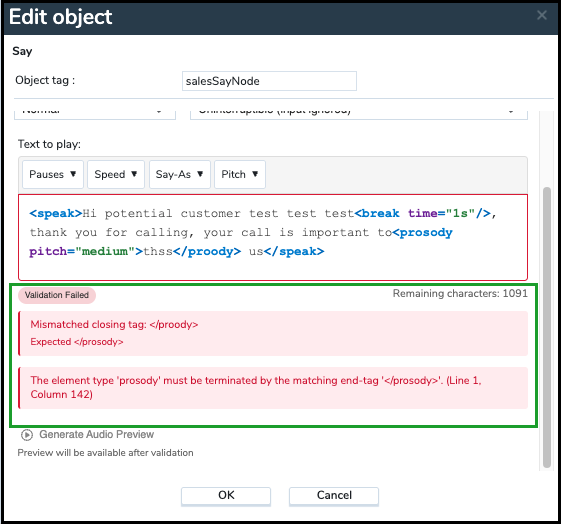
Automatic validation checks the message content for supported and correctly formatted text as you type. If an error is found, a validation message will appear in the editor, detailing the required fix.
-
Validation runs automatically as content changes.
-
A validation status and message are shown when issues are detected.
- Previewing and saving are blocked until issues are fixed.
- Audio preview plays inline and reflects live call behavior.
Best practices for text-to-speech
To make your IVR messages sound natural and easy to understand, follow these guidelines:
- Keep prompts concise: Short messages are easier to follow.
- Use pauses like punctuation: Insert breaks where a comma or period would naturally occur.
- Avoid excessive tag nesting: Too many SSML tags can make speech sound robotic or unpredictable.
- Preview after every change: Always listen to your message before saving or publishing
Existing Say nodes
- Existing Say nodes continue to work without any changes.
- Using SSML is optional and only needed for advanced speech features.
If you only need a basic static message — with no ith no control over timing or pronunciation — standard text playback is enough. To learn more, see Enable static text-to-speech.
When to use manual SSML
Use manual SSML when:
-
You need precise phonetic or pronunciation control.
-
You need to switch languages within a single prompt.
You require advanced formatting not available in the Speech Editor UI.
For most use cases the Speech Editor controls are sufficient..
To learn more about IVR script objects, see Summary of phone IVR script objects: Say Node
Summary
The Speech Editor adds advanced speech control to the Say node in a guided, admin-friendly interface. It reduces testing effort, improves voice quality, and gives you confidence in how callers experience your IVR —without adding complexity.
To find more about supported SSML tags and troubleshooting, see SSML reference for the Say node.


