Troubleshooting: 8x8 integration for Zendesk
Check out the following troubleshooting items for 8x8 integration with Zendesk:
 Activity in 8x8 Contact Center does not trigger a screen pop in Zendesk
- Ensure you are connected to integration with Zendesk.
Reconnect the integration
- In the 8x8 Contact Center app, go to Change status
 > My profile.
 - In the window that displays, click the Integrations tab.
- Click Reconnect.
- Enable the Auto interaction log option to automatically generate a call/chat log. A call log includes information about the time a call was initiated, terminated, duration and more. A chat log includes the chat transcript as well.
- In the 8x8 Contact Center app, go to Change status > My profile.
- In the window that displays, click the Integrations tab.
- Under Settings, configure the following options:
- Enable Auto interaction log.
- Make sure that a pop-up blocker is not preventing new tabs from opening from Zendesk.
When connected, the system displays Connected in green in the Integrations section.
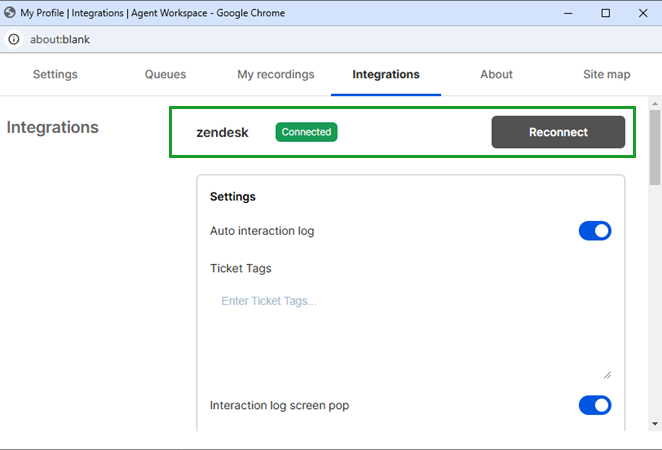
To enable the Auto interaction log option:
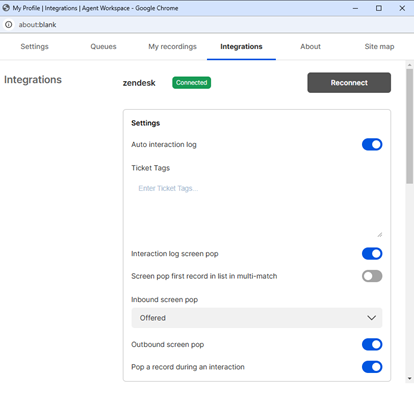 Ensure the correct Search Types are enabled
Search Types allows you to control what CRM Objects are searched. These can be configured within your integration settings or CRM Integration Profiles.
Note: Users can only edit Search Types if permitted by the administrator.
To access Search Types in the integration:
- Click the Settings
 icon from the top of the 8x8 integration.
 - Click Integrations.
- Scroll down to the Search types.
If permitted by the admin, you can enable or disable the search types to suit your organizational needs.
My screen pop fails in CRM integration with 8x8 Contact Center
A screen pop failure is commonly attributed to browser caching issues, blocked pop-ups, and blocked websites.
To clear the browser cache in Chrome
- Click the Menu icon in the top-right corner of your Chrome browser window.
- Select Settings from the menu.
- Click Advanced at the bottom of the page.
- Under Privacy and security, select Clear browsing data.
- Select the following check boxes from the list:
- Cookies and other site data.
- Cached images and files.
- Click Clear data.
To allow pop-ups in Chrome
- Click the Menu icon in the top-right corner of your Chrome browser window.
- Select Settings from the menu.
- Click Advanced at the bottom of the page.
- Under Privacy and security, select Site settings.
- Under Unsandboxed plugin access, click Add next to the Allow section.
- Enter <cloud8.8x8.com>, and confirm.
Ticket tag issues
Ticket tags can be selected either from the 8x8 integration or Zendesk, not both. When you set tags in one location, the behavior in the other changes as follows:
- Selecting tags in the 8x8 integration panel replaces all existing tags on the Zendesk ticket.
- Leaving the tags field empty in the 8x8 integration panel keeps the existing Zendesk tags unchanged.
To avoid unexpected issues, choose a single location to manage ticket tags and use it consistently.
Ticket cannot be marked Solved from the 8x8 integration
If you enable Required to solve a ticket on a custom ticket field in Zendesk, the agent cannot mark that ticket as Solved from the 8x8 integration until the field is filled in.
This behavior is enforced by a Zendesk validation rule. The 8x8 integration does not detect which custom fields are configured as required.
To resolve the issue:
- Remove the Required to solve a ticket setting from the custom field in Zendesk.
- Have agents open the ticket in Zendesk, complete the required field, and then mark the ticket as Solved directly in Zendesk.


