8x8 Work for Salesforce: Manage your integration settings
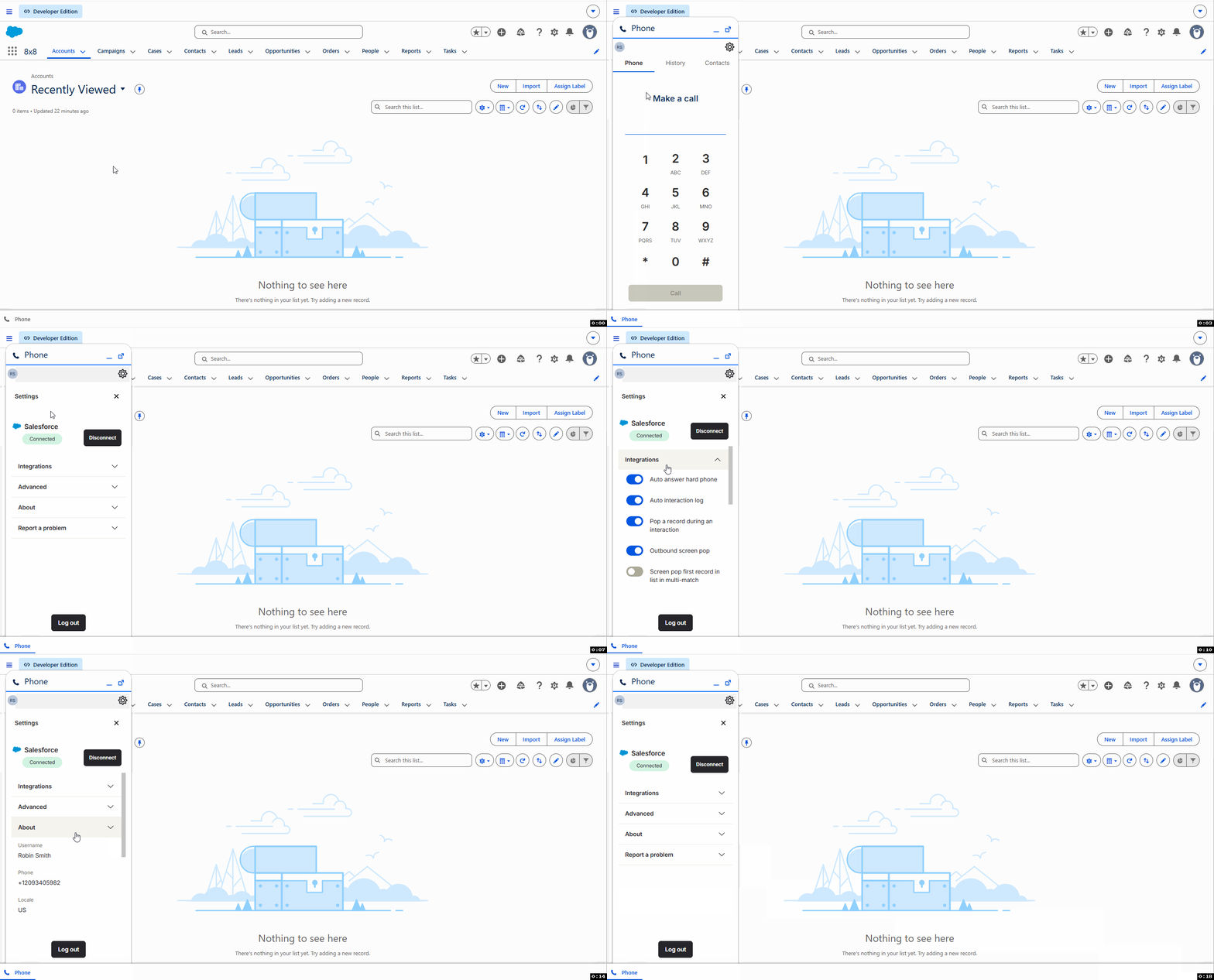
You can manage your 8x8 Work for Salesforce integration and application preferences from the integration’s Settings  panel. You can view connection status, manage the screen pop settings if permissions are granted, access advanced options, and report issues.
To access your integration settings:
- Log into Salesforce account.
- Click the phone
 icon from the bottom of the screen.
 - If required, add your credentials then click Login.
- Click the Settings icon from the top of the 8x8 Work for Salesforce integration app.
- Use the following options:
- Connect/Disconnect: To reconnect or disconnect the integration from Salesforce. The integration automatically connects when you log in.
- Integrations: Provides access to screen pop settings that control how the integration behaves during interactions. You can edit these settings if granted permission by the administrator. See About the screen pop behavior in 8x8 Work for Salesforce.
- Advanced: Reset the panel to clear call history and end your 8x8 session.
- About: Displays application information such as username, phone number, extension, PBX, and version details.
- Report a problem: Allows you to report issues or contact support.
- Log out: Log out of 8x8 Work for Salesforce.