Co-browsing is a feature available in 8x8 Contact Center by subscription only. It allows customer support agents to assist customers remotely via a shared browser. With 8x8 Co-browsing, you can empower a website or any browser-based application and offer live, hands-on assistance to customers.
A customer in need of assistance can initiate the remote session by generating a unique session ID. If on a phone call, the ID is then communicated to the agent to establish the connection. If on a chat, the agent receives an automatic Co-browsing invite. Once connected, you can view the mouse activity of the other party. Depending on the level of privileges granted by the administrator, the extent of remote help varies from a basic view-only mode to complete control of the customer's browser instance. The session can be ended by the customer or the agent at any time.
 Features
- Visual, real-time web page assistance: Monitor and assist customers in real time through browser instance shared by the customer.
- Mouse tracking: As a customer, easily follow along by viewing the agent’s mouse location and movement.
- Platform details: Access information about the customer’s platform.
- Multi-domain support: The Co-browsing session continues to work if the user navigates to sites under different domains, assuming Co-browsing is also available in those new domains. Sub-domains are included in multi-domain support.
- Sub-domain support: Enable the Co-browsing session to continue working if the user navigates to a site that is hosted in a sub-domain, assuming that Co-browsing is also available in that new sub-domain.
- Form co-filling: Co-fill forms on websites.
- Customer privacy and security: During a Co-browsing session, if the customer is filling out a form with sensitive information such as SSN in a form, it can be encrypted and hidden from the agent.
- Highlighting: Agents can highlight content on web pages and call out information to customers during Co-browsing. Highlight key elements on the page with drawing tools.
- Auto-fit: Agents can automatically scale the browser view to fit the customer's view settings. If the customer's screen is bigger than the agent's during a Co-browsing session, agents will have to scroll constantly. With the ability to auto-fit, agents can enable the Auto fill option listed at the top of the shared screen to automatically scale the view to fit agent's view settings or manually adjust the zoom level to the desired value.
- Privilege control: You can control the extent of remote help agents can offer using Co-browsing mode. It varies from a basic view only mode to complete control of the browser instance. Take control of the customer’s screen, with their permission.
Limitations
- Co-browsing only works in HTTP-secure web pages.
- Adobe Flash components, including videos, and Java applets are not supported.
- Anything that is external to the current page is not supported. This includes the file browser window that is open when selecting a file to be uploaded.
- Native tooltips are not visible between the two parties.
- Web pages with iframes and different domains are not supported.
- If the web pages open a new browser window and the content has Co-browsing, this new window replaces the content in the agent side.
-
A web page must have the correct HTML syntax/markup for Co-browsing to work properly; for example, there can be no duplicated HTML IDs on the same page.
Supported browsers
Co-browsing is supported on the following browsers:
- Google Chrome (latest version)
- Firefox (latest version)
- Safari (Mac only: version 7.0 and above)
- Microsoft Edge
Co-browsing modes
By setting up a Co-browsing mode, administrators can control the extent to which agents can assist customers remotely. Co-browsing can be enabled in one of the following modes via code snippet. If you do not provide a mode in the code snippet, Full-control is the default mode provided.
As an agent, you can see the Co-browsing mode enabled for you at the top of the shared screen during a co-browsing session. The following modes are available:
- Full-control (default): In this mode, agents have full control of the customer's browser session, including synchronized navigation and the ability to highlight and co-fill a form on the web page. The agent's cursor movements and mouse clicks can be viewed by the customer and vice-versa.
- Partial-control: In this mode, agents can highlight and control the browser navigation, but do not have the privileges to fill any forms on the co-browsed page. All HTML form elements are disabled on the agent side, alerting agents with the message "Forms cannot be edited on the agent side".
- No-control: This is a view-only mode. Agents can only observe the customer navigating the web page, highlight items on the page, and offer guidance verbally or via chat depending on the media type.
Notes:
- The highlighter  works in all modes.
- In the full-control and partial-control modes, we cannot prevent agents from controlling form elements that are not native to the browser, such HTML drop-downs.
Help customers remotely
Co-browsing is a secure connection that offers 8x8 Contact Center agents the ability to remotely provide hands-on assistance to customers. Agents play a secondary role in establishing a remote session. A customer initiates a request for a session by clicking the menu icon and selecting the Co-browsing option. This action opens the Co-browsing panel and generates a session ID number. The user can then communicate the ID to the agent to establish a session, or if on a webchat, the agent is automatically sent a co-browsing invite when the session is initiated.
Let’s say a customer is having trouble completing a loan application on a bank’s website. Frustrated, they click the co-browsing option to request live assistance. A support agent joins the session and can immediately view the customer’s screen (excluding sensitive data) to highlight fields and guide them through the form. The customer completes the process successfully with minimal delay, leading to a smoother experience and reduced support time. The customer can use the Stop sharing option at any time and click Start sharing to resume sharing their screen without the need for a new session ID. Clicking End session terminates the Co-browsing session.
To help a customer remotely via a Co-browsing session:
- Log in to 8x8 Agent WorkspaceThe brand new interface for 8x8 Contact Center agents to receive and process customer interactions. as an agent.
- Depending on how the customer contacted you, follow the appropriate option to start the Co-browsing session:
- If assisting a customer via phone: Click Show menu
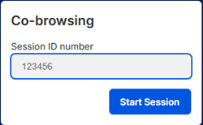
 and select the Co-browsing option from the list. This opens a new browser window prompting for the session ID number.
 - If assisting the customer via chat: A Co-browsing session is automatically offered on the chat panel. Click Join to start the session and skip to step 4.
- Enter the ID received from the customer to initiate Co-browsing and click Start. The session is established and you can see the customer's screen and their mouse movements.
- You can see the following options at the top of the co-browsing page:
- Co-browsing: Indicates that you are on the co-browsing page. Hovering over the tooltip displays the browser used, the version, and system information.
- Mode: Indicates the mode granted by the admin. You can have Full-control, Partial-control, or No-control over the customer's browser navigation.
- Status icon
 : Indicates the customer's web connection status to provide insight when connection is slow.
 - Zoom control buttons
 : Used to manually adjust the zoom level to your desired value.
 - Auto-fit: Enable to automatically scale the shared view to fit the available space on the page.
- Highlight : Use to mark specific components in the page. The marks are visible for both agents and customers for a few minutes or until the agent toggles it off. It also disappears when the customer moves away from the page.
- Close session: Use to end the co-browsing session.
Note: During a Co-browsing session, if the customer is filling out a form and entering sensitive information such as SSN, it is hidden from the agent by showing asterisks (****) instead of the actual letters and numbers.
- Close the session from the top of the panel or wait for the customer to end the session when the issue is resolved.
- End the interaction, and wrap up the details.


