Get Call Quality Details
Note: Available for 8x8 Work Service Quality Managers only.
The Call Quality dashboard in Analytics for 8x8 Work gives you a technical view of audio performance for every answered call. Use this report to investigate audio issues, review network health, and identify the root cause of poor call experiences.
The Call Quality Dashboard displays the following reports:
- The Call Quality Details report provides granular and summary-level call performance data.
- The Call Quality Trend report provides line charts of call quality trends and ratios over time, and a table showing daily call breakdowns by quality level.
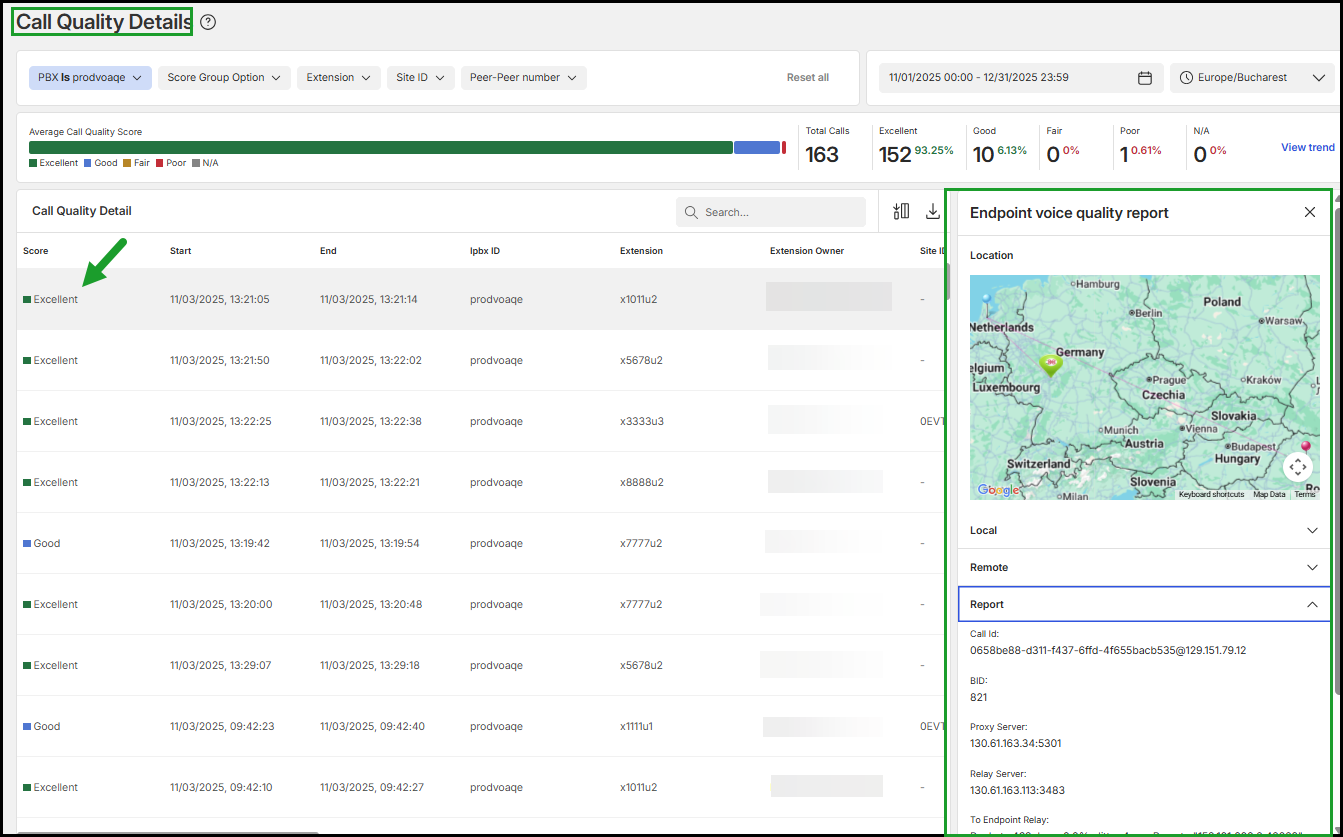
- The Endpoint voice quality report presents voice quality data for individual calls.
Features
- Analyze call trends: Identify recurring voice quality issues.
- View MOS
 Mean Opinion Score provides a numerical measure of the quality of human speech at the destination end of the circuit. scores: See average and individual call ratings to ensure service quality.
 - Troubleshoot faster: Drill into endpoint-specific metrics to diagnose poor quality calls.
- Customize your dashboard: Filter by PBXPrivate Branch Exchange—a private telephone network used within a company., Score Group Option, Extension, Site ID and Peer-Peer number
- Export reports: Download CSV or Excel reports for analysis and archiving.
Note: For a comprehensive understanding of how to optimize your communication data analysis across different views, see Understand call data across reports.
Access the Call Quality dashboard
The Call Quality dashboard is available in Analytics for 8x8 Work.
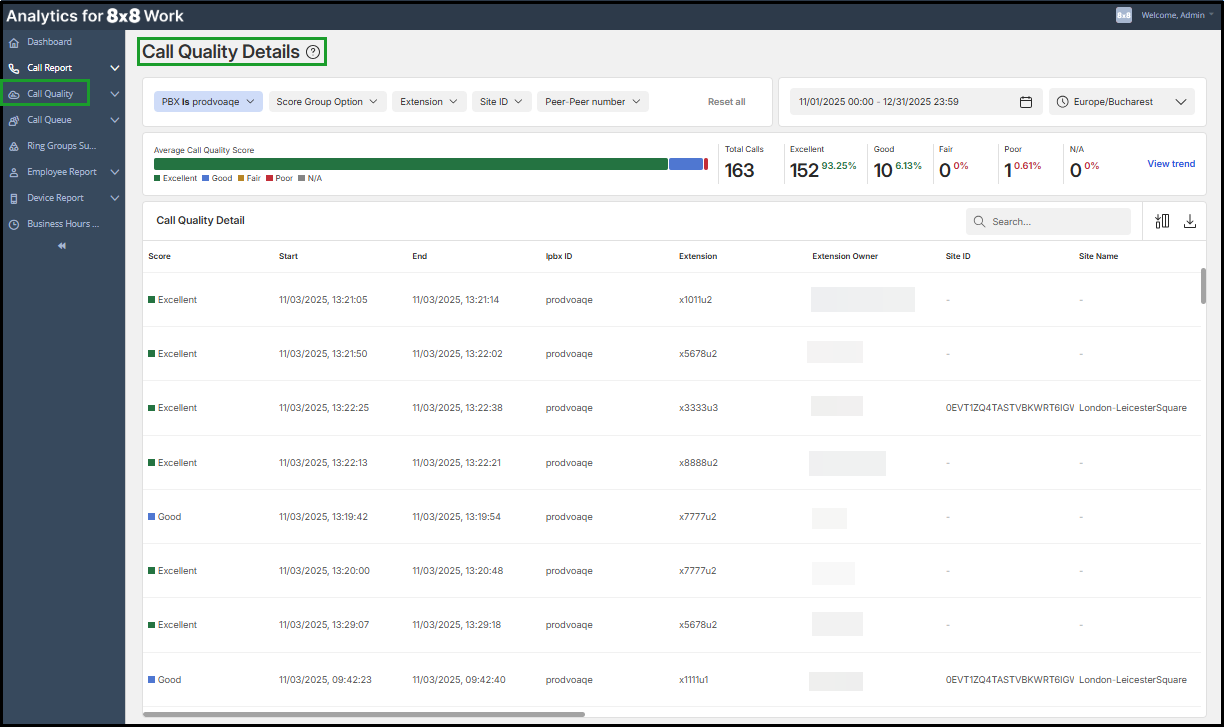
To access the Call Quality dashboard:
- Log in to Analytics for 8x8 Work.
- From the navigation menu, select Call Quality
 .
. - Use the calendar and time selectors to choose your desired date and time range. To learn more, see Customize the report settings.
-
Apply filters for PBX, Score Group Option, Extension, Site ID and Peer-Peer number as needed. To learn more, see Customize the dashboard.
Note: Click Export  this file in the upper-right corner of the Call Quality Detail table to download the data to CSV or Excel.
Access the Call Quality Trend board
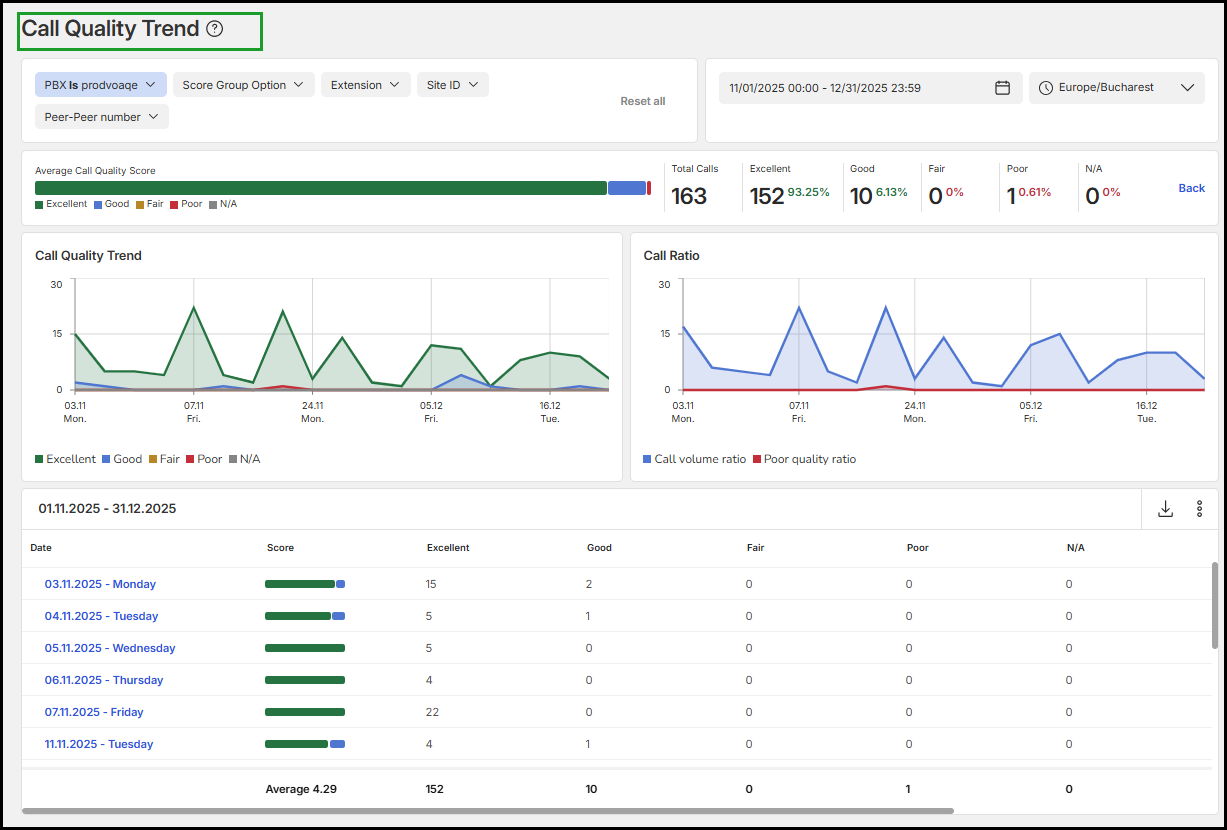
Use the Call Quality Trend board to track changes in call quality over days, weeks, or months. This report visualizes call score distributions and Mean Opinion Score (MOS) trends over time.
Features
- Data visualization: View diagrams for Call Quality Trend and Call Ratio, alongside Average call quality and Total calls, based on Mean Opinion Score (MOS).
- Performance categorization: See a breakdown of call performance across quality levels: Excellent, Good, Fair, Poor, and N/A.
- Flexible filtering: Narrow results using filters for PBX, Score Group, Extension, Site ID, and Peer-Peer number.
- Exportable data: Download report results in CSV or Excel format for deeper analysis and archiving.
To access the Call Quality Trend board:
- Open the Call Quality Dashboard.
- In the upper-right corner, click View trend.
- Use filters and date selectors to refine the view. To learn more, see Customize the dashboard.
The Call Quality Trend page displays line charts of call quality trends and ratios over time, and a table showing daily call breakdowns by quality level.
Note: Click Export this file in the upper-right corner of the Call Quality Trend table to download the data to CSV or Excel.
 .
.
Access the Endpoint voice quality report
Drill down into individual calls to understand local and remote performance.
To access the Endpoint voice quality report:
- Open the Call Quality Dashboard..
- Go to the Call Quality Detail table.
- Click a specific call entry to open the Endpoint voice quality panel.
This view presents voice quality data for individual calls, grouped into the following categories:
- Local: Displays local call information: Timestamp, Call Id, Session desc, From, To, Endpoint, Jitter, Packet loss, Latency, Burst gap loss, PublicIpAddr, LocalAddr, RemoteAddr, QualityEst
- Remote: Displays call route information: Start time, Call Id, Session desc, From, To, Endpoint, Jitter, Packet loss, Latency, Burst gap loss, PublicIpAddr, LocalAddr, RemoteAddr, QualityEst
- Report: Displays server and network information: Call Id, BID, Proxy Server, Relay Server, To Endpoint Relay, To Endpoint Time, From Endpoint Relay, From Endpoint Time
Customize the dashboard
You can adjust filters, columns, and views to prioritize specific metrics.
Filtering options
- PBX: Select the PBX to display relevant data. Your selection is saved for future sessions.
- Score group: Filter by quality rating
- Extension: Focus on a specific user or agent.
- Site ID: View data from a specific location.
- Peer-Peer Number: Filter by IP or SSRC details.
- Date & Time: Choose from preset or custom ranges.
- Time Zone: Select the correct zone for time accuracy.
Additional tool
- Reset all: Restore default filter settings with one click.
To find more about how to customize a dashboard in Analytics for 8x8 Work, see Customize report settings.

Select visible columns
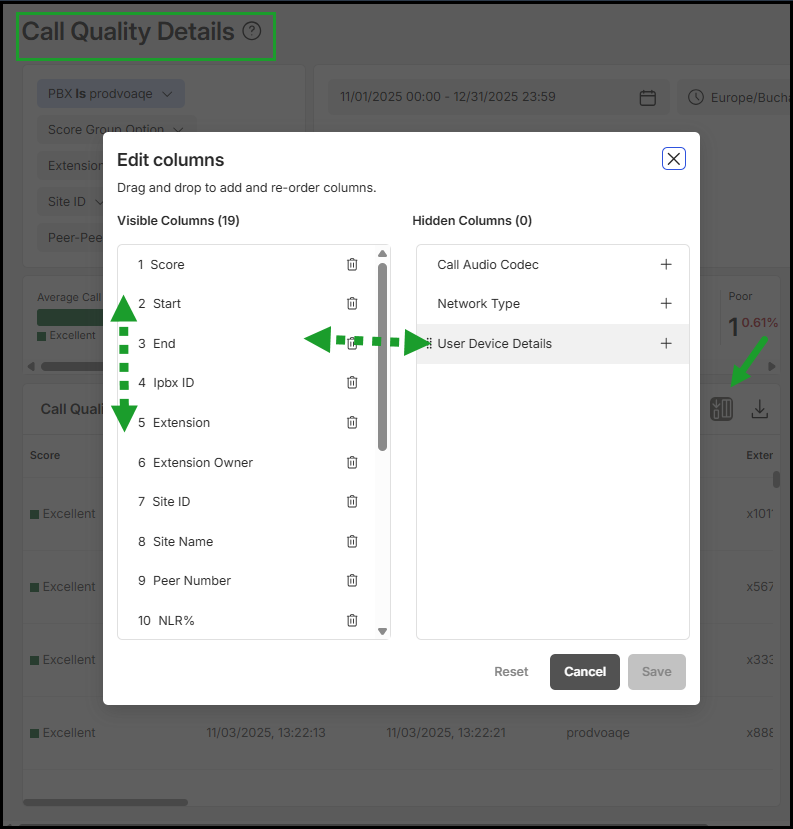
To customize your table view:
- In the upper-right corner of the call table, click the Edit columns
 icon.
icon. - Drag metrics between Visible and Hidden columns.
- Reorder columns by dragging them up or down.
- Add or remove a column by clicking + or
 next to it.
 - Click Save to apply changes, or Reset to restore the default view.
Search for calls
Use the Search  bar in the upper-right of the table to find calls by any metric, such as score, extension, site ID or name, etc.
Sort column values
Sort data in any column alphabetically or numerically:
- Click the arrow icon
 in the column header to reorder values.
Voice Quality Score
Voice Quality (VQ) Score is calculated from the Mean Opinion Score (MOS), which reflects the quality of human speech on a scale from 0 to 5.
| VQ Score | MOS Score |
|---|---|
| Excellent | 4.0 to 5.0 |
| Good | 3.0 to 4.0 |
| Fair | 2.5 to 3.0 |
| Poor | 0.1 to 2.5 |
| N/A(NA) | 0.0 or 127 |
Additional metrics
-
Call Volume Ratio = Call volume / Average call volume.
A ratio over 1 indicates a higher-than-average call load.
-
Poor Quality Ratio = Poor calls / Total calls
Lower ratio = better overall call quality.
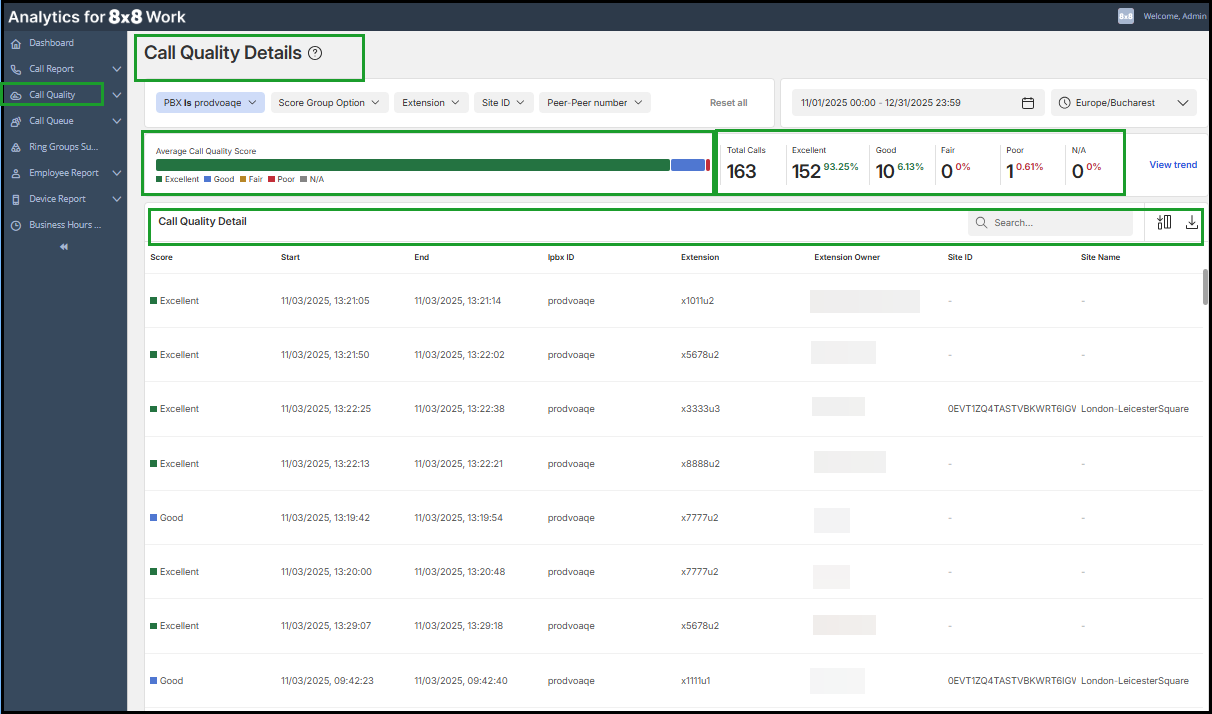
View the Call Quality Details data
The Call Quality Details page provides granular and summary-level call performance data.
Includes:
- Average Call Quality Score: Displays the quality of human speech at the destination of the circuit.
- Total calls and score breakdown: By Excellent, Good, Fair, Poor and N/A
- Call Quality Detail table: Displays individual calls with score, timestamps, extension, owner, and more.
To learn more, see Glossary: Call Quality Details.
Glossary: Call Quality Details
The following table displays some of the most important parameters in a voice quality report.
| Column | Description |
|---|---|
| Score | Mean Opinion Score (MOS) rating of voice quality |
| Start | Start time of the call |
| End | End time of the call |
| Ipbx ID | Identifier of the phone system |
| Extension | Phone system extension number involved in the call. |
| User Name | The assigned user of the phone system extension number |
| Site ID | The ID of the site where the call was received |
| Site Nume | Custom name of the site from the 8x8 Admin Console for the call’s destination |
| Peer Number | The IP address, port, and SSRC of the session peer, as seen from the remote endpoint that measures performance |
| NLR% | Network packet loss ratio, in percentage |
| JDR% | Packet ratio discarded from the jitter buffer, in percentage. Packet Loss occurs primarily due to handling jitter |
| JBN | This is the current nominal jitter buffer delay in milliseconds, which corresponds to the nominal jitter buffer delay for packets that arrive exactly on time. Added latency occurs primarily due to handling jitter. |
| Call Audio Codec | Real-Time Transport (RTPReal-time Transport Protocol) payload indicates Codec usage. |
| User device Details | Endpoint device model and firmware information |
| Call Origin Location | The originating location for the call |
| Origin Public IP | The Public IP address of origination |
| Route Location | The next location in the call path route |
| Route IP | The Public IP address of next location in the call path route |
| Network Type | Type of network (Wi-Fi, VPN, etc.) |


