Use enhanced chat features in 8x8 Work for Desktop
You can manage, find, and respond to messages more easily across all chats by using the enhanced chat features. These features help you see important messages, navigate quickly, and communicate faster.
Features
- Pin messages for quick access: Mark any message in a conversation so all participants can find it instantly from a dedicated pinned messages panel.
- Prioritize your conversation list: Pin your most-used chats and rooms at the top of your list so they are always easy to access.
- Save messages privately for later reference: Save any message to your personal saved collection to act on it whenever you are ready.
- React to messages with emojis: Respond to messages without sending an extra reply, keeping conversations concise and expressive.
Limitations
- You can save a limited number of messages based on system constraints.
- Message reactions are limited to one active reaction per user per message.
 Pin messages in the conversation for the whole team
Pin important messages in any conversation to keep critical information visible and accessible to everyone in the chat. The pinned messages appear in a shared panel visible to everyone in the conversation.
Features
- Permissions: Anyone in the conversation can pin and unpin messages at any time. No special permissions are required.
- Where it works: The Pin message feature works in one-to-one and group conversations, except for SMS conversations.
- Message limit: Each conversation supports up to 100 pinned messages. If you reach this limit, unpin a message to pin a new one.
- Synced in real time: Pinned messages are up to date across all your devices automatically.
Pin a message
- In the Conversations
 menu, open the desired conversation.
 - Find the message you want to pin.
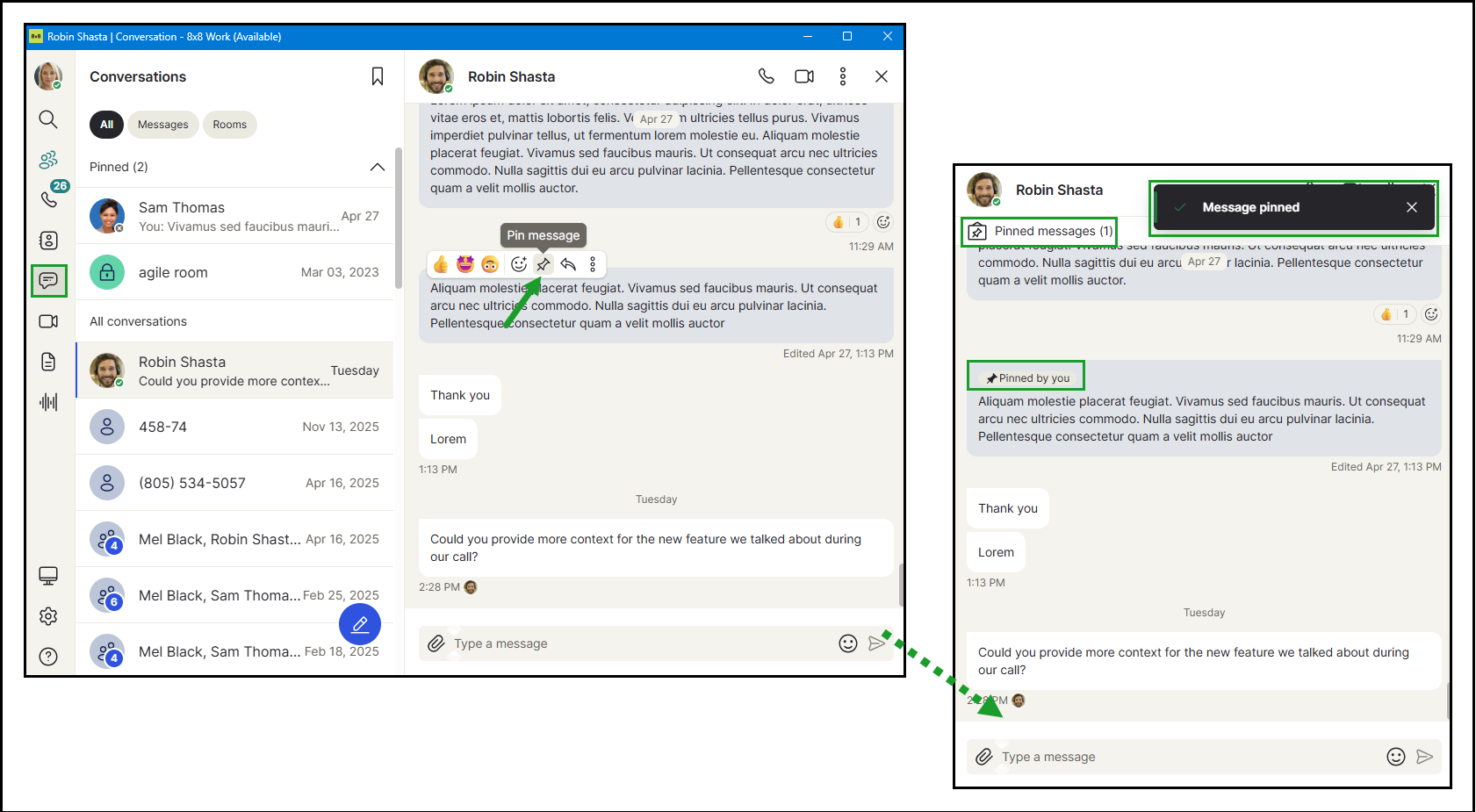
- Hover over the message and click Pin message
 in the action bar.
The following happens immediately:
- A pin icon
 appears on the message, marking it in the conversation.
 - A confirmation banner appears in the conversation: “Message pinned."
- The Pinned messages banner appears at the top of the conversation.
 View pinned messages
-
In the Conversations list, open the desired conversation.
-
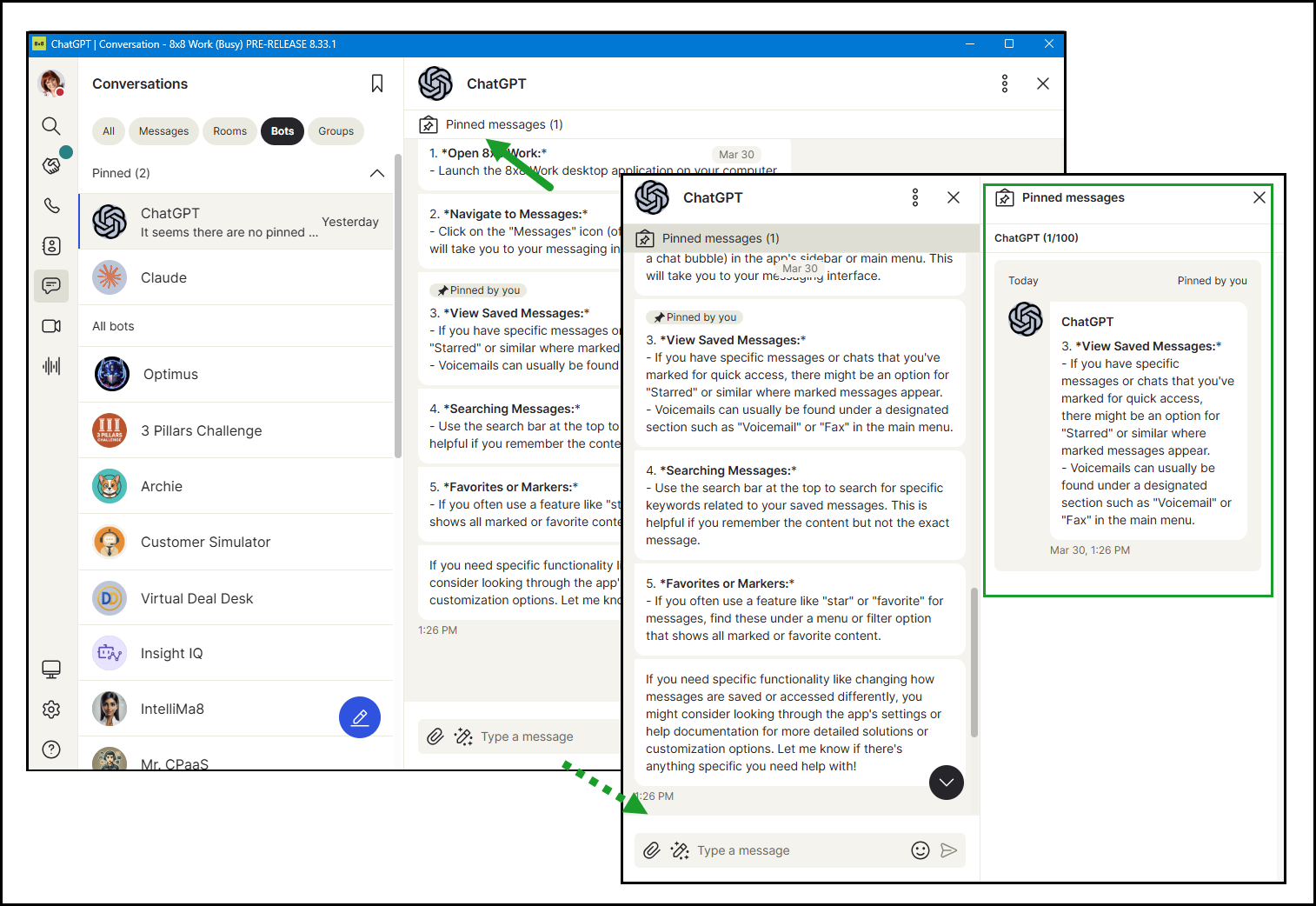
Click Pinned messages
 at the top of the conversation.
 -
The Pinned messages panel opens on the right side of your screen. For each pinned message, you can see:
- Who wrote the message and when.
- A preview of the message content.
- Who pinned it and when it was pinned.
-
Click any message to go directly to its location in the conversation.
Unpin a message
You can unpin a message in two ways:
Option 1: From the conversation
- Open the Conversations menu.
- In the Conversations panel, open the desired conversation.
- Find the message you want to pin.
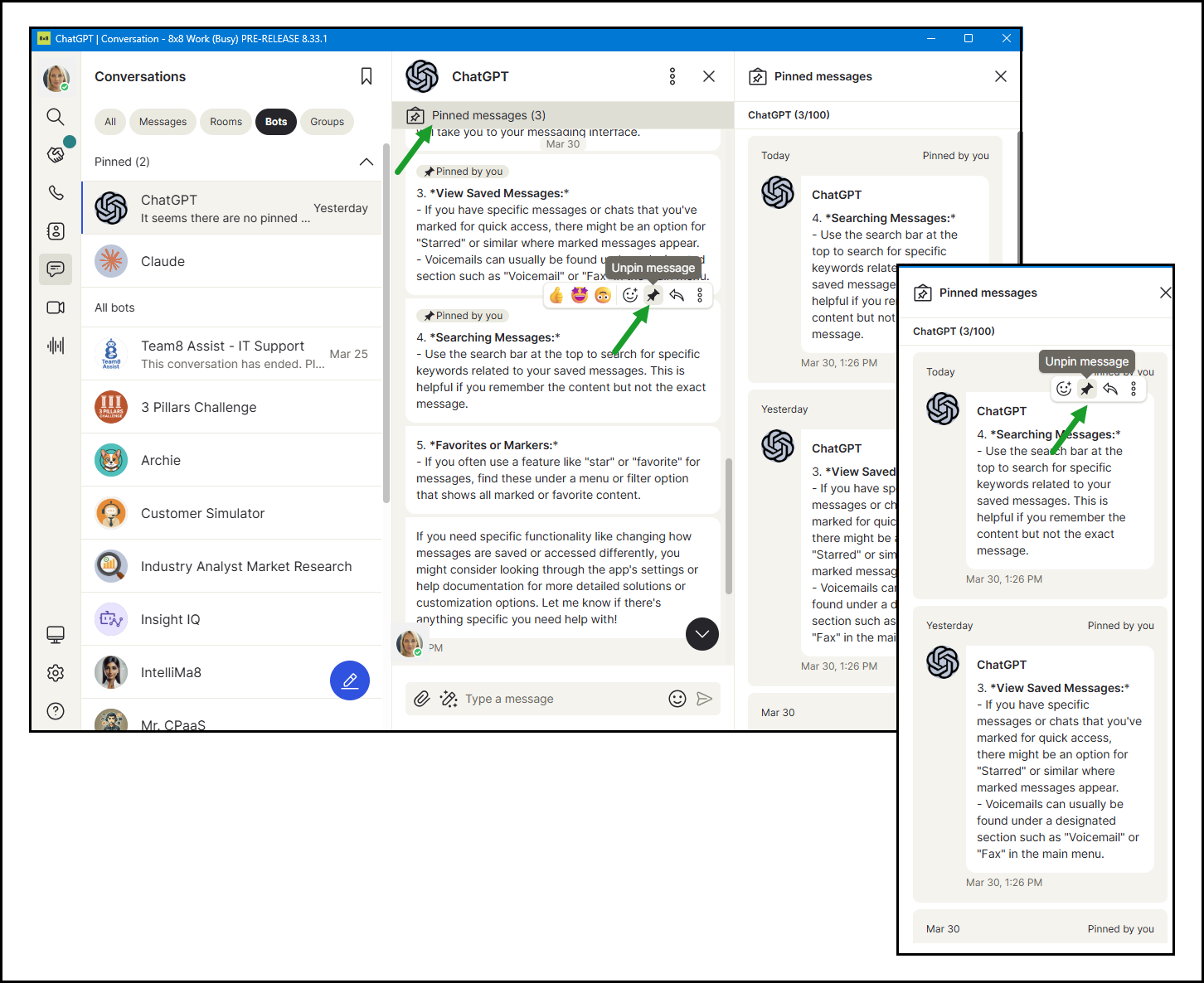
- Hover over the pinned message to display the action bar.
- Click the Unpin message
 and confirm.
Option 2: From the Pinned messages panel
- Open the Conversations menu.
- In the Conversations list, open the desired conversation.
- Click Pinned messages at the top of the conversation panel.
- Hover over the message to display the action bar.
- Click Unpin message and confirm.
Pin conversations for quick access
Conversation pinning lets you keep your most important chats and rooms at the top of your conversation list so they are always easy to access.
Features
- Permissions: Only you can see your pinned conversations. Pinning a room does not affect how it appears for other participants.
- Where it works: The Pin message feature works in all conversations type (SMS, Group MMS, Rooms, 1:1, Bots).
- No limit: There is no limit on the number of conversations you can pin.
- Content unaffected: Unpinning a conversation does not affect its content or history.
- Synced in real time: Your pinned conversations are synchronized across all your devices automatically.
Pin a conversation
You can pin a conversation in two ways:
Option 1: From the conversation list
- Open the Conversations menu.
- Locate the conversation in the Conversations panel.
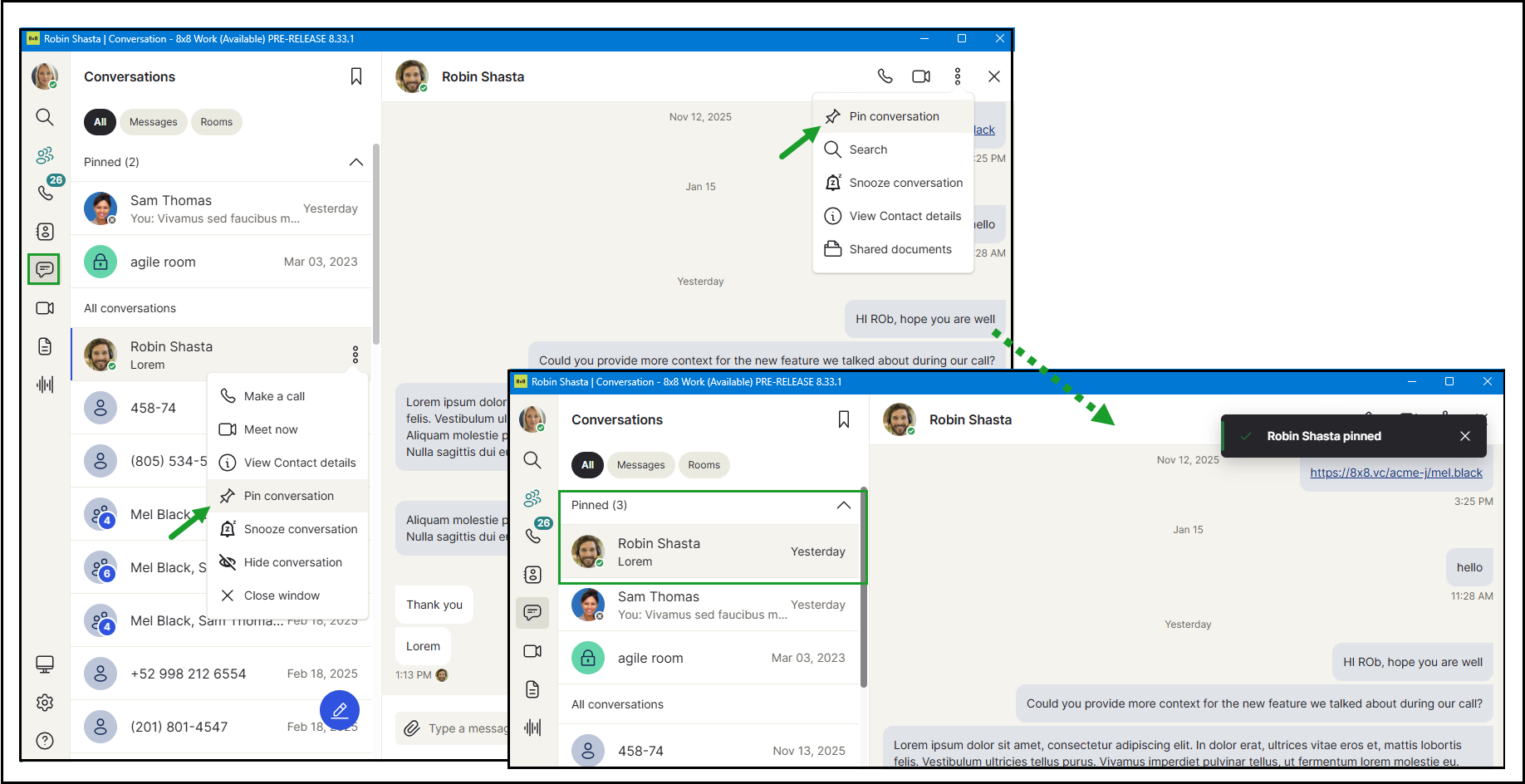
- Click More Options
 next to the conversation.
 - Click Pin conversation .
Option 2: From inside the conversation
- Open the Conversations menu.
- Open the conversation you wish to pin from the Conversations list.
- Click More Options in the upper-right corner of the conversation header.
- Click Pin conversation .
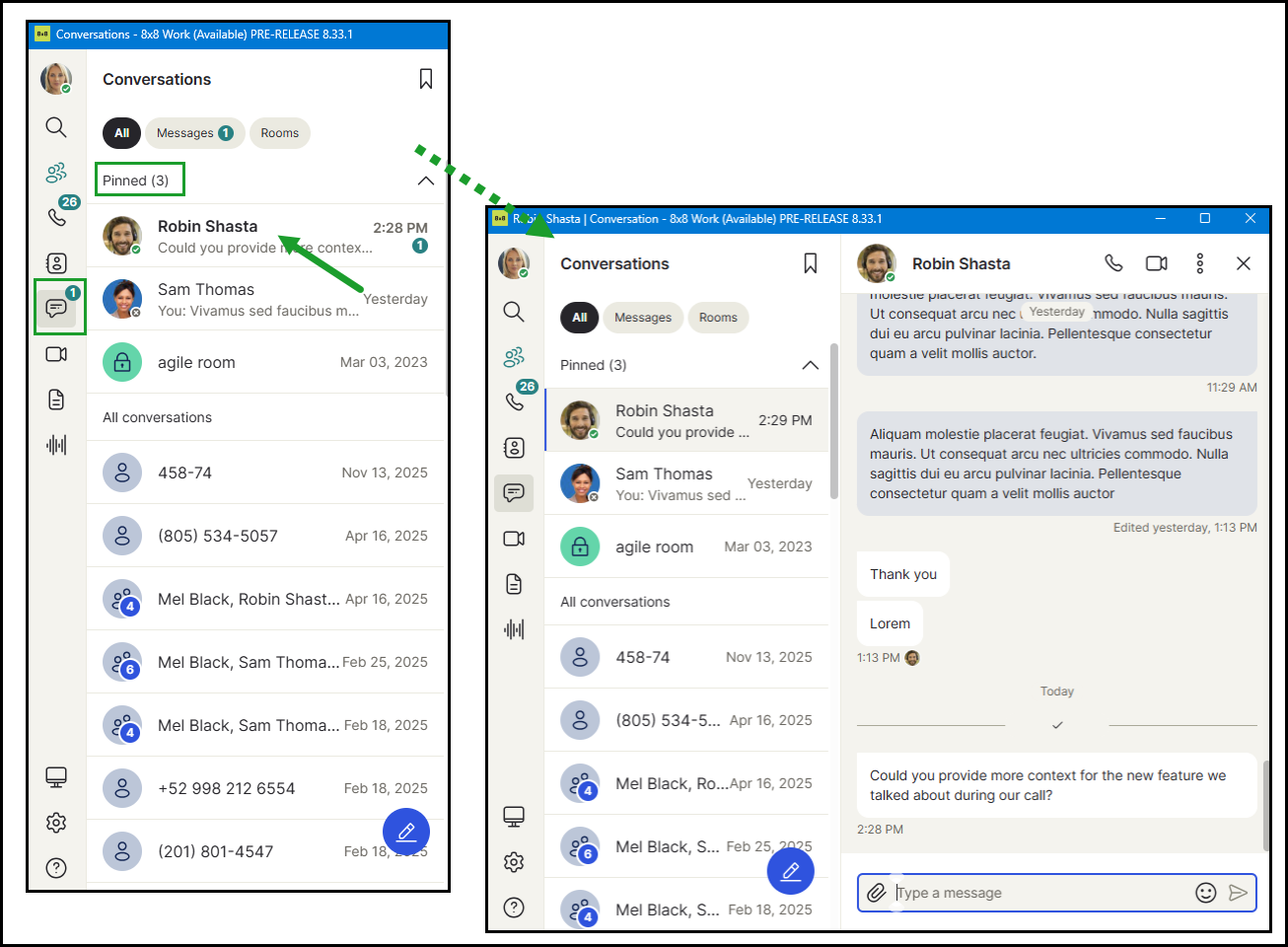
The conversation moves to the top of your list under the Pinned conversations section.
View your pinned conversations
To view your pinned conversations:
- Open the Conversations menu.
- At the top of your Conversations list, expand Pinned to see your pinned conversations.
-
Pinned conversations are sorted as follows:
- Unread conversations appear first.
- Read conversations follow, sorted by most recent activity.
- Click any pinned conversation to open it.
Unpin a conversation
You can unpin a conversation in two ways:
Option 1: From the conversation list
- Open the Conversations menu.
- Locate the conversation in the Pinned panel.
- Click More Options next to the conversation.
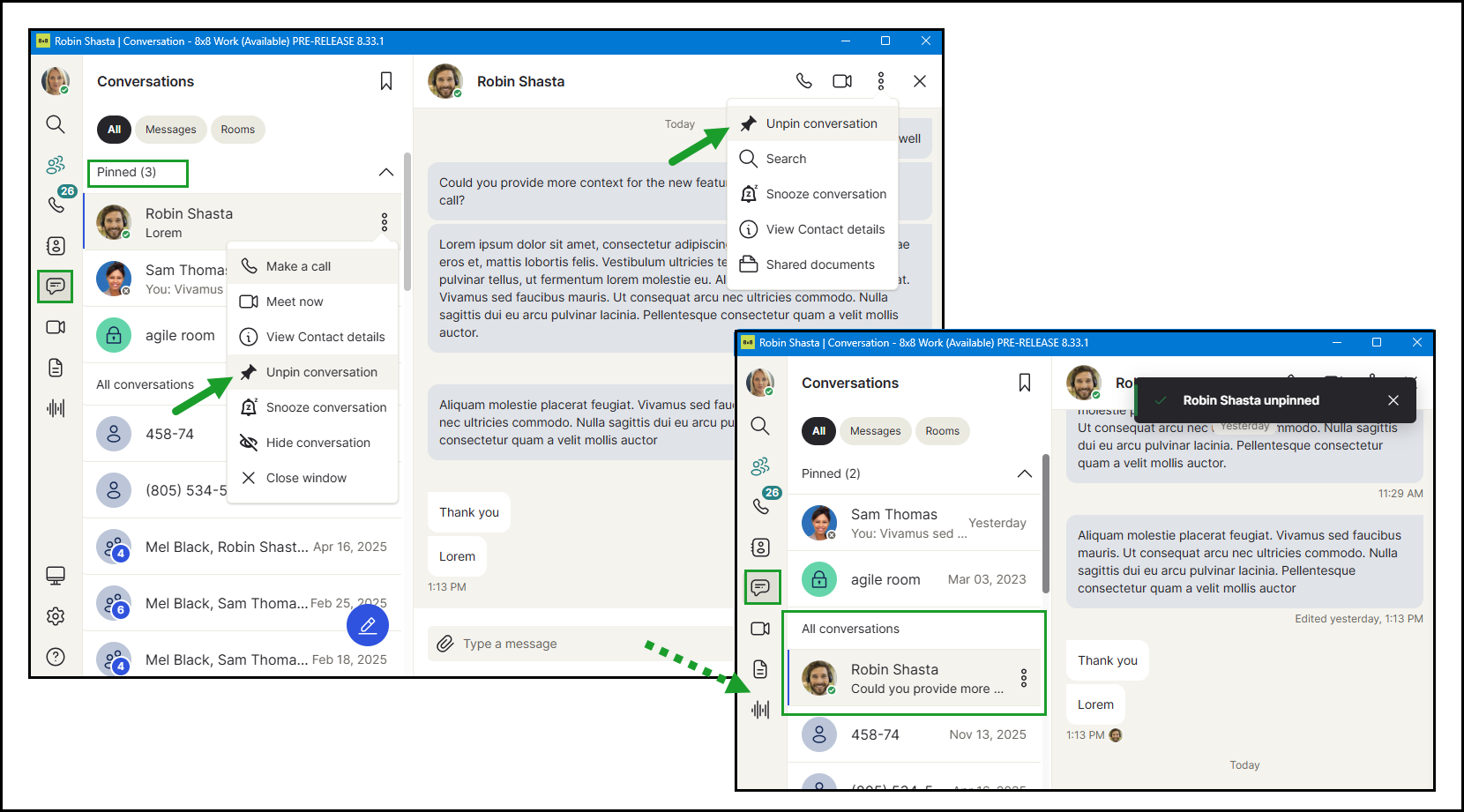
- Click Unpin conversation .
Option 2: From inside the conversation
- Open the Conversations menu.
- Open the conversation you want to unpin in the Conversations panel..
- Click More Options in the upper-right corner of the conversation header.
- Click Unpin conversation .
The conversation returns to its regular position in your list.
Save private message for later
The Save for Later feature lets you privately bookmark messages to check them later. Only you can see saved messages, so other people in the conversation won't know you bookmarked them.
Features
- Permissions: Only you can see your saved conversations.
- Unavailable for certain messages: You cannot save system messages, deleted messages, or messages that are still being sent.
- Where it works: This feature works in all conversation types, including SMS, one-to-one chats, group rooms, Engage Digital, and more.
- Message limit: You can pin messages in conversations with up to 100 messages. If you reach this limit, remove a saved message to save a new one
- Sync in real-time: Saved messages are automatically synchronized across all your devices.
Save a message
- In the Conversations menu, open the desired conversation.
- Find the message you want to save.
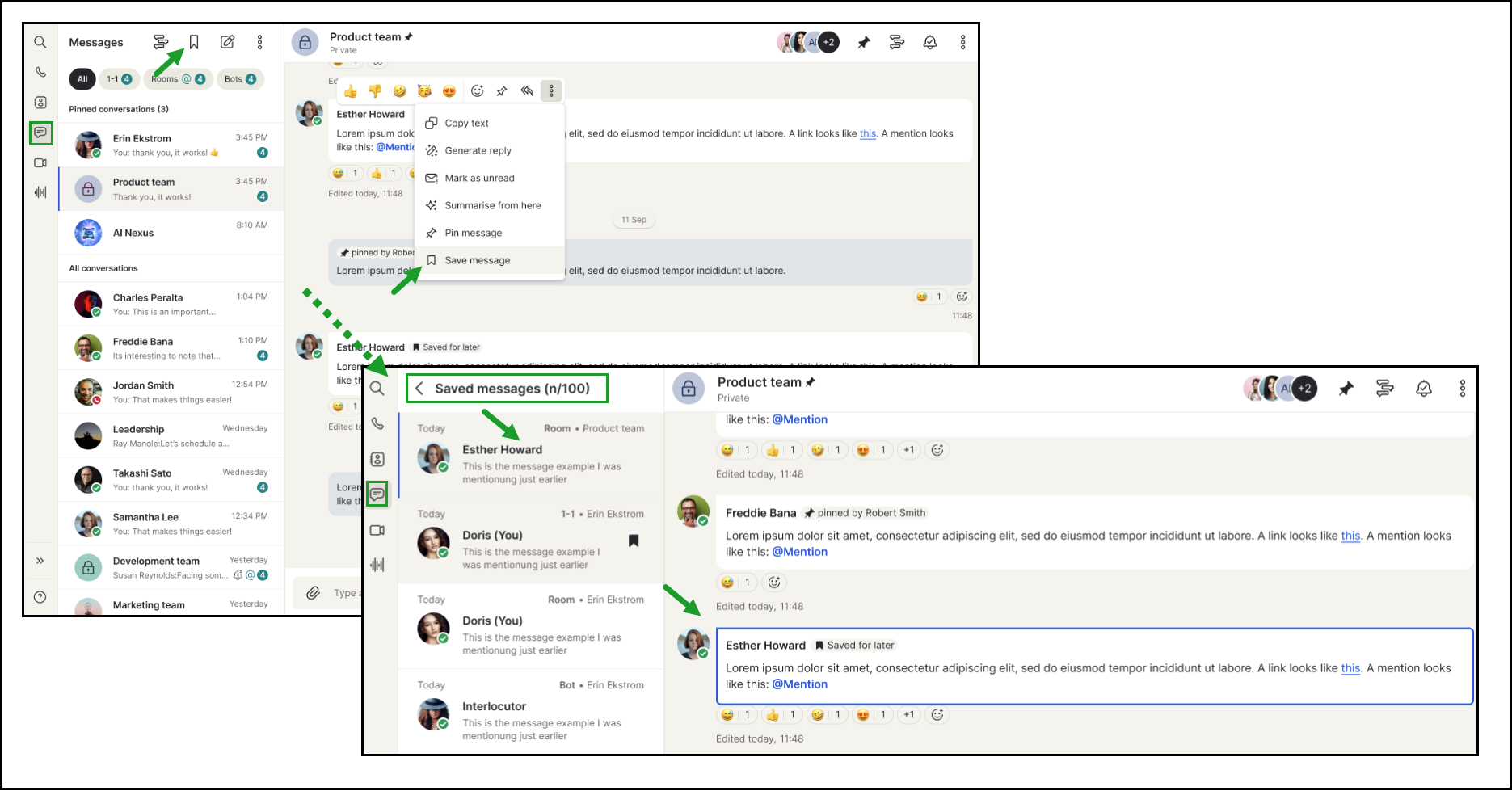
- Hover over the message and click Save message
 in the action bar.
The following happens immediately:
- A Saved for later
 icon appears on the message, visible only to you.
 - A confirmation banner appears in the conversation: “Message saved."
- The Pinned messages banner appears at the top of the conversation for a new pinned message.
View your saved messages
- In the Conversations menu, open the desired conversation
- Click Save message at the top-right corner of your Conversations panel.
-
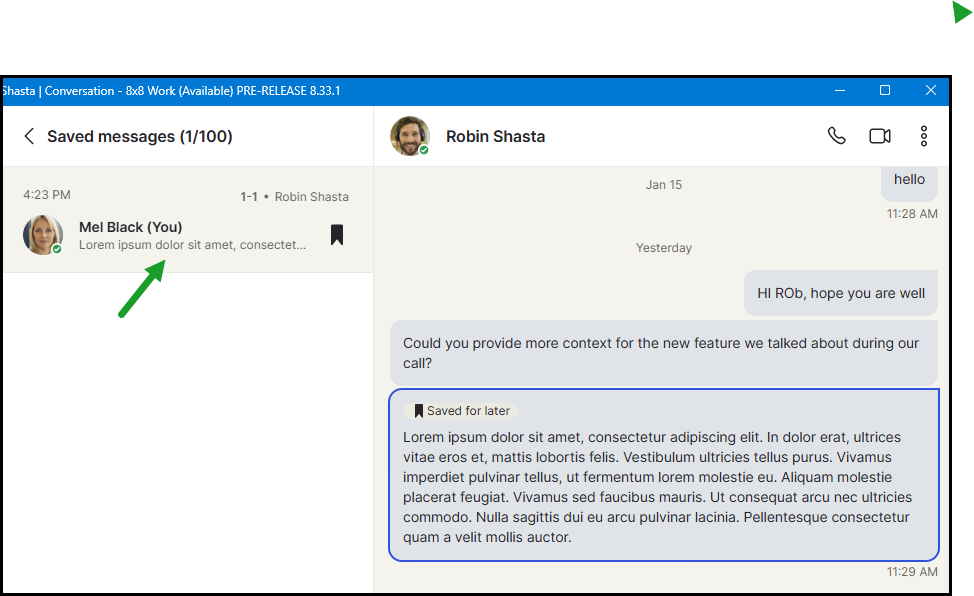
The Saved messages panel opens. For each saved message, you can see:
- The author's name and avatar
- The conversation type
- Click any message to jump directly to its location in the conversation.
Saved messages are listed with the most recently saved at the top.
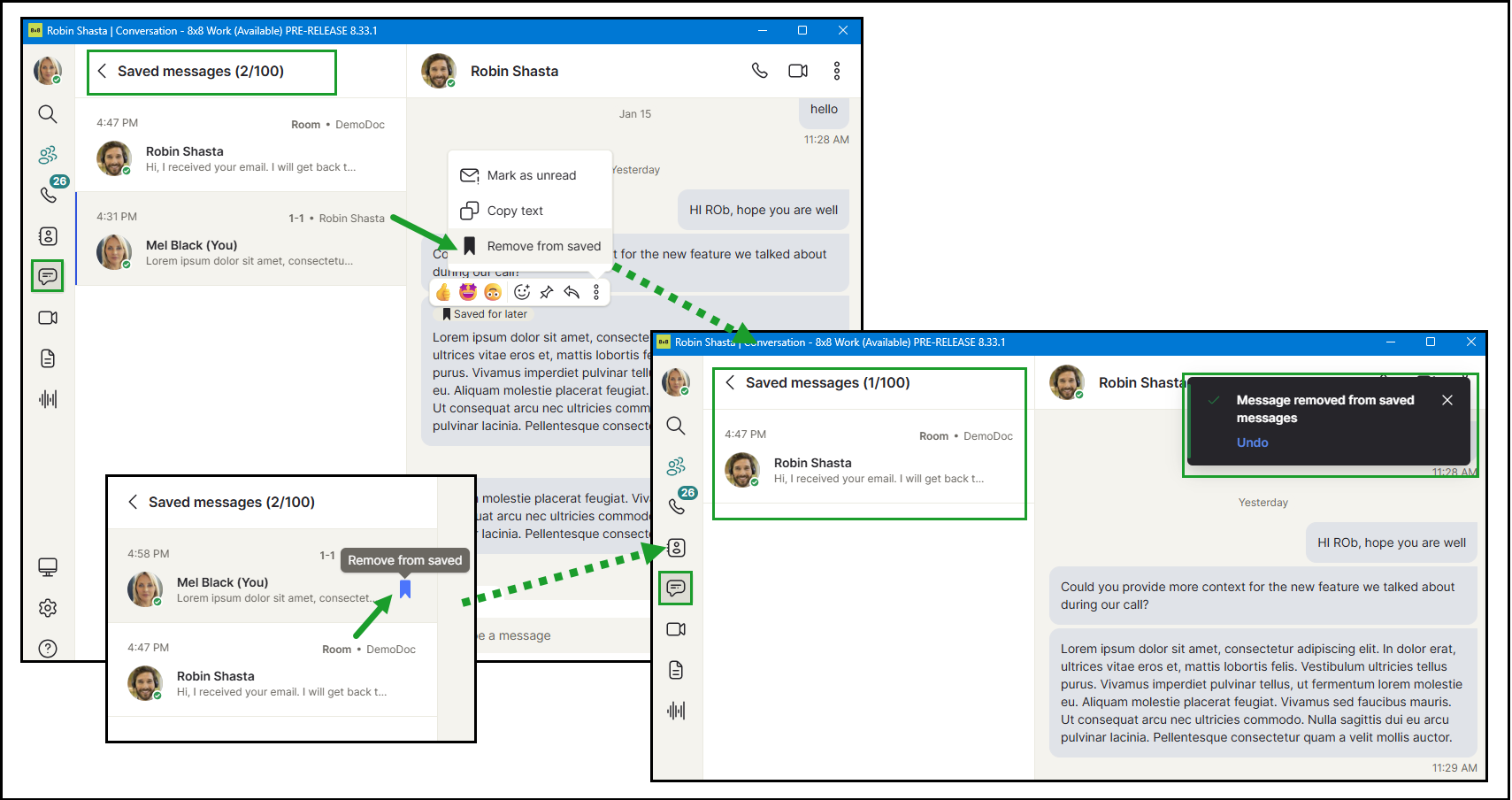
Remove a saved message
You can remove a saved message in two ways:
Option 1: From the conversation list
- In theConversations menu, open the desired conversation.
- Click Save message at the top-right corner of your Conversations panel.
- Find the message in the Saved messages list.
- Click Removed from saved next to the conversation.
Option 2: From inside the conversation
- Open the Conversations menu.
- Click Save message at the top-right corner of your Conversations panel.
- Open the conversation containing the message you want to remove from your Saved messages.
- Find the saved message (look for the Save for later icon).
- over the message and click More Options in the action bar.
- Click Save for later .
A confirmation banner appears with an option to undo the action.
The conversation returns under All Conversations.
React to messages with emojis
Reactions let you respond to any message with an emoji using a single click. A quick-reaction bar shows your most-used emojis, and a full emoji picker is available for any other choice.
Features
- One reaction per message: Each person can add only one reaction to a message. Adding a new reaction replaces the previous one.
- Not available in SMS conversations: Reactions are supported in one-to-one chats and group rooms only.
React to a message
- In the Conversations menu, open the desired conversation.
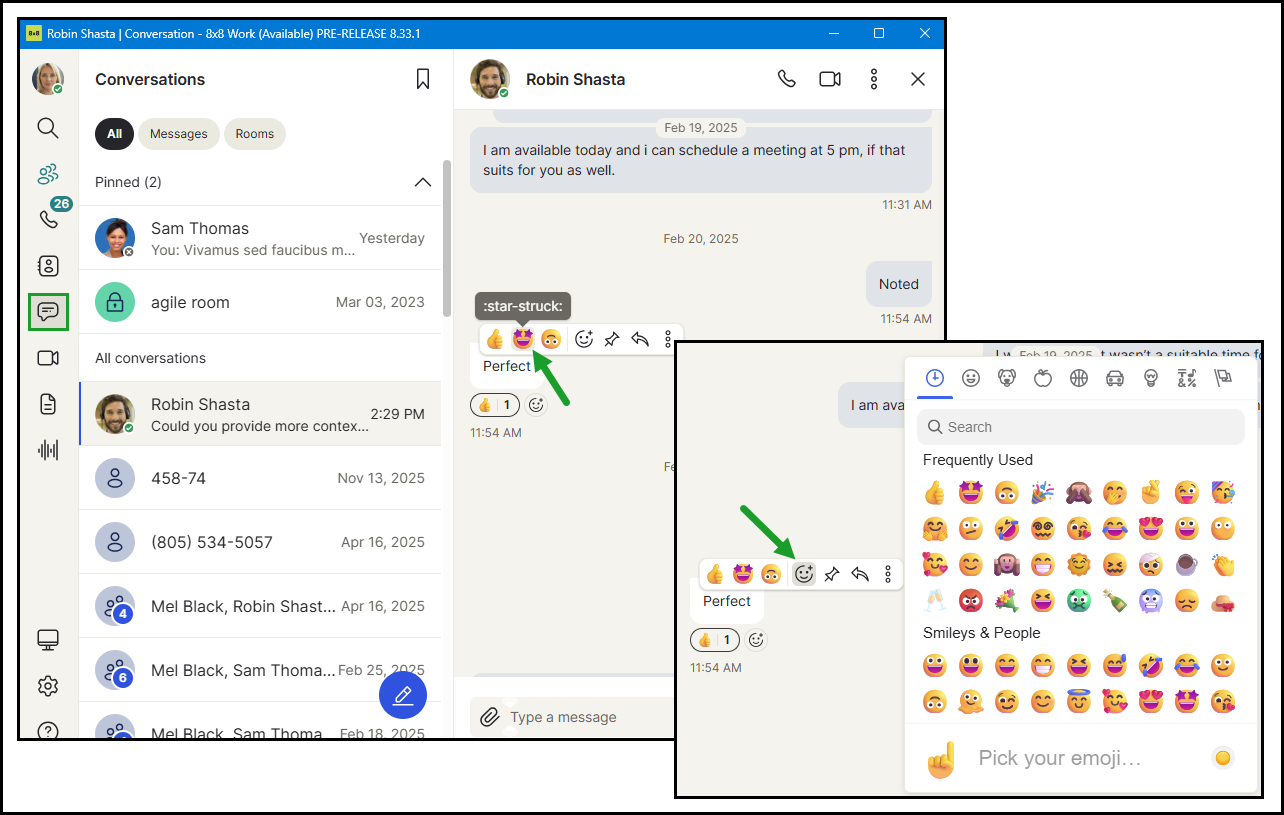
- Find the message you want to react to and hover over it. An action bar appears above the message.
- Click an emoji from the quick-reaction bar.
Your reaction appears below the message.
Optional: Click More reaction in the quick-reaction bar to open the full emoji picker and choose any emoji you like.
Change your reaction
You can have only one active reaction per message. To change it:
- In the Conversations menu, open the desired conversation.
- Click another emoji from the quick-reaction bar or the emoji picker.
Your previous reaction is automatically replaced with the new one.
Remove your reaction
You can remove your reaction in two ways:
Option 1: Click the reaction again
- In the Conversations menu, open the desired conversation.
- Click the reaction button below the message.
Your reaction is removed and the count decreases by one. If you were the only person who used that reaction, it would disappear entirely.
Option 2: Remove from the reaction list
- In the Conversations menu, open the desired conversation.
- Hover over the reaction button below the message. A list of people who reacted appears.
- Click X next to your name.
View who reacted to a message
Reactions appear below the message. Each reaction shows the emoji and a count of how many
people used it. If a message has more than four different reactions, the extra ones are hidden under Show more. Click Show more to see all reactions.
To see who used a specific reaction:
- Hover over any reaction to see a list of the people who used that emoji.
A list of the people who used that emoji appears.


