Handle PSTN calls from the 8x8 for Microsoft Teams app
Users without a Teams Phone license who use both Microsoft Teams and the 8x8 Work app (desktop, mobile, or web) can place Public Switched Telephone Network (PSTN) calls using the Calls option in the 8x8 for Microsoft Teams app (8x8 Teams app)
  .
.
How to place a PSTN call
When placing a PSTN call to external users from the integrated 8x8 Teams app, the call is initiated from Microsoft Teams but handled through the 8x8 Work app mini call control that is always-on top when using the native desktop 8x8 Work app. The call experience includes two legs—an inbound call which you answer on the 8x8 Work app, followed by the outbound call to the destination party.
Important: You must have the 8x8 Work app (desktop, mobile, or web) open to be able to place PSTN calls from the 8x8 Teams app within Microsoft Teams. When using the desktop 8x8 Work app, it can stay minimized or running in background so you can rely on the 8x8 Teams app and just benefit from the 8x8 Work for desktop incoming call popup and active call control mini windows that are available on top of all other windows.
To call a PSTN number from the 8x8 Teams app:
- Log in to the 8x8 Work app (desktop, mobile, or web).
- Log in to Microsoft Teams.
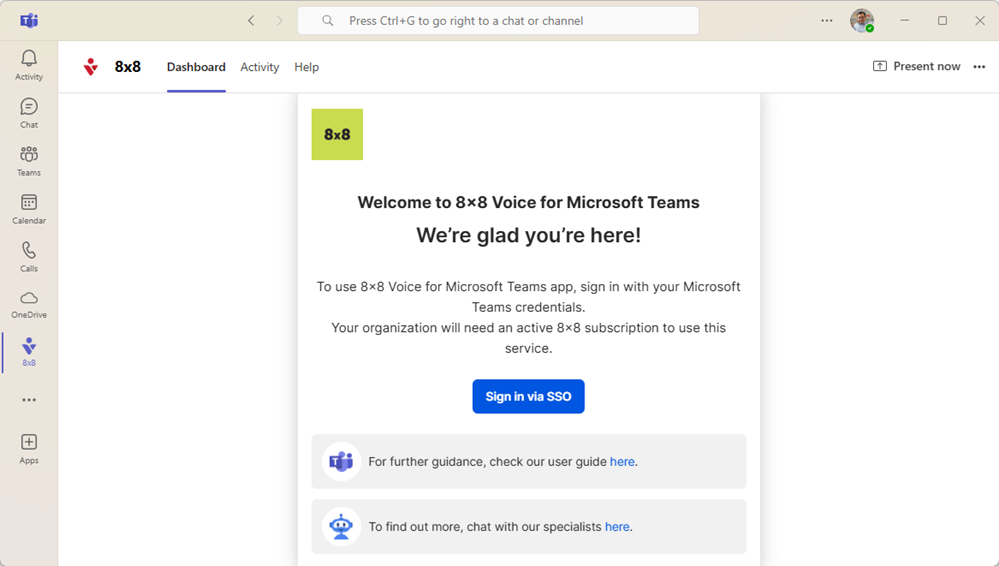
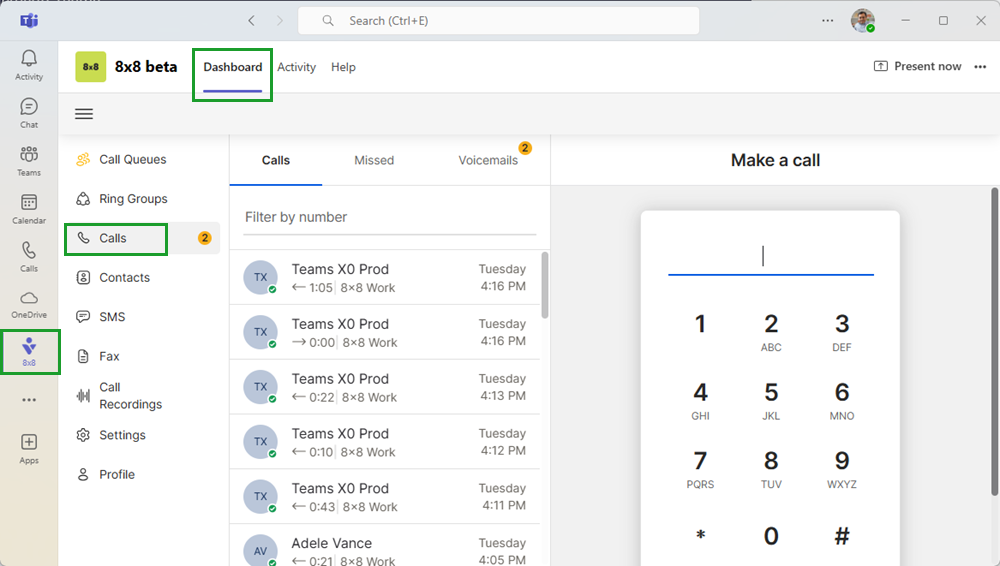
- From the menu, click 8x8 .
- If prompted, click Sign in via SSO.
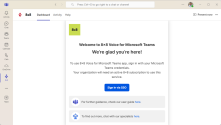
- Enter your 8x8 username or email, add your password, then click Continue.
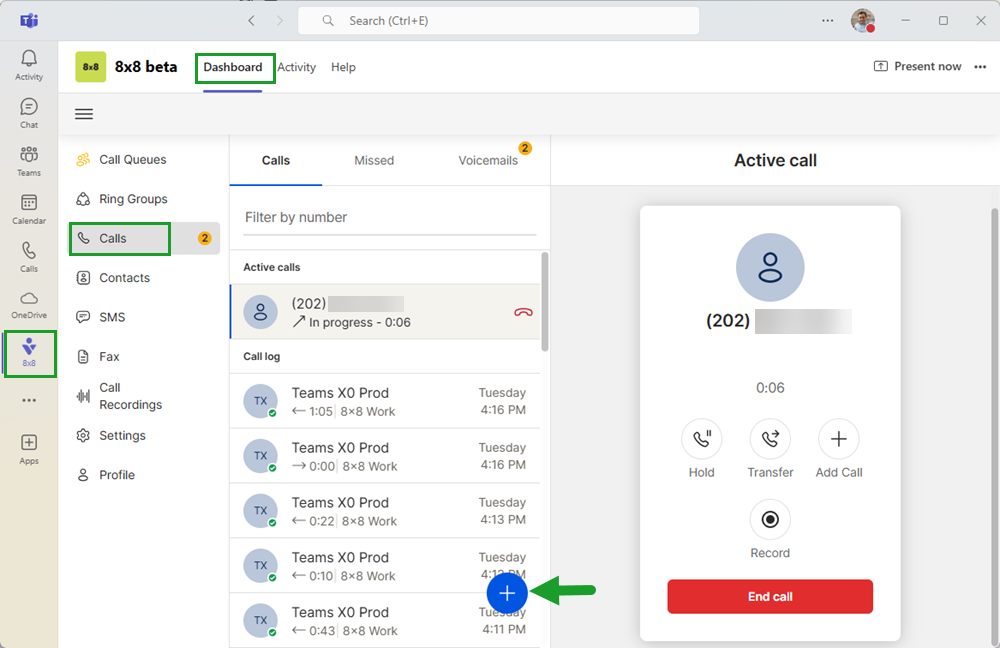
- From the Dashboard tab menu, select Calls .
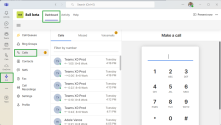
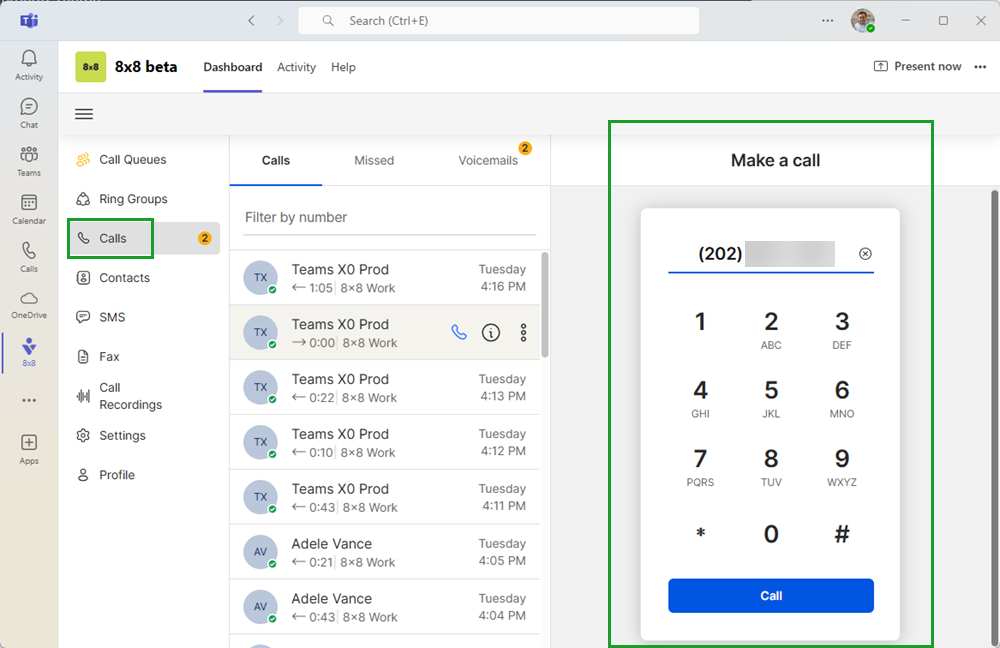
- Use the dialpad to add the number you wish to call or select a number from the call logs to call back.
- Click Call from the bottom of the dialpad.
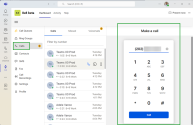
- An incoming call popup displays from the 8x8 Work app that runs in the background. Answer the call.
- The outbound call rings while waiting for the call to be answered.
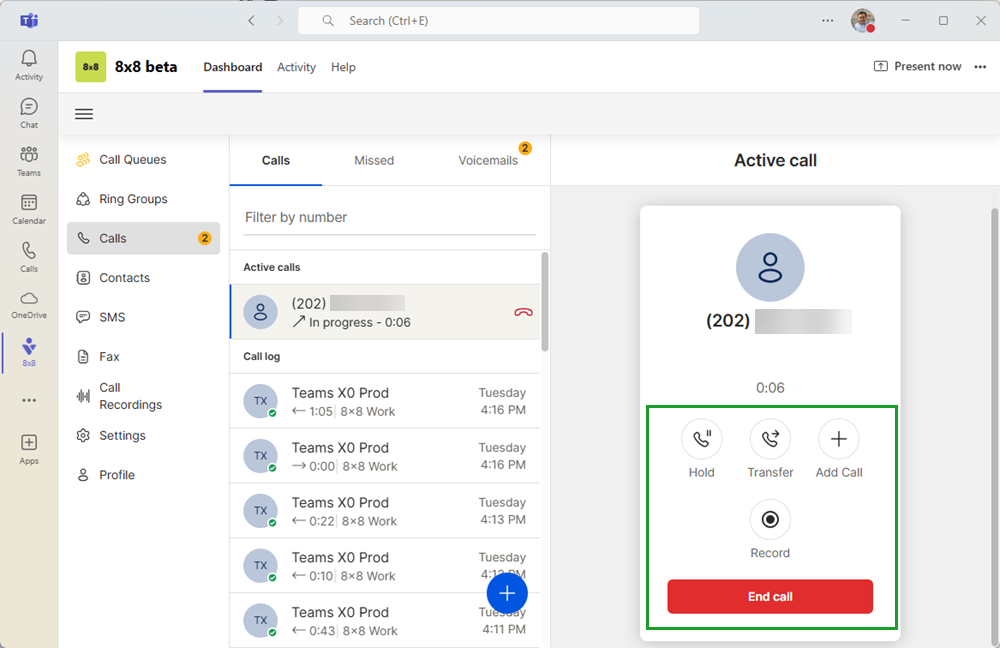
- Once the call connects, you can:
- Place a call on hold
- Transfer a call
- Add a call
- Record a call
- End call
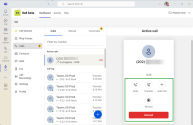
Tip: When using the 8x8 Work desktop app, close the window; it will run in the background.
How to place multiple PSTN calls
You can have up to two active PSTN calls at the same time. While on a call, you can start a second PSTN call from the 8x8 Teams app. The first caller will be placed on hold. Notify the caller they’ll be placed on hold before initiating another call, and use the available call options to switch between parties as needed.
To place a second PSTN call:
- In the Microsoft Teams app, go to 8x8 > Calls > Calls.
- While on an active call initiated from Calls option within the 8x8 Teams app, inform the customer they will be placed on hold.
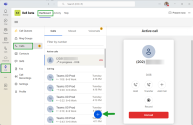
- From the call history, click the blue plus icon
 .
.
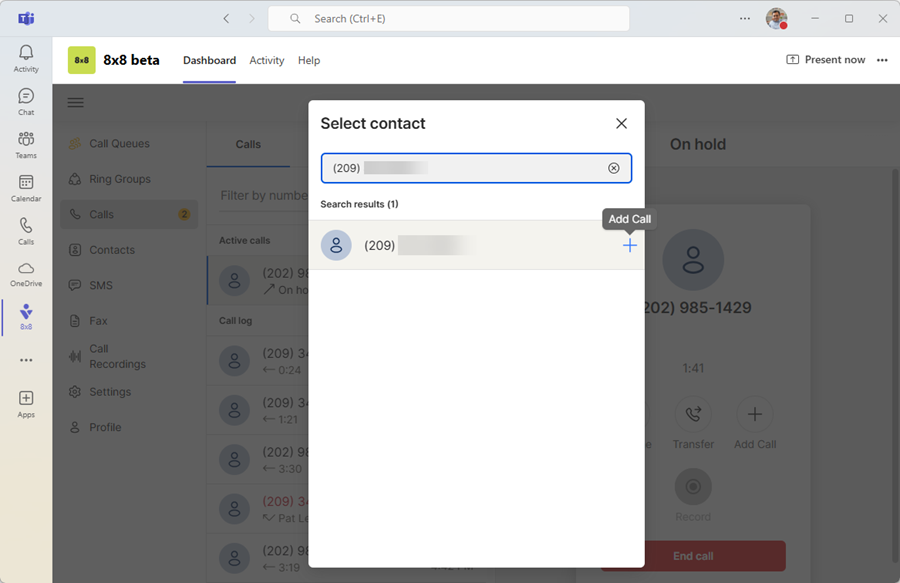
- Select a contact or type the phone number in the text field.
- Click the Add call
 icon.
icon.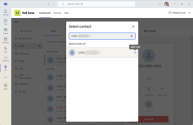
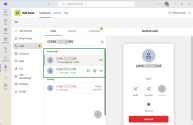
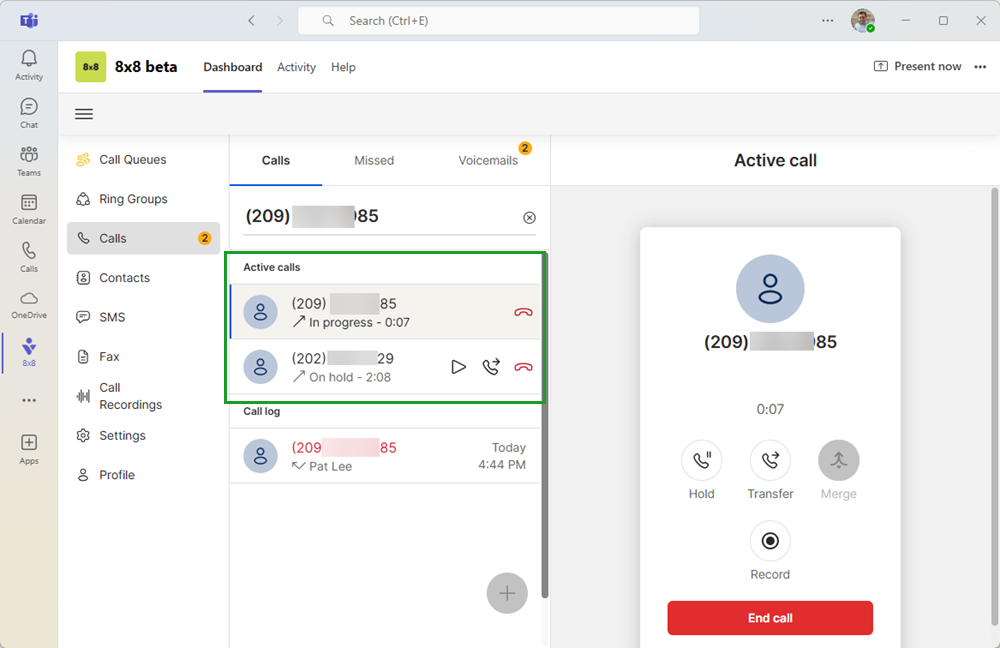
- Answer the inbound call from your 8x8 Work app. The current call is placed on hold. The outbound call dials out to the selected number.
-
The new call appears In progress in the list of active calls. You can put this call on hold and resume the other as necessary.
How to transfer a PSTN call
You can transfer an active PSTN call directly from the 8x8 Teams app to your contacts or an external number.
To transfer a PSTN call:
- While on a call within the 8x8 for Microsoft Teams app, click Transfer
 .
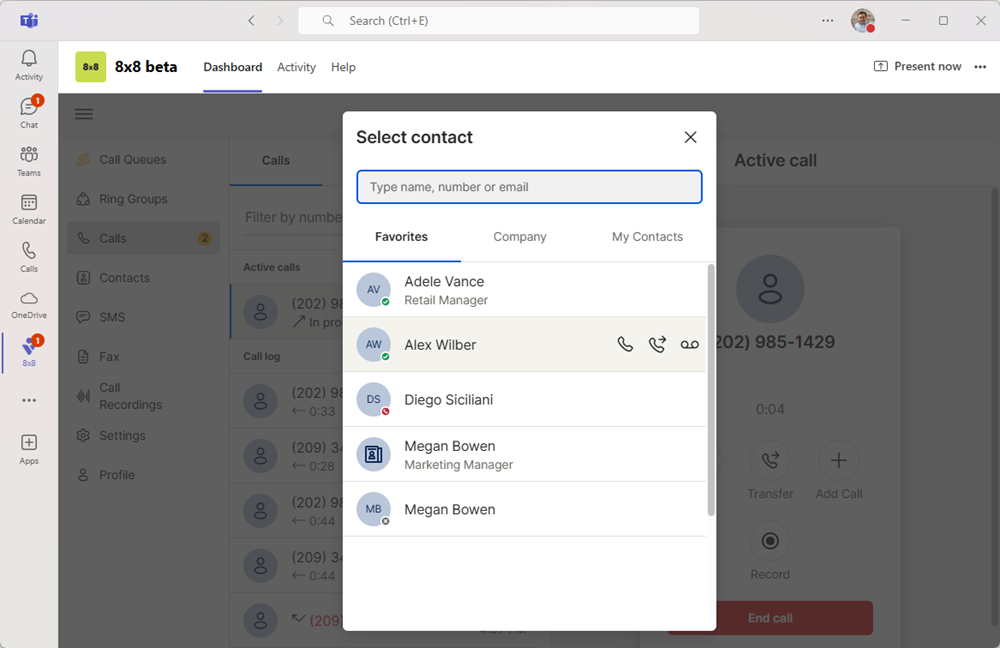
. - Decide where you want to transfer, Ring Groups (beta), Call Queues, internal or personal contacts from the 8x8 Directory.
You can browse, hover over a contact, or type the number or name in the text field.
- Click to select the transfer method:
- Warm Transfer
 : To consult with the contact before transferring the call to them. You must first answer the inbound call in 8x8 Work before the outbound call is placed. Click Transfer to complete the warm transfer.
 - Cold Transfer
 : To transfer the call directly, without consulting with the person you are transferring the call to.
 - Transfer to voicemail
 : Transfers the call to the contact's voicemail if they are currently unavailable.
- Warm Transfer
Note: If contacts are not showing up in the contact selector when transferring, it is likely the administrator hasn't enabled Contacts inside the 8x8 Teams app from within 8x8 Admin Console > Work Apps Settings.
Access PSTN call history
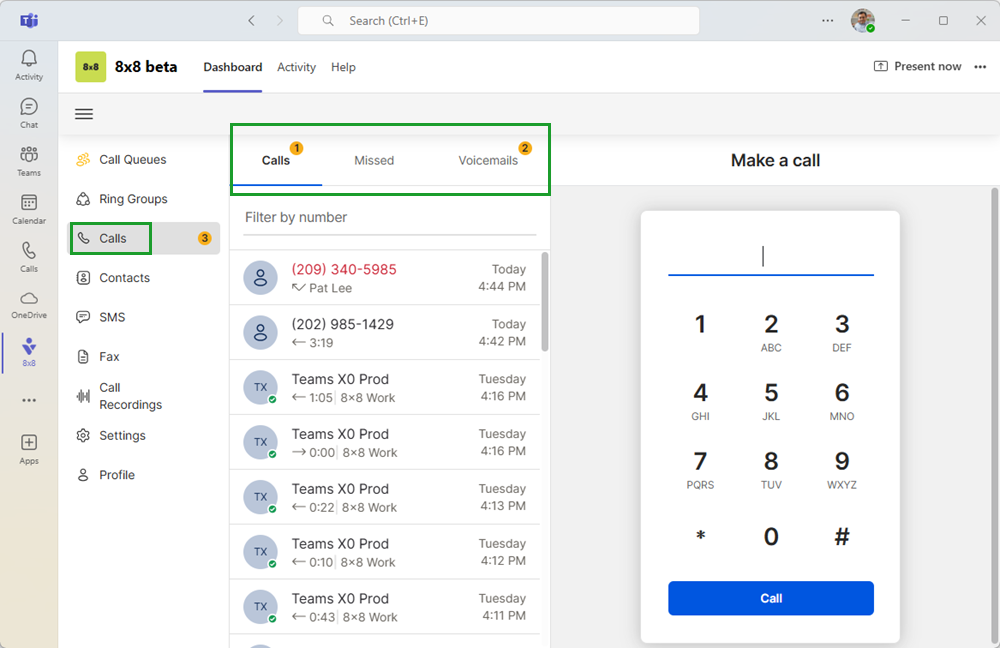
Your recent call logs are listed under Calls in the integrated 8x8 Teams app. At first glance, the call log history displays the caller/callee’s name or number, call type, timestamp, call duration, and call direction. Hovering over a specific call, displays additional information about the call.
To access call history:
- From the Microsoft Teams app, click 8x8 .
- From the Dashboard tab, click Calls .
- Select one of the three tabs listed at the top of the navigation bar.
- Calls: View all inbound, outbound, and missed calls.
- Missed: View only missed calls.
- Voicemails: View voicemail messages.
Access voicemails from the 8x8 Teams app
You can view and listen to your 8x8 Work voicemails from the 8x8 Teams app.
To access and manage voicemails from the app:
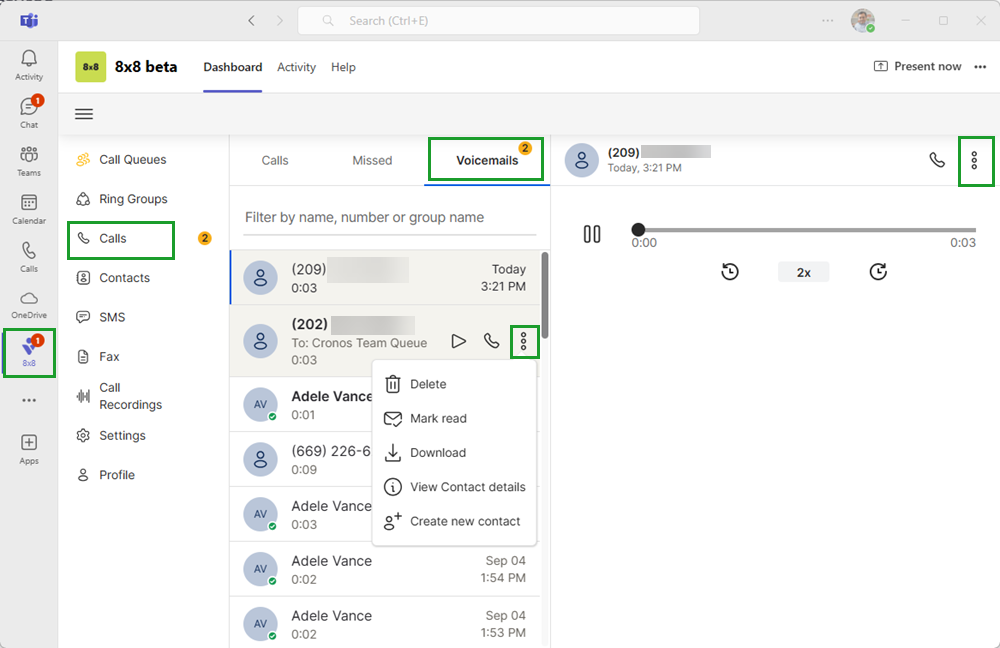
- From the Microsoft Teams app, go to 8x8 > Calls .
- Select the Voicemails tab. New voicemails are marked with an orange dot.
- Click a voicemail to play it, or hover over a voicemail and select Play
 or Call .
 - (Optional) Click
 to display more options such as:
- Delete
- Mark read
- Download
- View Contact details
- Create new contact
Note: If you have a Teams Phone license, the Voicemail option is shown in the main app navigation bar, instead of the Calls option.
Access contacts from the 8x8 Teams app
You can view 8x8 corporate or company contacts and create your own personal contacts from the 8x8 Teams app.
To access and manage Contact from the app:
- From the Microsoft Teams app, go to 8x8 > Contacts.
- Select the Favorite, Company or My Contacts, and browse the contacts.
- My Contacts allows you to create personal contacts that are not shared with other company members.
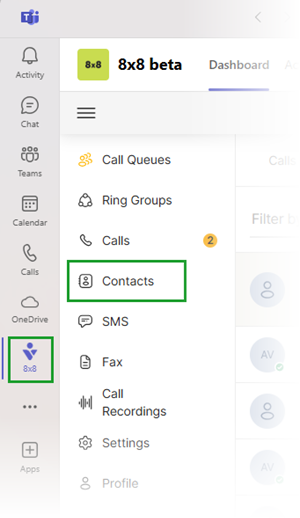
Note: To use the Contacts option inside the 8x8 Teams app, an administrator must first enable the corporate directory feature through the 8x8 Admin Console.
The Contacts option displays:
- All 8x8 licensed users
- Services (8x8 Call Queues or Ring Groups)
- Company contacts (imported by admin in Admin Console > Contacts)
- Personal contacts created by the user


