Get started with 8x8 Work for HubSpot
Once you have access to 8x8 Work for HubSpot, you can launch the integration and manage calls directly from your integration.
Open the integration panel to explore the interface, access call controls, and handle customer interactions.
Note: The integration launches in a floating window.
Before you begin
To use the integration, you need:
- Log in access to a CRM account.
- Log in access to an 8x8 Work extension.
To make and receive calls, you must be logged in to 8x8 Work for Desktop, 8x8 Work for Web, or 8x8 Work for Mobile.
To log in to 8x8 Work for HubSpot:
- Log in to your HubSpot account.
- From the left navigation menu, select CRM > Contacts.
- Click the
 icon from the bottom-right of the screen. The 8x8 integration panel opens in a floating window.
 - On the integration panel, click Continue to Set up.
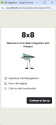
-
Click 8x8 Work and Engage.
- Click Select.
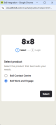
- When prompted, enter your agent credentials to log in to 8x8 Work for HubSpot.
- The authentication process runs in a new tab and automatically closes when completed.
You can now use the 8x8 integration for HubSpot.
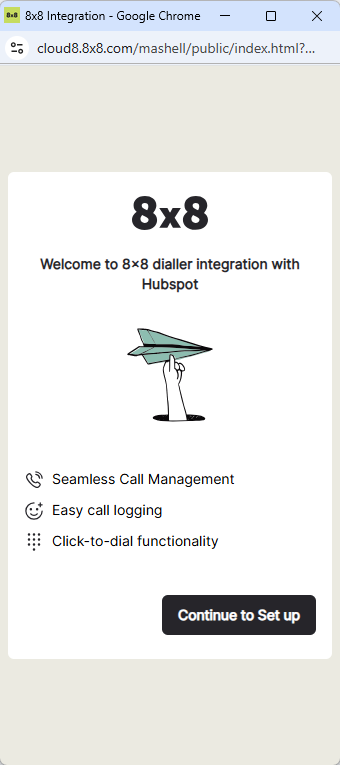
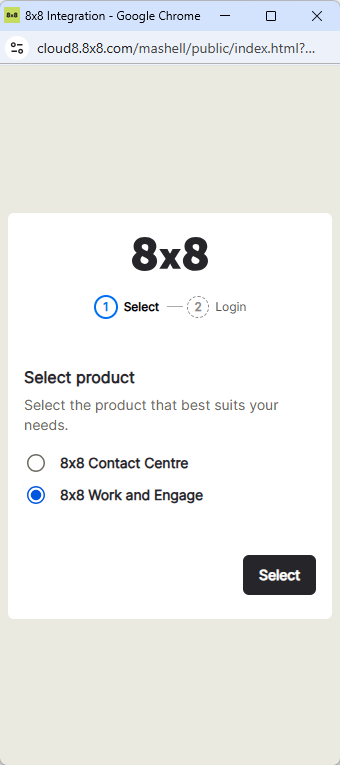
Note: Steps 4 to 6 appear only during first-time setup, after clearing your browser’s cookies and cache, or after resetting the panel from the integration settings.
Important: To make and receive calls, you must be logged in to 8x8 Work for Desktop, 8x8 Work for Web, or 8x8 Work for Mobile.
Tour the 8x8 Work for HubSpot interface
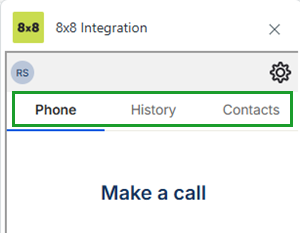
The 8x8 Work for HubSpot interface includes the following main tabs at the top of the app:
- Phone: Use to manage calls.
- History: View your recent incoming, outgoing, and missed calls. From this list, you can quickly return a call or remove entries you no longer need.
- Contacts: Access and search contacts and internal extensions.
- Settings: Click the settings icon to configure your app preferences.
Select a tab to switch between features.
Access the integration settings
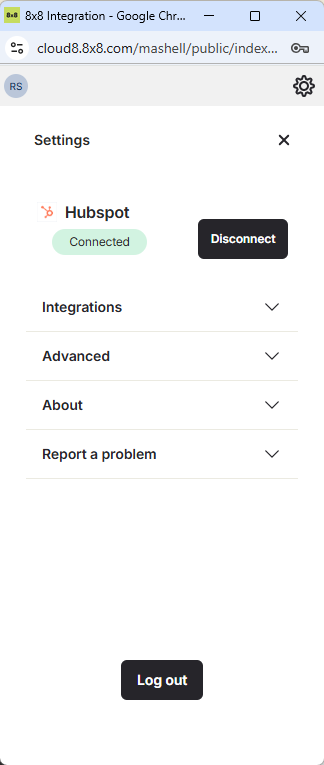
From the Settings  , you can view connection status, manage screen pop settings (if permitted by your administrator), access advanced options, and report issues..
To access your integration settings:
- Click the Settings icon from the top of the 8x8 Work for HubSpot integration app.
- Use the following options:
- Connect/Disconnect: Reconnect or disconnect the integration from HubSpot. The integration automatically connects when you log in.
- Integrations: Access screen pop settings that control how the integration behaves during interactions. You can edit these settings if granted permission by the administrator. See Manage your integration settings.
- Advanced: Reset the panel to clear call history and end your 8x8 session.
- About: Displays application information such as username, phone number, extension, PBX, and version details.
- Report a problem: Report issues or contact support.
- Log out: Log out of 8x8 Work for HubSpot.
Manage your integration settings
Integration settings allow you to control how 8x8 Work for HubSpot behaves during interactions. Based on permissions configured by your administrator, you can enable or disable specific options that affect call handling, screen behavior, and activity logging.
To manage your integration settings:
- Click the Settings icon from the top of 8x8 Work for HubSpot.
- Select Integrations to view the options.
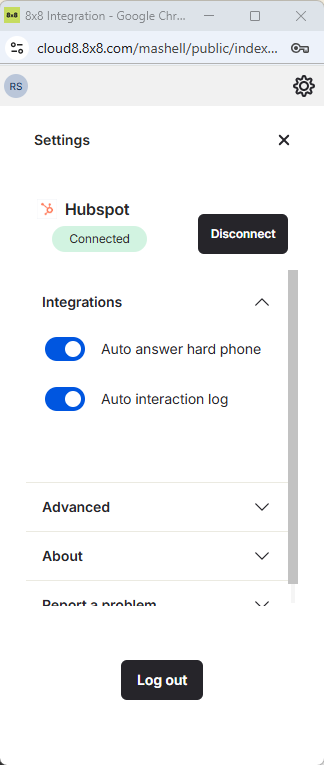
Note: You can only change interaction settings if permitted by the admin.
| Setting | Description | Default state |
|---|---|---|
| Auto answer hard phone | Allows calls to be automatically answered if the headset supports it. | Enabled |
| Auto interaction log |
Allows the integration to automatically create a call log. The following states are supported: Offered, Connected, and Terminated. If Complete is set, then the default Terminated state will apply. If Complete is set and the interaction is abandoned before the Complete state is reached, the interaction log will be created on the default Terminated state. |
Enabled |


