Handle digital interactions
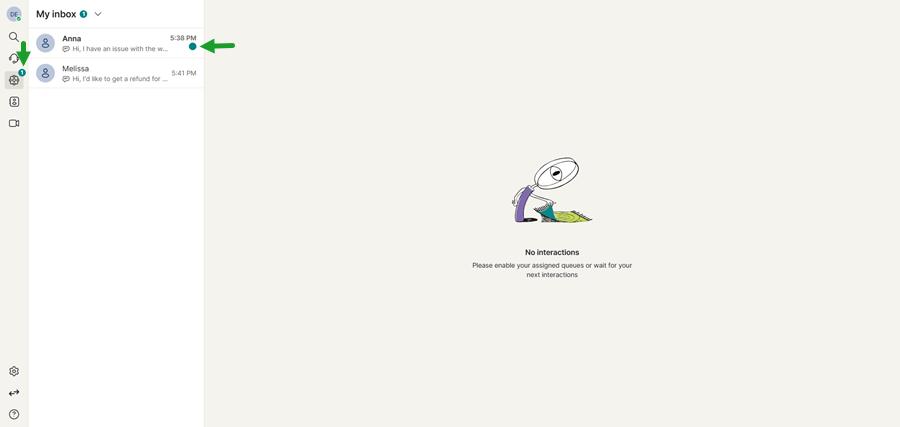
8x8 Engage Digital-only and 8x8 Engage Omni users will see a new icon in the left navigation menu called My Inbox  .
.
My Inbox is the workspace where users manage digital customer interactions assigned from Contact Center queues. These interactions are automatically accepted and assigned based on user availability and capacity.
When a new digital interaction is auto accepted, a notification bubble appears on the My Inbox  icon, indicating that a new conversation has been assigned.
From My Inbox, users can:
- Read and reply to customer messages.
- View interaction details in the details panel.
- Transfer conversations to another user or queue.
- Mark interactions as resolved.
- View digital interaction history.
Supported digital channels include:
- Webchat
- SMS
- RCS
- Viber
Users can also identify the type of interaction by the icon displayed next to each conversation in the interaction list. In addition, unread messages are indicated by a green dot next to the conversation, helping users quickly identify interactions that require attention.
Limitations
- 8x8 Engage Digital is currently not supported on Android devices. 8x8 Engage Digital is available on Desktop, Web, Teams, and iOS. If you need Android support, contact the Work Apps team at [email protected].
- SMS is only supported in select countries. See the list of supported countries and rates for SMS messaging.
Reply to digital interactions
You can respond to customer messages directly from My Inbox. Select a message and the conversation displays in the workspace where you can read and reply to the customer. Type your response, attach files if needed, and click the send  icon to send your reply.
All responses are sent through the original communication channel used by the customer, such as Webchat, SMS, WhatsApp, Facebook, or RCS and Viber. This allows you to continue the conversation seamlessly without switching tools.
After sending a message, you can click your response to access additional options, such as editing or deleting the message.
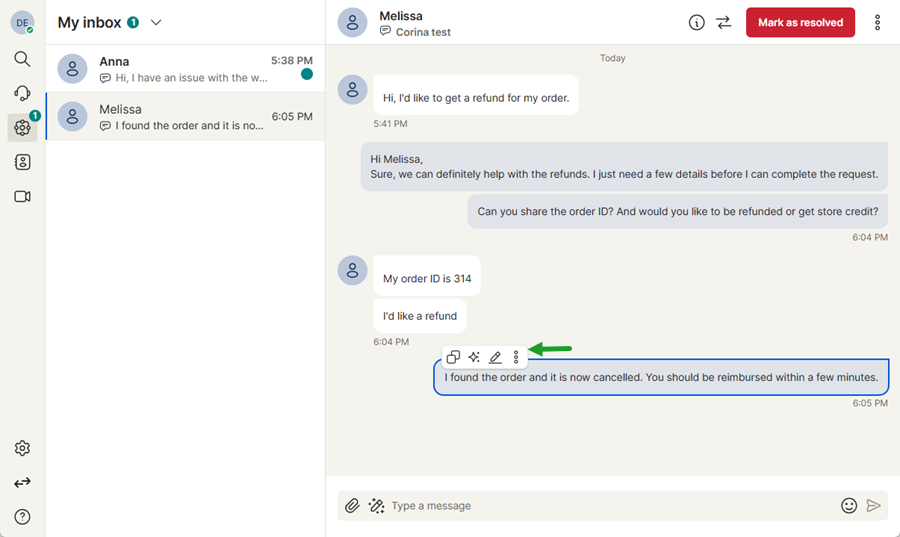
You can continue replying to messages until the customer issue is resolved or the customer ends the webchat.
Once the interaction is completed, the conversation can be marked as resolved.
Note: Webchat messages are automatically marked as resolved and moved to History when the customer ends the conversation. For more information, see how to access History.
View interaction details for digital messages
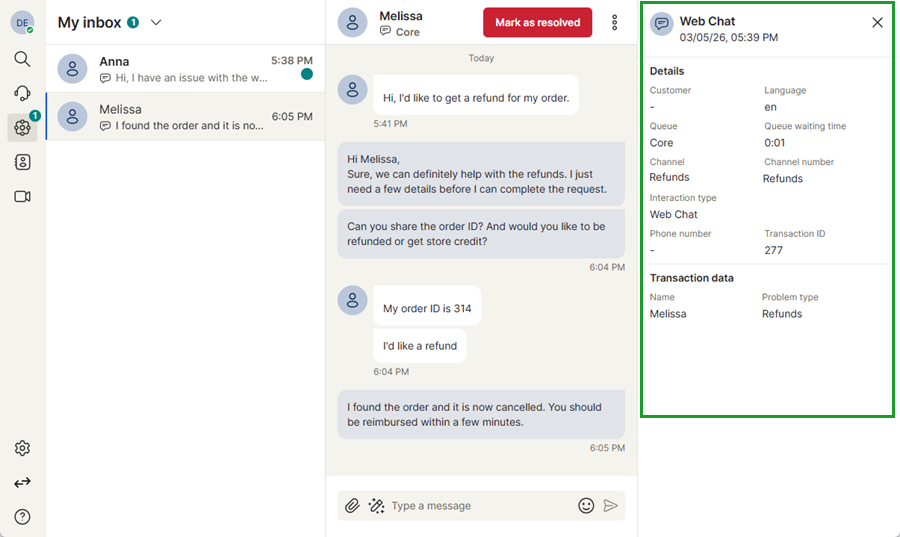
You can view additional information about a digital interaction while handling a conversation in My Inbox. Select a conversation and click the View Interaction details  icon in the top right corner of the workspace to open the details panel.

The details panel provides helpful context about the interaction, including customer information, queue details, channel type, language, and transaction data. This information helps agents better understand the customer request and respond more effectively without leaving the chat workspace.
Transfer a digital interaction
If a customer request requires assistance from another agent or team, you can transfer the digital interaction to another user or queue. Open the conversation in My Inbox and click the Transfer interaction  icon in the conversation header.
To transfer a digital interaction:
- During an active digital interaction, click the Transfer interaction icon in the conversation header.

- In the transfer window, search for a queue, a favorite contact, or a company contact or select it from the list.
- Click Transfer interaction next to the queue or contact.

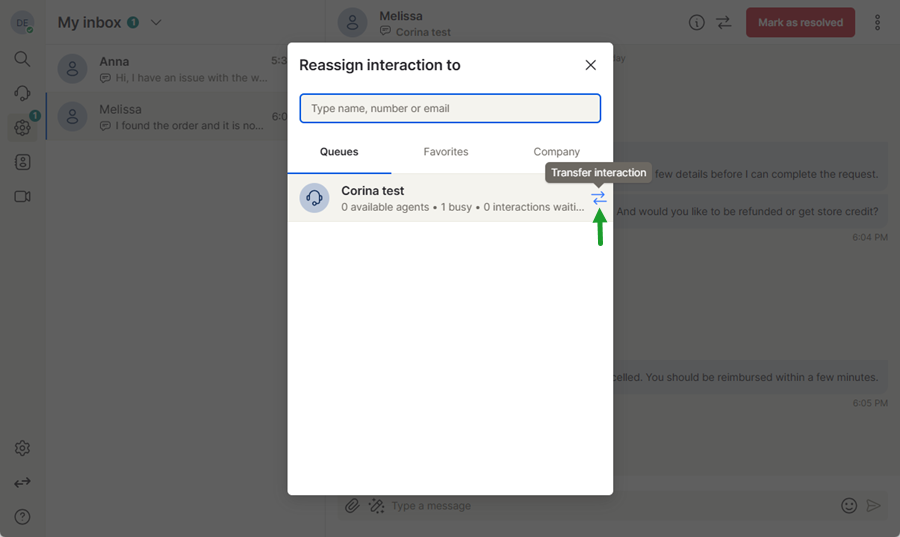
A confirmation message appears to inform you that the transfer was successful.
Mark an interaction as resolved
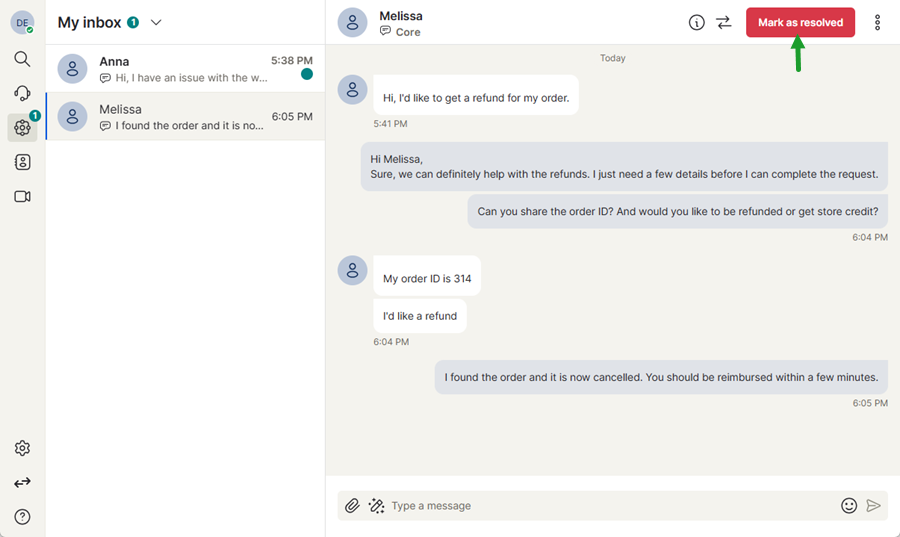
Once a customer request has been addressed, you can mark the interaction as resolved to close the conversation. When an interaction is marked as resolved, it is removed from My Inbox and moved to the History section, where the conversation can be reviewed later if needed.
Note: Webchat messages are automatically marked as resolved and moved to History when the customer ends the conversation.
Access digital interaction history
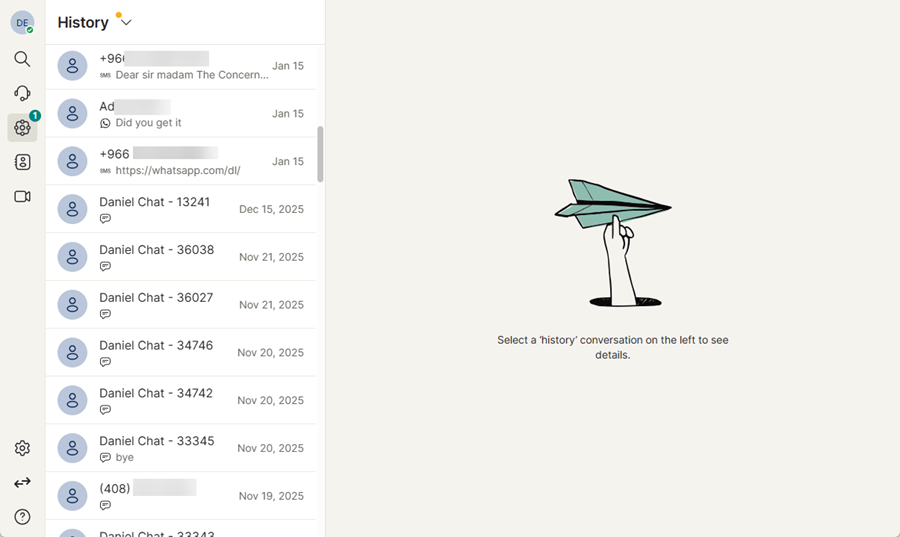
You can access previous digital conversations from the History section in My Inbox.
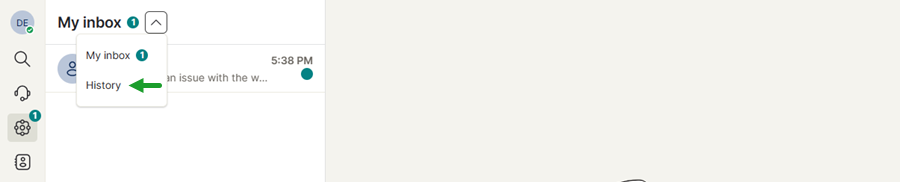
To open History, click the arrow next to My Inbox in the left panel, then select History from the menu. The History view displays interactions that have been marked as resolved or automatically closed.
From this section, you can review past conversations, view interaction details, and track previous customer communications across channels such as Webchat, SMS, WhatsApp, Facebook, or RCS and Viber.